
Windows Won’t Shut Down or Restart? 10 Fixes for Windows 11 and 10
You click Shut down or Restart, and nothing happens. Or the screen says “Shutting down” for ten minutes. If Windows won’t shut down, the cause is usually a hung app, a stuck update, or the Fast Startup feature. This guide was first written for Windows XP by guest author Aseem Kishore. Here are the fixes that work on Windows 11 and Windows 10 in 2026.
Quick answer: Save your work, then force close stuck apps in Task Manager (Ctrl + Shift + Esc). If Windows still won’t shut down, run shutdown /s /f /t 0 from Command Prompt, install pending updates, turn off Fast Startup, and run sfc /scannow and DISM to repair system files. As a last resort, hold the power button for 10 seconds.
Table of Contents
Why Windows won’t shut down
- A hung program: an app or background process refuses to close.
- Windows Update: an update is installing or stuck waiting to finish.
- Fast Startup: this hybrid shutdown can cause shutdown and restart problems on some PCs.
- Drivers: outdated graphics, chipset or USB drivers can block power changes.
- Corrupt system files: damaged Windows files can break the shutdown process.
How to fix Windows that won’t shut down
1. Close hung apps in Task Manager
Press Ctrl + Shift + Esc to open Task Manager. Select any app marked “Not responding” and click End task. In Windows 11 you can also turn on Settings > System > For developers > End task to add an End task option when you right-click a taskbar icon.
2. Force a shutdown from Command Prompt
Open Command Prompt or Terminal and run:
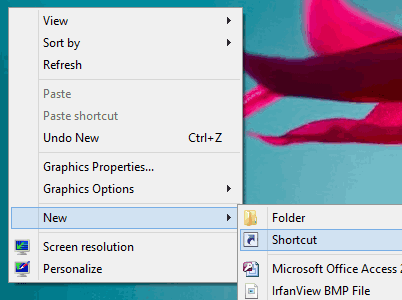
shutdown /s /f /t 0The /f switch forces running apps to close. Use shutdown /r /f /t 0 to restart instead. You can also create a one-click shutdown shortcut on your desktop.
3. Finish Windows Updates
Go to Settings > Windows Update. If an update is waiting, choose “Update and restart” and let it complete. Stuck updates are one of the most common reasons Windows won’t restart.
4. Turn off Fast Startup
Open Control Panel > Power Options > Choose what the power buttons do, click “Change settings that are currently unavailable”, and untick Turn on fast startup. This often fixes PCs that restart instead of shutting down, or hang on the shutdown screen.
5. Repair system files
Run Terminal as administrator and type these two commands, one after the other:
DISM /Online /Cleanup-Image /RestoreHealth
sfc /scannow
Restart when they finish.
6. Update drivers
Install the latest drivers from your PC maker or through Windows Update > Advanced options > Optional updates. Graphics and chipset drivers matter most.
7. Check startup apps
In Task Manager, open Startup apps and disable programs you do not need. Fewer background apps means fewer things to hang at shutdown.
8. Automatically end hung apps (registry)
This tip from the original post still works. Press Win + R, type regedit, go to HKEY_CURRENT_USER\Control Panel\Desktop, create a String value named AutoEndTasks and set it to 1. Windows will then close hung apps automatically at shutdown. Back up the registry before making changes, and remember this can close apps with unsaved work.
9. Try a clean boot
Run msconfig, hide all Microsoft services on the Services tab, disable the rest and restart. If shutdown now works, turn services back on in groups to find the culprit.
10. Hold the power button
If nothing else works, hold the power button for about 10 seconds. Use this only as a last resort, because unsaved work is lost and frequent forced shutdowns can damage files.
FAQ
Why does my PC restart when I click Shut down?
This is usually caused by Fast Startup, a driver problem or the “Automatically restart” option after a system failure. Turn off Fast Startup first.
Is it bad to force shut down a computer?
Occasionally it is fine, but regular forced shutdowns can corrupt files and updates.
How long should Windows take to shut down?
Normally under a minute. If it regularly takes longer, check updates and background apps.
Originally written by guest author Aseem Kishore of HelpDeskGeek, a site with help desk tips for IT professionals. Updated for Windows 11 and Windows 10 in 2026 by QuickOnlineTips.
Get our free weekly email: new tech guides and tools, no spam.
New and updated tech guides, a free tool worth bookmarking and one useful pick, once a week. No spam, unsubscribe anytime.
One email a week. Unsubscribe anytime. See our privacy policy.




Hi Chandra,
Yeah its working! Thank you for your lovely article. I have been worried about this problem for a long time. I tried number of ways but nothing got succeeded. Well Thank you.
I’ve been asked to write about this particular problem. are these the only two solutions? (Except doing a hard shutdown)
This did not help at all. My computer won’t even open task manager when I press ctrl, alt, delete. I am seriously worried and don’t know what to do. I can’t get my computer to shut down, log off or restart. If anyone can help me in any way I would appreciate it very much. Thanks.
Same here, nor will it connect to the internet so i have to use a laptop -.-
Dell Inspiron E1405
Problem: won’t reboot: I get this message every time: A problem has been detected and windows has been shut down…
If this is the 1st time, restart computer
If this scenne appears again (it does) follow these steps: Disable any anit virus: check hard drive conf., Run chkdsk/f for hard drive corruption and then restart comp.
The computer goes back to this screen each time. Any advise? Bob
Thanks pal! the registry tweak make the day!
I have a PC on Vista that won’t shut down. I tried everything described on this site so far, but all I get is that little “busy” circle, centered on a pale “currently connected to” box. I was able to shut down twice before, let the PC rest and restarted, only to have the same thing happen. I know better than to hold down the “off” button, but that may be my only resort. Can any kind person help? I’m an old person and not exactly geek-worthy. I’m sending this from my laptop. Thank you.
I tried to use the automatic kill but it’s just not working for me. I cant’ find the AutoEndTasks registry key. I was about to use the first method but I’m just really unsure about ending processes.
The Registry key is where he says it is..
At least on Windows XP might be different on Vista/windows 7.
Ending processes is also more safe then let say put in the wrong value or string in the registry..
i’m on vista and it doesn’t shut down, restart, or log off. It will either display the message “logging off” or “shutting down” for eternity–it doesn’t end. I left it there for 5 hours and it wouldn’t log off. When i click restart it just goes to the blue and green background with windows vista business written at the bottom, and stays there. I had music playing when i clicked restart, and the music is still playing. Even when i don’t have music playing, it wont do the 3 things above. On top of all that, it’s not showing me a message to kill any ‘hung’ process, because it’s not at the desktop. It’s ‘halfway’ between restarting and not restarting. This is getting on my ******* nerves.
Got the vista CD? if yes boot it up and run a repair.
Should fix any corrupted files you got that causes the problem.
Dont know how to use the repair, ill would google it, its not hard and not easy to make mistakes.
tried the process through task manager but user entries just wouldnt delete.
Great advice! Worked perfectly, just not sure how to backup registry. However I did the process through task manager, and without any problems it fixed everything straight away. Able to restart and shutdown without a problem. Thanks so much for your advice… I’m pretty smart with computers but I couldn’t wrap my head around this one. You were the only person to offer no nonsense clear advice. I will be sure to check here first with any other problems that may arise in the future. Thanks heaps. Much apprecieted!
hi naomi, i just want to clarify if each time you end the process, you tried to shut it down. Or, you just end them all one by one, then shut it down?
Thanks! That helped a lot. I had a process running that was preventing it from shutting down even though I clicked shut down and restart.
Solved.
-Matt
i have number of trouble shooting.when i on my computer is not booting and display is not coming what the problem.how to solve this problem please response me soon and i have abother problem when is install a audio drivers my system is restarting.how to install audio drivers and no restart problem please response me soon.sorry for my english is not good
Did it work previously?
If so, try booting with “last known good configuration”
This should use the previous driver.
If this not the case, then try pressing F8 just before the windows loading screen on boot, and select safe mode. Then install the drivers.
I dont understant , why people dont start using Linux where processes are handled quite well by kernal.
Sorry to say but linux is way more buggy then windows will ever be.
Ah, the fun of regedit, the Task Manager, and other joys of Windows. You did a great job explaining how to avoid the other solution (press the power button until the system resets, then reboots). In my experience, most people do more harm than good when they launch Regedit, but that’s just one person’s view.
I would suggest more users have hard drive issues usng your method. By default, holding the power button will tur the system off. Then commonly people boot it back up before the disk spins down. A voila, new HDD required.
Just one persons view