
Twitter Header Size 2026: X Banner 1500×500 Dimensions and Tips
What is the right Twitter header size in 2026? On X (formerly Twitter) the recommended header image is 1500 x 500 pixels, a 3:1 banner. When Twitter first launched header photos in September 2012, we updated the QuickOnlineTips profile within minutes using the then-recommended 1200 x 600 size. The design has changed several times since, so here are the current sizes and tips for a header that looks sharp on phones and desktops.

Quick answer: Use a 1500 x 500 pixel JPG or PNG for your X header and a 400 x 400 pixel image for your profile photo (max 2 MB, shown as a circle). Keep important text and logos in the centre of the header, because the edges get cropped on some screens and your profile photo covers the bottom left.
Table of Contents
Twitter header size and other X image sizes
- Header (banner): 1500 x 500 px recommended (3:1 ratio).
- Profile photo: 400 x 400 px recommended; JPG, PNG or GIF up to 2 MB. Displayed as a circle (square for some organisation accounts).
- In-post images: 1600 x 900 px (16:9) for single landscape images, or square 1080 x 1080 px.
How to change your Twitter header image
- Open your profile on X.com or the app.
- Click or tap Edit profile.
- Tap the camera icon on the header area and choose your image.
- Drag and zoom to position it, then click Apply and Save.
Tips for a great header image
- Design for the safe zone: keep key content in the middle third. On mobile, the top and bottom are cropped, and your profile photo overlaps the lower left.
- Export at exactly 1500 x 500 so X doesn’t upscale or crop unexpectedly. Use free tools like Canva or the image editor of your choice.
- Use high contrast and little text. A tagline, website or simple brand graphic works better than lots of words.
- Save as PNG for logos and text, JPG for photos, and keep file sizes small for quick loading.
- Match your other profiles. Use the same branding as your Facebook cover photo so people recognise you.
- Refresh it for launches, events or seasons to keep your profile current.
A bit of history: Twitter headers in 2012
Twitter introduced header photos on 18 September 2012. The recommended size changed within days from 1252 x 626 to 1200 x 600, and you uploaded it under Settings > Design. Here is how our new profile looked that day:
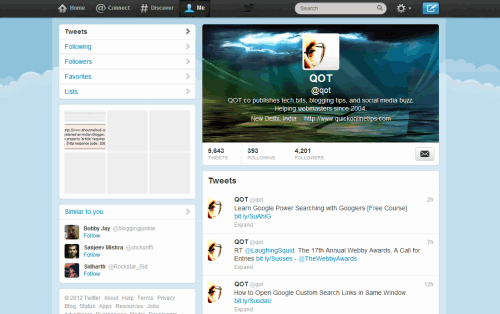
In 2014 Twitter moved to the wide 1500 x 500 banner used today. Want to personalise your profile picture too? See how to add a frame or icon to your Twitter profile picture.
FAQ
What is the best size for a Twitter header?
1500 x 500 pixels, a 3:1 ratio, as recommended by X.
Why is my Twitter header blurry?
It was probably smaller than 1500 x 500 pixels and got stretched, or was heavily compressed. Upload a larger, sharp image.
Why is my header cropped on mobile?
X crops the header differently on each screen size. Keep important elements in the centre.
Get our free weekly email: new tech guides and tools, no spam.
New and updated tech guides, a free tool worth bookmarking and one useful pick, once a week. No spam, unsubscribe anytime.
One email a week. Unsubscribe anytime. See our privacy policy.





I like to use http://ww38.twitterheaders.co/ they have a twitter header creator.
The recommended size has now been changed to 1200 by 600 px. If you try to load anything bigger it spits out an internal server error.
Thanks for your comment. We have updated the article. 1200×600 seems a more reasonable size than 1252×626 px.
Well it moves the content down so it’s worse for conversions in my opinion. The background can make the tagline hard to see, like in your case. I won’t do it but thanks for posting about it :)
You are right about the background, and we tested several already. The image has to be carefully chosen if you want good tagline visibility. What are your thoughts about better posted images visibility and conversions.
I can’t wait to try this out. Thanks for sharing today on the first day it is available. It will be interesting to see how everyone does there’s on Twitter.
I’m not much of a fan of it. Don’t like how the phone web version and IOS app you have to swipe across user profiles to view their bios and profile picture.
I do however like and think it is longer overdue that you can flick through the images that users have put up