Fake CAPTCHA Scam (ClickFix): How to Spot It and What to Do If You Fell for It
A fake CAPTCHA looks like the usual check that you are a person, but instead of ticking a box or picking pictures, it tells you to open the Windows Run box and paste something into it. Do that and you paste and run a hidden command that installs malware. Security researchers keep reporting new waves of these pages (the trick is known as ClickFix), and Microsoft, Apple and the US Federal Trade Commission have all published warnings about it. Here is how to spot one in seconds, and exactly what to do if you already followed the steps.
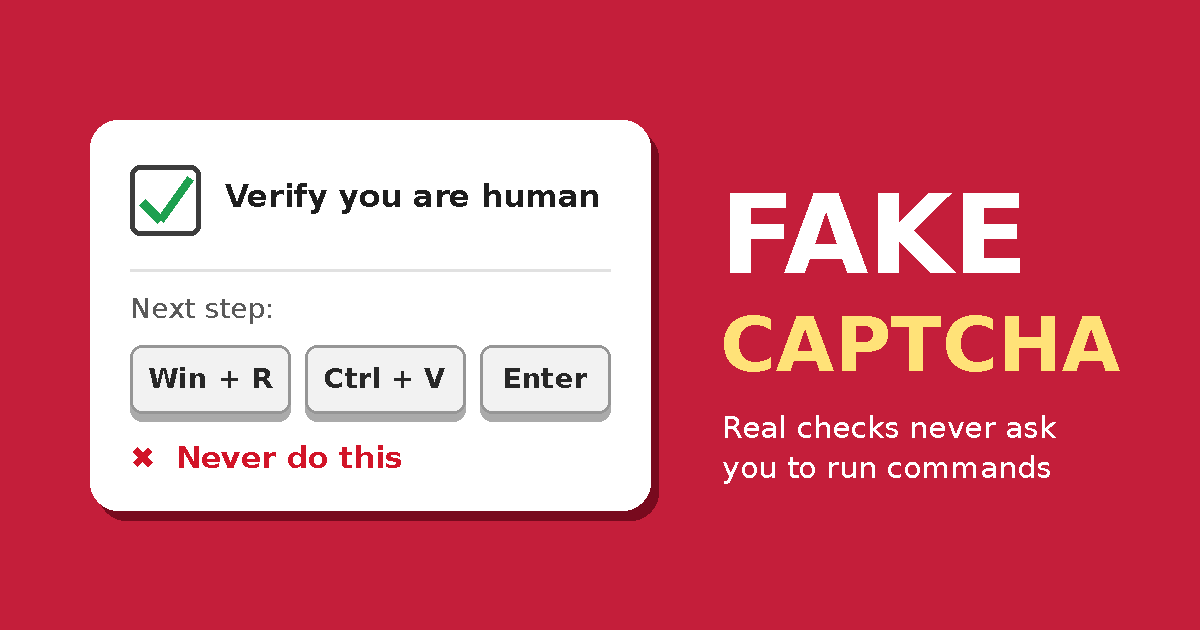
Quick answer: A real CAPTCHA never asks you to open the Run box, Terminal or PowerShell, or to paste anything. If a page asks you to open the Run box or Terminal and paste something, close the tab. If you already ran it: disconnect from the internet, run a full and an offline scan, then change your passwords and turn on two-factor authentication from a different, clean device, and watch your bank and email accounts.
Table of Contents
What is a fake CAPTCHA (ClickFix) scam?
A CAPTCHA is the small test websites use to check that a visitor is a person and not a bot. Scammers copy its look because everyone is used to clicking through it without thinking.
In a fake CAPTCHA, the page quietly copies a malicious command to your clipboard when you click its button. It then shows “verification steps” that get you to paste and run that command yourself. Microsoft’s threat researchers call this the ClickFix technique (external site, opens in new tab): the victim is told to paste into the Windows Run dialog box, Windows Terminal or Windows PowerShell. Because you run the command, many of the usual download warnings never appear.
The same trick comes in other costumes, not only CAPTCHAs:
- A copy of a well-known human-check box or a Google-style robot check
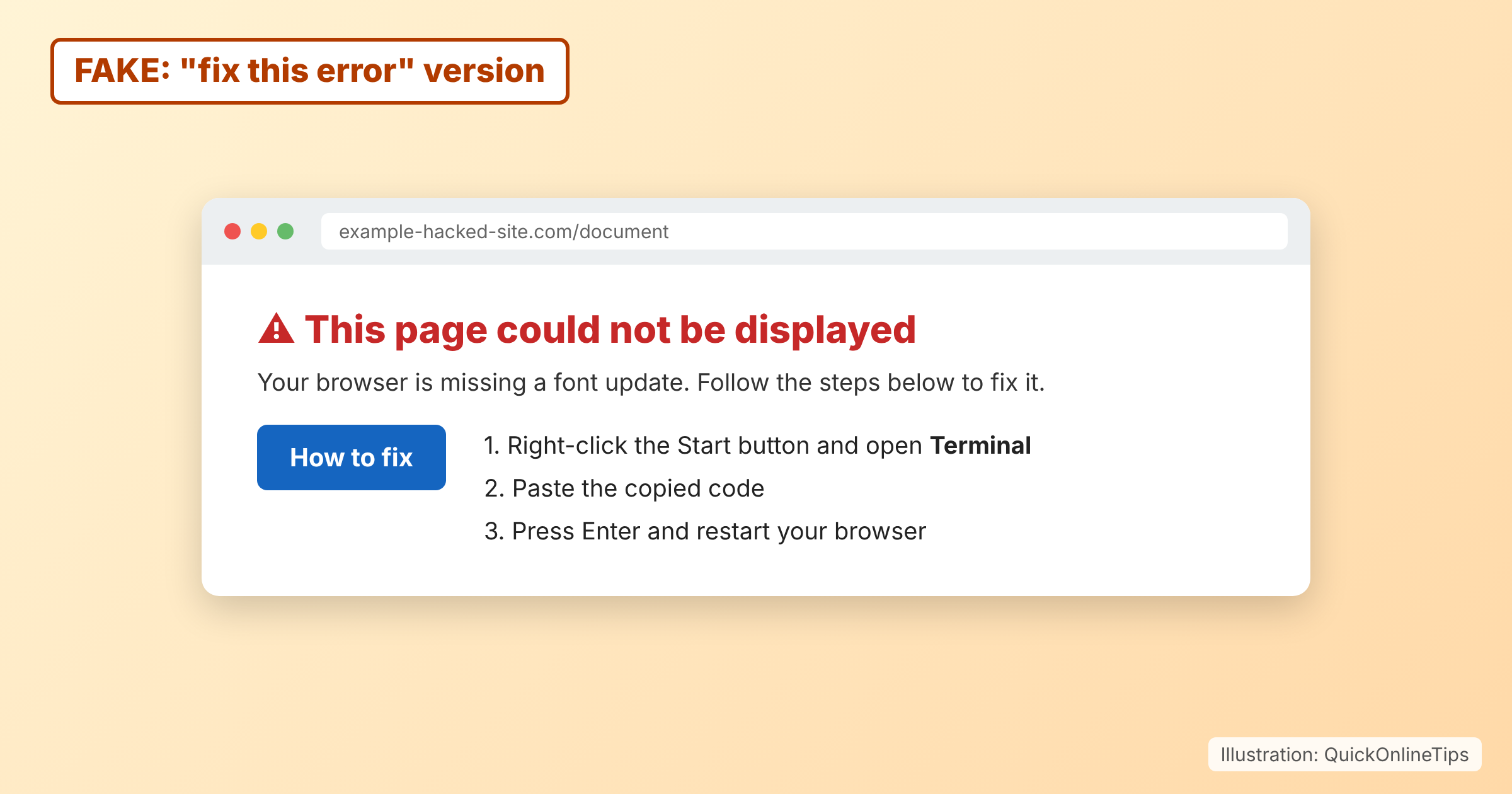
- A fake browser crash or error page with a “How to fix” button
- A fake “missing extension” or “document can’t be displayed” message
- A fake verification step to join a chat server or community
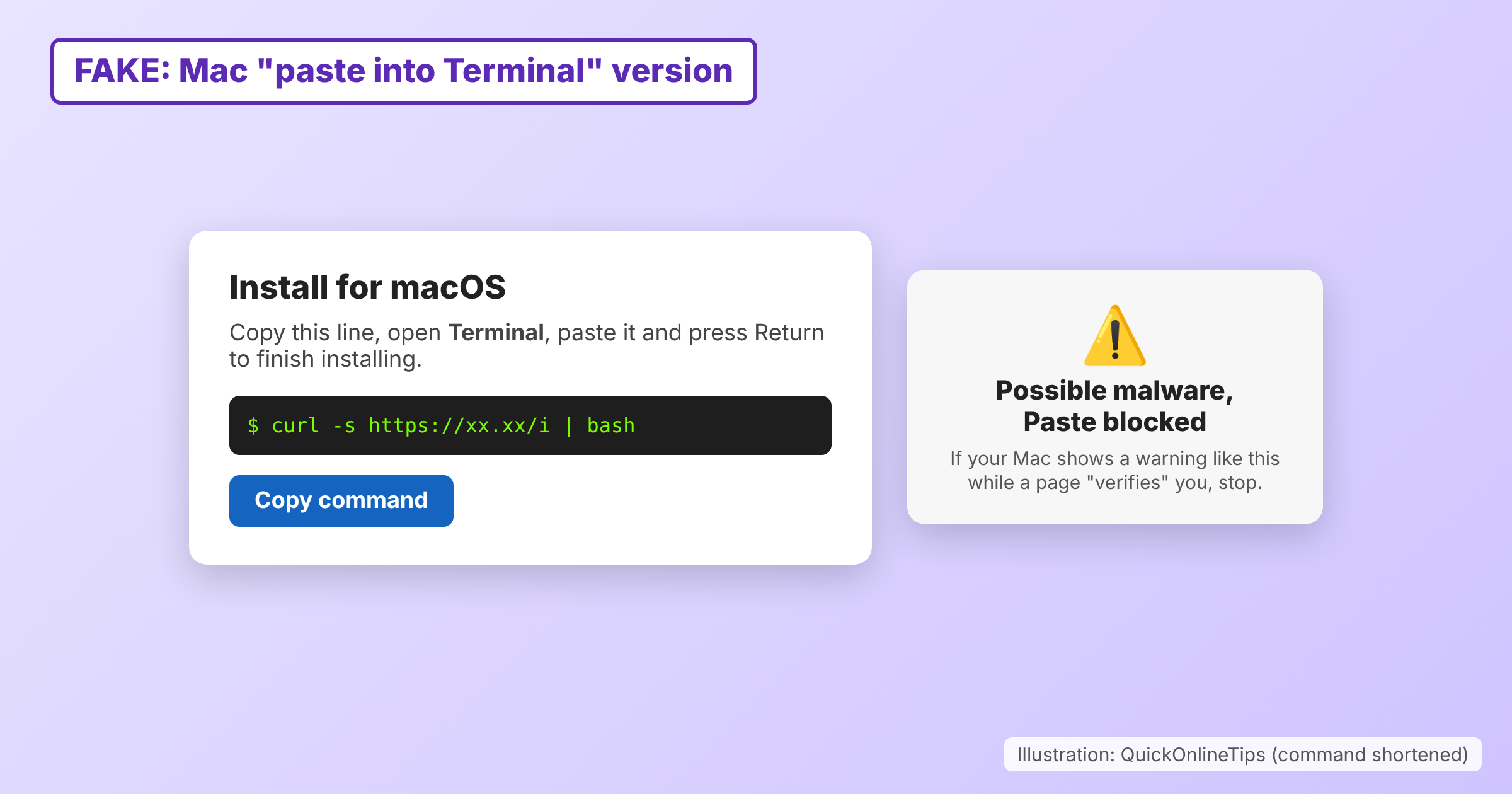
- On a Mac, a fake download page that says “open Terminal and paste this to install”
You can land on one from a phishing email, a search ad, or a normal website that has been hacked, so a familiar site is no guarantee. Here are two of those other costumes (our own illustrations of the pattern, not real scam pages):
What happens if you run the command?
The pasted command downloads and starts malware in the background. Microsoft reports that the most common payloads are information stealers, which grab saved passwords, browser cookies and other data, plus remote access tools that let attackers control the computer. The FTC warns that this can give scammers your email logins, mobile banking details and other information on the device.
On Macs, the same lure delivers password stealers that go after the keychain, browser data and crypto wallets. So the danger is not the page itself but the command you are talked into running.
How to spot a fake CAPTCHA: 7 warning signs
- It asks you to press keyboard shortcuts. Open the Run box, paste and press Enter, or any other key combination. Real checks never do this. The FTC’s CAPTCHA scam alert (external site, opens in new tab) says it plainly: real CAPTCHAs don’t ask you to run commands on your device.
- It mentions Run, Terminal, PowerShell or Command Prompt. No website needs you to open these to prove you are human.
- It asks you to paste something. If you didn’t copy anything yourself, ask why the page wants you to paste.
- Something downloads after you “verify”. The FTC calls a download after a CAPTCHA a major red flag.
- The steps are numbered like a tutorial. “Step 1, Step 2, Step 3” instructions with pictures of keys are a classic sign.
- It appears on a page you didn’t expect to be protected, or pops up again and again while you browse a site you know.
- It rushes you. “Verification expires in 60 seconds” or “you will be blocked” is pressure, not security.
What a real CAPTCHA looks like
Legitimate checks are boring on purpose. The FTC notes that real CAPTCHAs usually ask you to type the characters you see or pick images such as traffic lights or fire hydrants. Many modern checks ask for even less. Cloudflare’s documentation for its Turnstile check (external site, opens in new tab) says visitors are usually not asked to do anything, and at most are asked to select a box, with no images or text to decipher. Other checks just show a short loading spinner.
| Real CAPTCHA | Fake CAPTCHA |
|---|---|
| Tick a box, or nothing at all | Open the Run box and paste |
| Pick images or type letters you see | Paste a command into Run, Terminal or PowerShell |
| Happens inside the web page | Sends you outside the browser |
| Nothing downloads | A file or script starts downloading |
| No countdown or threats | “Verify now or be blocked” |
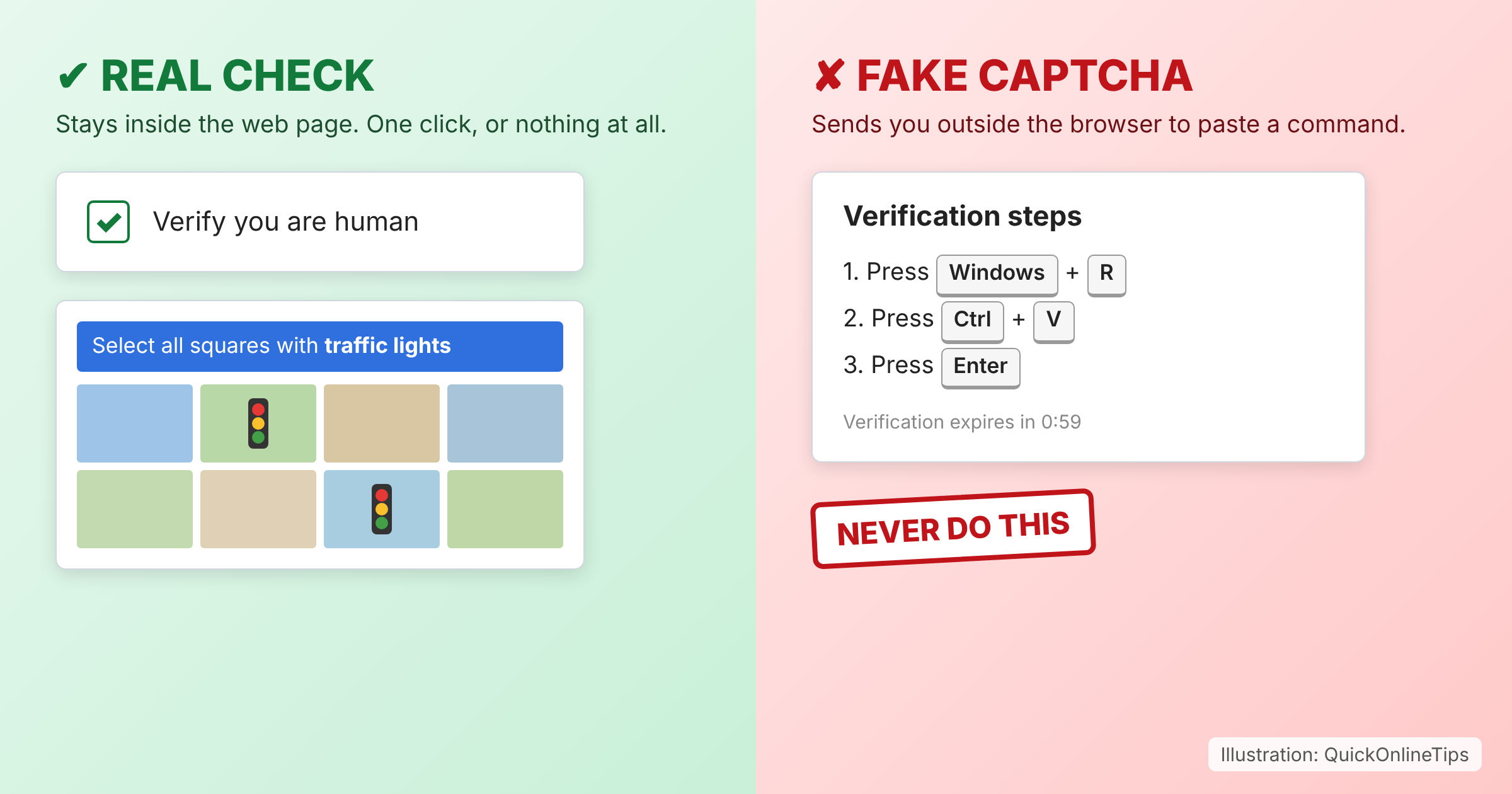
The rule to remember: if a check wants your keyboard shortcuts, it is not a CAPTCHA.
What to do if you see one (but didn’t run anything)
- Close the tab or the whole browser. Don’t click anything else on the page.
- Copy any harmless text (a word from this article will do) so the malicious command is no longer sitting in your clipboard.
- If you clicked a download, delete the file without opening it.
- Report the page: in the US at ReportFraud.ftc.gov, and in India on the national cybercrime portal cybercrime.gov.in (external site, opens in new tab) or helpline 1930.
Fell for a fake CAPTCHA? What to do right now
If you pressed the keys and hit Enter, act quickly. The FTC’s first three steps are: disconnect from the internet, run a security scan, and change passwords and turn on two-factor authentication from a different device. Here is the full checklist.
1. Disconnect from the internet
Turn off Wi-Fi or unplug the network cable. This cuts the malware off from the attackers and stops it sending more of your data.
2. Scan the computer (Windows)
Microsoft Defender is built into Windows. Open the Windows Security app, go to Virus & threat protection, choose Scan options and run a Full scan. Then run Microsoft Defender Antivirus (offline scan) from the same list. Save your open files first: the offline scan restarts the PC and checks it before Windows loads, which helps catch malware that hides while Windows is running. Afterwards, check the results under Protection history.
A second opinion from a reputable scanner doesn’t hurt; our guide to the best free antivirus for Windows and Mac compares the free options.
3. Scan and update (Mac)
Update macOS from System Settings > General > Software Update, then run a scan with a trusted security app and remove any app you don’t remember installing.
Recent versions of macOS can also stop the trick before it starts. Apple’s support page on blocked Terminal pastes (external site, opens in new tab) explains that if you don’t usually use Terminal and paste a command copied from a website, chat or email, your Mac may show a “Possible malware, Paste blocked” alert. Apple’s advice is not to paste the command unless you know what it does and where it came from. If you see that warning while a web page is “verifying” you, you have found a fake CAPTCHA.
4. Change passwords from a clean device
Assume anything saved in your browser may have been copied. Using a different phone or computer, change the passwords for your email first (it can reset everything else), then banking, payment apps, social media and work accounts. Sign out of all sessions where the service offers it, because stolen browser cookies can keep attackers logged in even after a password change.
A free password manager makes it easier to give every account a new, unique password.
5. Turn on two-factor authentication
Add a second step to your important accounts so a stolen password alone isn’t enough. An authenticator app is safer than text-message codes.
6. Clean up the browser
Open your browser’s extensions page and remove anything you didn’t install or don’t recognise. Clear cookies for important sites, or sign out of everything, so old sessions stop working.
7. Watch your money and identity
Check bank and card statements for the next few weeks, turn on transaction alerts in your banking app, and tell your bank at once if you see anything odd. If you stored crypto wallet details on the computer, move funds to a new wallet created on a clean device. If personal documents were on the machine, follow our steps to protect yourself from identity theft.
8. When in doubt, reset
If scans keep finding threats, the computer behaves strangely, or it is a work device, stop using it for sensitive tasks. Tell your IT team, or back up your personal files and reset the system to start clean.
How to block fake CAPTCHA pages before they reach you
- Turn on stronger browser protection. In Chrome, open the three-dot menu, then Settings > Privacy and security > Security, and choose Enhanced protection, as described in Google’s Safe Browsing help (external site, opens in new tab). Microsoft says Defender SmartScreen in Edge warns users when they visit a known ClickFix page.
- Keep Windows, macOS and your browser updated, so the latest protections and warnings are in place.
- Be careful with search ads for downloads, and type addresses for important sites yourself.
- Tell family and coworkers the one rule: no website will ever ask you to open the Run box or paste into Terminal to prove you are a person. That single sentence stops this scam.
- For workplaces: Microsoft’s guidance includes teaching staff to recognise these lures, using Group Policy to turn off the Run dialog box for people who don’t need it, and turning on PowerShell script logging.
Frequently asked questions
Is just seeing a fake CAPTCHA dangerous?
The attack needs you to paste and run the command. If you closed the page without pressing the keys, you are very likely fine. Copy some harmless text to replace whatever is in your clipboard and delete anything that downloaded.
Can a fake CAPTCHA infect a Mac or phone?
Yes on a Mac: the Mac version asks you to paste a command into Terminal and installs password-stealing malware. Phones don’t have a Run box or Terminal in the same way, so the keyboard trick is mainly aimed at computers, but phone users still see fake pages that push app downloads or ask for logins.
What is ClickFix?
ClickFix is the name security researchers use for scams that trick you into copying and running a command yourself, usually disguised as a CAPTCHA, a “fix this error” button or a software install step.
Is every “are you human” check a scam?
No. Many real sites show a check like this. It only becomes a scam when it asks you to use keyboard shortcuts, open Run or Terminal, paste something or download a file.
Where do I report a fake CAPTCHA site?
In the US, report it at ReportFraud.ftc.gov. In India, use cybercrime.gov.in or call 1930. You can also use your browser’s “report unsafe site” option so it gets blocked for others.

Subscribe to our weekly tech newsletter
Free: 100 Tech Terms ebook (worth $2.99)
Unsubscribe anytime. Privacy