How to Turn Comments On or Off for Multiple Posts in WordPress
How do you turn comments on or off for multiple previous posts in WordPress? When I started our short-tips tumblelog years ago, I disabled comments and trackbacks for every post. Hundreds of posts later I decided to open comments up, and found that changing the global setting only affects new posts; every existing post keeps its own setting. Back then a plugin saved the day. Today WordPress can do it built in. Here is how to turn comments on or off for multiple posts at once in 2026.

Quick answer: Go to Posts > All Posts, tick the posts (set “Number of items per page” in Screen Options higher to select more), choose Bulk actions > Edit, then set Comments to Allow or Do not allow and Pings to Allow or Do not allow, and click Update. For thousands of posts, use WP-CLI, the Disable Comments plugin, or the “automatically close comments” setting.
Table of Contents
Why the Discussion setting isn’t enough
Under Settings > Discussion, “Allow people to submit comments on new posts” and “Allow link notifications from other blogs (pingbacks and trackbacks)” only set the default for posts you create from then on. Older posts keep whatever they were published with, which is why you need a bulk change.
Method 1: Bulk Edit in WordPress (no plugin)
- Open Posts > All Posts.
- Click Screen Options at the top right and raise Number of items per page (for example to 200). Very high numbers can time out on cheap hosting.
- Filter by category or date if you only want some posts, then tick the select-all box.
- Choose Bulk actions > Edit and click Apply.
- Set Comments and Pings to Allow or Do not allow. Leave other fields as “No change”.
- Click Update, then repeat for the next page.
Method 2: WP-CLI (thousands of posts)
If you have SSH access, this opens comments on every published post:
wp post list --post_type=post --post_status=publish --format=ids | xargs -n 50 wp post update --comment_status=openUse --comment_status=closed to close them, and --ping_status=closed to turn off pings. Back up the database first.
Method 3: Disable Comments plugin
To switch comments off everywhere, or for a whole post type, the Disable Comments plugin does it in one click and can also delete existing comments. The old Extended Comment Options plugin from the original post is no longer maintained.
Method 4: Close comments on old posts automatically
In Settings > Discussion, tick Automatically close comments on posts older than X days. This cuts spam on old posts without touching each one, and can be reversed anytime.
Should you turn pings and trackbacks off?
For most blogs, yes. Pingbacks and trackbacks are now mostly spam, and turning them off on all posts is safe. Keep comments open where you want reader discussion, and use good spam protection. Here are the best WordPress plugins to stop comment spam.
Our experience
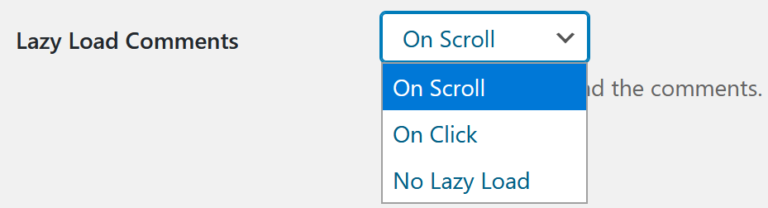
We have switched comments on and off across QuickOnlineTips more than once, closing them when spam got out of hand and reopening them on all posts in 2026 with stricter moderation. Bulk Edit handled it in minutes. If you have many comments, you can also lazy load comments to keep pages fast.
FAQ
Does turning comments off delete existing comments?
No. Existing comments stay visible unless your theme hides them or you delete them.
Can I turn off comments on pages but not posts?
Yes. Filter Pages in Bulk Edit, or choose the post types in Disable Comments.
Why are comments still closed after I allowed them?
Check the “automatically close comments” setting and your theme or plugins, which can override per-post settings.
Get our free weekly email: new tech guides and tools, no spam.
New and updated tech guides, a free tool worth bookmarking and one useful pick, once a week. No spam, unsubscribe anytime.
One email a week. Unsubscribe anytime. See our privacy policy.