
How to Add Custom CSS to the WordPress Editor (Block and Classic)
Want your WordPress editor to look the way you like, or to match your site’s fonts and colours exactly? You can add custom CSS to the WordPress editor with a few lines of code using editor styles. I’ve used a dark editor with light text for years because it’s easier on my eyes during long writing sessions. Here’s how to add custom CSS to the WordPress editor in 2026, for both the block editor (Gutenberg) and the Classic Editor.
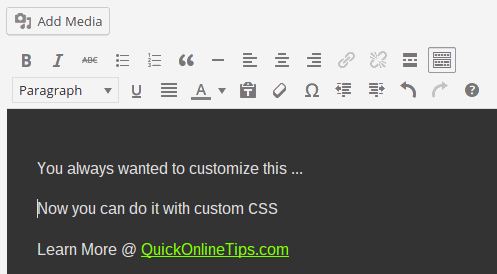
Quick answer: In your child theme’s functions.php, add add_theme_support( 'editor-styles' ); and add_editor_style( 'editor-style.css' ); inside an after_setup_theme hook, then put your CSS in editor-style.css in the theme folder.
Table of Contents
Why add custom CSS to the WordPress editor?
- What you see is what you get: make headings, fonts, colours and spacing in the editor match the front end of your site.
- Comfortable writing: use a dark background, larger text or a narrower column for easier reading.
- Custom classes: preview styled boxes, buttons or notes in the editor exactly as readers will see them.
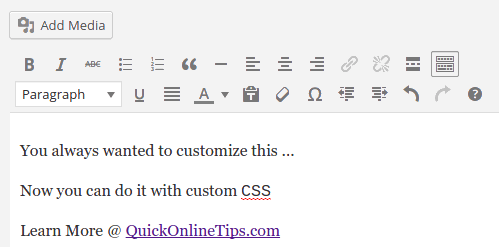
Before, our Classic Editor looked like this:
Step 1: Enable editor styles in functions.php
Use a child theme so your changes aren’t lost when the theme updates. Add this to the child theme’s functions.php, and keep a backup in case of a typo, since an error here can take your site offline:
function qot_editor_styles() {
    add_theme_support( 'editor-styles' );     // needed for the block editor
    add_editor_style( 'editor-style.css' );   // loads the file from your theme folder
}
add_action( 'after_setup_theme', 'qot_editor_styles' );
add_editor_style() looks for the file in the child theme first, then the parent theme.
Step 2: Create the editor-style.css file
Create editor-style.css in your child theme folder using your host’s File Manager, FTP, or by creating theme files without FTP.

Step 3: Add your CSS
For the block editor (Gutenberg), write normal CSS. WordPress automatically prefixes it with .editor-styles-wrapper, so it only affects the content area, not the admin interface:
body {
  font-family: Georgia, serif;
  font-size: 19px;
  line-height: 1.7;
  color: #ddd;
  background: #222;
}
a { color: #7fff00; }
h2 { border-bottom: 2px solid #f28c1e; padding-bottom: 6px; }
.note { background: #fff3cd; padding: 12px 16px; border-radius: 6px; }
For the Classic Editor (TinyMCE), the content is inside an iframe with the body#tinymce selector:
body#tinymce.wp-editor {
  font-family: Arial, Helvetica, sans-serif;
  margin: 30px;
  color: #ddd;
  background: #333;
}
body#tinymce.wp-editor a { color: #7fff00; }
Save the file and reload the editor (use a hard refresh, Ctrl + Shift + R, if you don’t see changes).
Other ways to style the WordPress editor
- Block themes and theme.json: in block themes like Twenty Twenty-Five, styles set in
theme.jsonor Appearance → Editor → Styles apply to the editor automatically. - Editor interface CSS: to change the admin UI around the content (sidebar, toolbar), enqueue a stylesheet on the
enqueue_block_assetsoradmin_enqueue_scriptshook instead. - Import frameworks: you can also add Bootstrap CSS and Font Awesome icons to the editor so their classes preview correctly.
Note that Appearance → Customize → Additional CSS styles only the front end, not the editor.
Frequently asked questions
Does editor CSS affect my live site?
No. Editor styles only load inside the WordPress editor. Your site’s front end uses the theme’s normal stylesheet.
Why isn’t my editor-style.css working?
Check the file name and location, make sure add_theme_support( 'editor-styles' ) is set for the block editor, and clear your browser and caching plugin cache.
Can I use Google Fonts in the editor?
Yes. Pass the font stylesheet URL to add_editor_style() as well, and use the font family in your editor CSS.
Get our free weekly email: new tech guides and tools, no spam.
New and updated tech guides, a free tool worth bookmarking and one useful pick, once a week. No spam, unsubscribe anytime.
One email a week. Unsubscribe anytime. See our privacy policy.




sometime i need css. thanks for sharing a cool article. keep posting this type of article.
This is really an best giveaway for all of your
site reader. it up this Great work!
Hello P Chandra,
Amazing post here, this is really helping me in making my page more presentable and attractive. Thank you for the example that is given, making it very easy to use the custom editor style
Thanks
Can we add this css style in my own wordpress website?
I Have Tried Many Times to Add Custom CSS Style in Post Editor But Every Time I Failed. Your Tips Help Me a Lot, Now it Works in My Blog. Thanks Again for Helping Us.
For me this post is very helpful for me. I think its the easiest and secure way to add style in WordPress post .
I always wanted to find a way to Maximize my User Experience by giving them an awesome Design via WordPress, thanks for sharing this cool article about it..
cool topic to cover, and thanks for sharing as well, now my question is:
Will it affect my theme? because my theme don’t have child theme. or do i need to take backup?
awaiting for reply.
thanks
sunil
It does not affect your main theme. Its a different CSS file.
yes its really does not effected in many themes
wow it looks very good and attractive. As WordPress is my favorite platform and i love to work on it and now i am going to update this and will enjoy this new look
I have been running my own e-commerce websites.I have total 10 websites 5 of them are based on word-press.I think this post will be very useful for my new-staff who relatively new to the wordpress .thanks for sharing this because I can explain them this change verbally but You have explained It in very proper manner
Wow that’s great stuff. Can you please tell me how to add custom style sheets on different pages. I mean Home page and my BIO page in different style sheets