How to Type the Copyright Symbol (©) on Windows, Mac, iPhone and in Word
Adding a copyright line to a photo, website footer or document? Here is how to type copyright symbol on any device: press Alt + 0169 on a Windows numeric keypad, Option + G on a Mac, Ctrl + Alt + C in Microsoft Word, or type (c) in Word and it turns into ©. On phones, the emoji search or a text shortcut does the job. Or simply copy it from here: ©
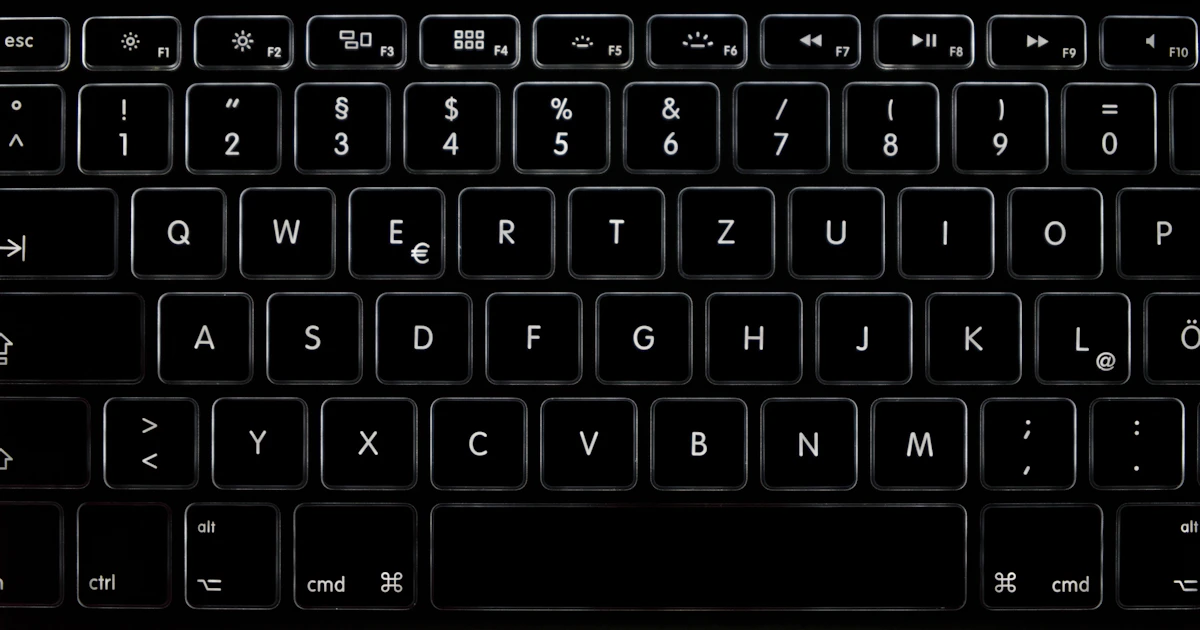
Quick answer: Windows: Alt + 0169 (number pad) or Windows + . > Symbols. Mac: Option + G. Word: Ctrl + Alt + C or type (c). Google Docs: Insert > Special characters > search “copyright”. Chromebook: Ctrl + Shift + U, type 00A9, press Enter. iPhone: emoji search “copyright” or a text replacement. Android (Gboard): ?123 > =\< page. HTML: ©
Table of Contents
Copyright symbol shortcuts at a glance
| Device or app | How to type © |
|---|---|
| Windows (Alt code) | Alt + 0169 on the number pad |
| Windows (any keyboard) | Windows + . > Symbols tab |
| Mac | Option + G |
| Microsoft Word | Ctrl + Alt + C, or type (c) |
| Google Docs | Insert > Special characters |
| Chromebook / Linux | Ctrl + Shift + U, 00A9, Enter |
| Excel | =UNICHAR(169) |
| HTML | © or © |
How to type copyright symbol on Windows 11 and 10
Method 1: Alt + 0169 (keyboards with a number pad)
- Turn on Num Lock.
- Hold down the Alt key.
- Type 0169 on the numeric keypad (the number row along the top won’t work).
- Let go of Alt and © appears.
Method 2: Emoji and symbols panel (laptops)
- Press Windows + . (period) to open the panel.
- Select the Symbols tab (the Ω icon).
- Find © in the symbol groups and click it.
Recently used symbols appear first, so © is one click away the next time.
Method 3: Character Map
Search the Start menu for Character Map, tick Advanced view, search for “copyright”, then click Select and Copy and paste © where you need it.
How to type the copyright symbol on a Mac
Press Option + G. It works in every Mac app with a US keyboard layout. For other symbols, press Control + Command + Space to open the Character Viewer and search by name.
How to type © in Word, Google Docs and Excel
Microsoft Word
- Press Ctrl + Alt + C (Windows).
- Or type (c): Word’s AutoCorrect changes it to © automatically. If you wanted the plain text “(c)”, press Ctrl + Z straight away to undo the change.
- Or type 00A9 and press Alt + X to turn the Unicode code into ©.
- Or go to Insert > Symbol > More Symbols > Special Characters and pick Copyright.
Google Docs
- Click Insert > Special characters.
- Type copyright in the search box.
- Click © to insert it.
To type it faster next time, open Tools > Preferences > Substitutions and make sure (c) is set to be replaced with ©, adding it if it isn’t listed.
Excel and PowerPoint
Alt + 0169 works in both. You can also use Insert > Symbol, and in Excel the formula =UNICHAR(169) returns ©.
How to type the copyright symbol on iPhone and iPad
The iPhone keyboard doesn’t have a © key, but two methods work well:
- Emoji search: tap the emoji key, type copyright in the search bar and tap the © symbol.
- Text Replacement: go to Settings > General > Keyboard > Text Replacement, tap +, paste © as the Phrase and enter a shortcut such as cpy. From then on, typing the shortcut and a space gives ©.
How to type the copyright symbol on Android
On Gboard, tap ?123, then =\< to open the second symbols page, where © sits next to ® and ™. On Samsung Keyboard, look through the symbols pages or use the emoji search. Gboard’s Personal dictionary in its settings can also turn a shortcut word into ©.
How to type the copyright symbol on a Chromebook
- Press Ctrl + Shift + U. An underlined u appears.
- Type 00A9, the Unicode code for ©.
- Press Space or Enter.
The same Unicode method types any symbol, as in our guide to typing the degree symbol.
Copyright symbol in HTML and on your website
In HTML, write © or ©. In WordPress and most site builders you can paste © directly into a footer widget or post. Our HTML Entities Encoder and Decoder converts symbols to codes and back, and the Copy and Paste Symbols tool has ©, ®, ™ and many more ready to click.
How to write a copyright notice correctly
Knowing how to type © is half the job; the other half is using it properly. According to the US Copyright Office’s guide to copyright notice, a notice has three parts, usually written together:
- The symbol ©, or the word “Copyright” or the abbreviation “Copr.”
- The year of first publication.
- The name of the copyright owner.
So a correct notice looks like © 2026 Jane Doe. The Copyright Office says the notice is optional for works published on or after March 1, 1989, but it is still useful: it tells people the work is protected, shows who to ask for permission, and can stop an infringer from claiming they didn’t know. This is general information, not legal advice.
Not sure whether you need © or a trademark sign? Copyright covers creative work such as text, photos and music, while brand names use ™ or ®; see our guide on how to type the trademark symbol. For more keyboard tricks, read how to type an em dash.
FAQ
What is the Alt code for the copyright symbol?
Alt + 0169. Hold Alt and type 0169 on the numeric keypad with Num Lock on. On a laptop without a number pad, use Windows + . and the Symbols tab instead.
What is the Mac shortcut for ©?
Option + G. For the registered symbol ® use Option + R, and for ™ use Option + 2.
How do I stop Word from changing (c) to ©?
Press Ctrl + Z immediately after the change to undo it once. To stop it for good, go to File > Options > Proofing > AutoCorrect Options and delete the (c) entry from the list.
What is the Unicode for the copyright symbol?
U+00A9. In HTML it is © or ©.
Do I need to register to use the © symbol?
No. In the US, copyright protection exists from the moment an original work is fixed in a tangible form, and you can use the © notice without registering. Registration with the Copyright Office gives extra legal benefits; check with a lawyer for your situation.
Photo by Alexander Sinn on Unsplash
Get our free weekly email: new tech guides and tools, no spam.
New and updated tech guides, a free tool worth bookmarking and one useful pick, once a week. No spam, unsubscribe anytime.
One email a week. Unsubscribe anytime. See our privacy policy.