7 Best Authenticator Apps for 2FA in 2026 (Free, iPhone and Android)
The best authenticator app is one that is free, backs up your codes safely and lets you move them to a new phone without getting locked out. For most people that means Google Authenticator or Microsoft Authenticator if you want simple cloud backup, or Proton Authenticator, Ente Auth or 2FAS if you want open-source apps with encrypted backups and easy export. Here are 7 free authenticator apps for iPhone and Android, compared on what matters: backup, sync, export and platforms.

Quick answer: Easiest for most people: Google Authenticator (free sync to your Google account). Best if you use Microsoft or work accounts: Microsoft Authenticator. Best open-source app on every platform: Proton Authenticator or Ente Auth. Best for Android power users: Aegis. Whatever you pick, turn on backup or export your codes before you change phones.
Table of Contents
Authenticator apps compared
| App | Best for | Price | Backup / sync | Export | Platforms |
|---|---|---|---|---|---|
| Google Authenticator | Simplest setup | Free | Sync to Google account (optional) | Yes, by QR code to another phone | iPhone, Android |
| Microsoft Authenticator | Microsoft and work accounts | Free | Cloud backup (iCloud on iPhone, Microsoft account on Android) | No general export | iPhone, Android |
| Proton Authenticator | Open source on every device | Free | End-to-end encrypted sync (account optional) | Yes | iPhone, Android, Windows, Mac, Linux |
| Ente Auth | Open source with web access | Free | End-to-end encrypted sync (account optional) | Yes | iPhone, Android, Windows, Mac, Linux, web |
| 2FAS | Simple open-source mobile app | Free | Cloud and manual backup | Manual backup file | iPhone, Android, browser extension |
| Aegis | Android users who want control | Free | Encrypted local vault, automatic backups | Yes | Android only |
| Twilio Authy | Existing Authy users | Free | Encrypted cloud backup | No | iPhone, Android (desktop retired) |
What an authenticator app does (and why it beats SMS codes)
When you turn on two-factor authentication (2FA), a site asks for a second proof after your password. An authenticator app gives you that proof as a six-digit code that changes every 30 seconds. The codes are made on your phone, so a thief who steals your password still can’t sign in without your phone.
App codes are safer than text-message codes because they can’t be stolen by a SIM swap, where a scammer moves your phone number to their own SIM card. The US Cybersecurity and Infrastructure Security Agency (CISA (external site)) urges everyone to turn on multifactor authentication, and it rates phishing-resistant options such as passkeys and security keys as the strongest. An authenticator app sits in the middle: much better than SMS, but a very convincing fake login page can still trick you into typing a code, so always check the web address first.
How we chose these apps
Every app here is free for personal use and works with the standard time-based codes (TOTP) used by Google, Microsoft, Apple, Facebook, Instagram, Amazon, banks and most other sites. We checked each app’s features on its official website or help page in November 2026 and focused on the things that decide whether you get locked out one day: backup, export and moving to a new phone.
1. Google Authenticator: easiest for most people
Google Authenticator is the app most sites mention first, and it is about as simple as it gets: scan a QR code and the code appears. Since 2023 it can also sync your codes to your Google account. According to Google’s help page (external site), signing in to your Google account in the app syncs your codes across devices, and the codes stay encrypted in transit and at rest. If you delete a code on one synced device, it is removed from all of them.
You can also use the app without an account. Then, to move phones, you open Menu > Transfer codes > Export codes on the old phone and scan the QR code with the new one.
Watch out: sync ties your codes to your Google account, so protect that account with a strong password and its own second step. If you’d rather not keep codes in the cloud, use the app signed out and export manually.
2. Microsoft Authenticator: best for Microsoft and work accounts
Microsoft Authenticator gives you standard six-digit codes for any site, plus one-tap sign-in approvals for Microsoft accounts and many work and school accounts. If your employer uses Microsoft 365, you may be asked to install it anyway, so it can make sense to keep all your codes in one place.
Microsoft Authenticator can back up your accounts to the cloud (iCloud on iPhone, your personal Microsoft account on Android) so you can restore them on a new phone. One change to know about: in 2025 Microsoft removed password saving and autofill from the app and moved saved passwords to Microsoft Edge, as explained on Microsoft’s support page (external site). Authenticator still handles your 2FA codes and sign-in approvals.
Watch out: there is no simple way to export your codes to another app, so switching away later means setting up 2FA again on each site.
3. Proton Authenticator: best open-source app for every device
Proton, the Swiss company behind Proton Mail and Proton VPN, launched Proton Authenticator in 2025. It is free, open source and has no ads, and it runs on iPhone, Android, Windows, Mac and Linux. Your codes can sync across devices with end-to-end encryption, and you don’t need a Proton account to use it offline. It also supports import and export, so you can bring codes in from other apps and leave whenever you like.
Pick it if: you want codes on your phone and your computer, with backups only you can read.
4. Ente Auth: open source with a web app
Ente Auth (external site) is a free, open-source authenticator (AGPL-3.0 licence) for iPhone, Android, Windows, Mac, Linux and the web. Codes can be backed up and synced with end-to-end encryption, and Ente says its cryptography has been externally audited. You can use it without an account, bulk import codes from other 2FA apps and export them any time.
Pick it if: you want the widest range of devices, including a browser when you are away from your own computer.
5. 2FAS: simple, open-source mobile app
2FAS Auth (external site) is a clean, open-source authenticator for iPhone and Android, with Apple Watch support and a browser extension that can send codes from your phone to your computer. It offers both cloud backup and manual backup, so you can keep a copy of your codes before you change phones.
Pick it if: you want something as easy as Google Authenticator but open source and not tied to a big tech account.
6. Aegis Authenticator: best for Android users who want control
Aegis (external site) is a free, open-source app for Android only, available from Google Play and F-Droid. Your codes are kept in an encrypted vault on your phone, protected by a password and fingerprint unlock. It can make automatic backups, and it can import from and export to a wide range of other 2FA apps.
Pick it if: you use Android and prefer your codes to stay on your device rather than in someone’s cloud. Just remember to copy the backup file somewhere safe off the phone.
7. Twilio Authy: fine if you already use it
Authy was once the favourite because it synced codes across phones and computers. Twilio retired the Authy desktop apps for Windows, Mac and Linux on March 19, 2024, according to Twilio’s support page (external site). The iPhone and Android apps are still supported, and they include encrypted cloud backup.
Watch out: the same page confirms Authy has no export feature. If you ever want to leave, you have to turn 2FA off and on again for each account. That is why we no longer recommend Authy for new users.
What about password managers with built-in 2FA?
Many password managers can also store 2FA codes and fill them in for you, which is very convenient. The trade-off is that your password and your second factor then live in the same vault, so one breach of that vault exposes both. Many security experts suggest keeping codes in a separate app for your most important accounts (email, bank, Apple or Google account). See our guide to the best free password managers if you want both in one place.
How to move authenticator codes to a new phone
- Keep your old phone until everything works on the new one. Don’t wipe or trade it in first.
- Check your app’s backup. In Google Authenticator, sign in to sync or use Transfer codes. In Microsoft Authenticator, make sure cloud backup is on. In Proton, Ente, 2FAS or Aegis, sync or export a backup file.
- Install the same app on the new phone and restore, sign in or import the backup.
- Test a few logins with codes from the new phone: email first, then bank and social accounts.
- Only then remove the codes from the old phone.
What to do if you lose your phone
- Use your backup codes. Most sites give you a set of one-time backup codes when you turn on 2FA. Print them or store them in your password manager, never only on the phone.
- Restore from your app’s cloud backup on a new phone if you had sync turned on.
- Use another sign-in method you set up, such as a passkey, security key or a second trusted device.
- Use the site’s account recovery. This can take days and may need ID checks, which is why backups matter.
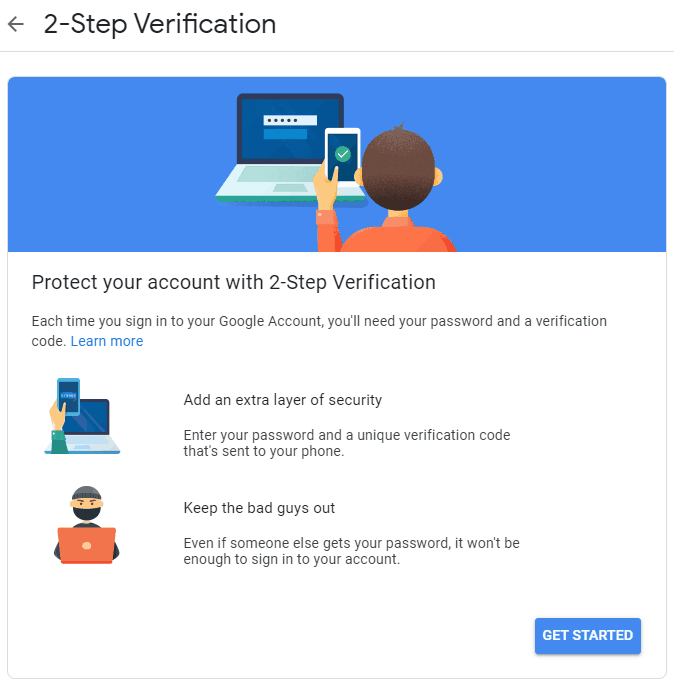
Your email is the key to resetting everything else, so secure it first. Here is how to set up Gmail 2-step verification step by step.
Authenticator apps vs passkeys
Passkeys are the newer way to sign in: no password and no code, just your fingerprint, face or device PIN. Because a passkey only works on the real website, it can’t be phished. Where a site offers passkeys, use them. But many sites still only support codes, so you will need an authenticator app for years to come. The two work well together. For valuable accounts such as crypto exchanges, use app codes or a security key rather than SMS, as we explain in our crypto wallet security guide.
Which authenticator app should you use?
- Just want it to work: Google Authenticator with sync turned on.
- Work or school uses Microsoft 365: Microsoft Authenticator.
- Want codes on phone and computer: Proton Authenticator or Ente Auth.
- Android, offline, full control: Aegis.
- iPhone, simple and open source: 2FAS.
- Already on Authy: it still works on mobile, but consider moving before you need to.
FAQ
What is the safest authenticator app?
Open-source apps with end-to-end encrypted backups, such as Proton Authenticator, Ente Auth and Aegis, let anyone inspect their code and keep your secrets readable only by you. Google and Microsoft’s apps are also safe for most people, as long as the Google or Microsoft account behind the backup is well protected.
Is Google Authenticator better than Microsoft Authenticator?
Both are free and reliable. Google Authenticator is simpler and can export codes to another phone by QR code. Microsoft Authenticator adds one-tap approvals for Microsoft and many work accounts. Choose Microsoft if your job requires it, Google otherwise.
Can I use an authenticator app on two phones?
Yes. Apps with sync, such as Google Authenticator (signed in), Proton Authenticator and Ente Auth, show the same codes on all your devices. You can also scan the same QR code on two phones when you first set up 2FA on a site.
What happens if I delete my authenticator app?
If you had no backup, the codes are gone and you will need backup codes or account recovery for each site. If you had sync or a backup file, reinstall the app and restore it.
Are authenticator apps free?
Yes. All seven apps in this list are free for personal use. Be wary of authenticator apps in the app stores that ask for a weekly subscription just to show your codes.
Stuck on a gift? Try our free Gift Idea GeneratorIdeas for anyone by age, job, interests and budget, with Amazon.com and Amazon.in linksFind gifts →Get our free weekly email: new tech guides and tools, no spam.
New and updated tech guides, a free tool worth bookmarking and one useful pick, once a week. No spam, unsubscribe anytime.
One email a week. Unsubscribe anytime. See our privacy policy.