How to Set Up Parental Controls on iPhone, Android, Windows and Mac (Complete Guide)
Every phone, tablet and computer your child uses already has free parental controls built in: Screen Time on iPhone, iPad and Mac, Google Family Link on Android and Chromebook, and Microsoft Family Safety on Windows and Xbox. This guide shows you how to set up parental controls on each device, step by step, using the official menus, so you can set screen time limits, filter websites and approve app downloads without paying for anything.
Kids’ screen time is in the news again: Google, Meta and TikTok have gone to court over a California law meant to protect children from social media harms, and the debate about how much time children spend in endless video feeds goes on. Whatever the courts decide, the settings below are things you can switch on at home today.

Quick answer:
- iPhone and iPad: create a child account in Family Sharing, then on your own iPhone go to Settings > Family > [child’s name] and set up Screen Time.
- Android: install the Google Family Link app on your phone, create or supervise your child’s Google Account, then set limits under Screen time and Controls.
- Windows: build a family group at account.microsoft.com/family, allow your child’s account on the PC in Settings > Accounts, then set screen time, app limits and web filters.
- Mac: add the child in System Settings > Family, then manage them in System Settings > Screen Time.
- Lock everything with a passcode or password your child doesn’t know.
Table of Contents
Built-in tools at a glance
| Device | Built-in tool | Where you manage it | Cost |
|---|---|---|---|
| iPhone, iPad | Screen Time + Family Sharing | Parent’s iPhone or iPad: Settings > Family | Free |
| Mac | Screen Time + Family Sharing | System Settings > Family and Screen Time | Free |
| Android phone or tablet, Chromebook | Google Family Link | Family Link app (Android, iPhone) or familylink.google.com | Free |
| Windows PC, Xbox | Microsoft Family Safety | account.microsoft.com/family or the Family Safety app | Free |
| Whole home Wi-Fi | Router settings or a family DNS filter | Your router’s app or admin page | Usually free |
Before you start: three things to get right
- Give your child their own account. Each system works on the child’s own Apple Account, Google Account or Microsoft account. A shared account or your own account on their device means the controls can’t tell who is using it.
- Enter the right birthday. The age on the account decides which defaults and content ratings apply.
- Keep the passcode to yourself. A Screen Time passcode, your Google password or your Microsoft password is what stops a child from changing the settings. Don’t use the same code as the device’s unlock code.
iPhone and iPad: Screen Time with Family Sharing
Apple’s family settings live inside Screen Time and are managed from the parent’s device through Family Sharing. Apple’s newest version of these controls needs iOS 27 or iPadOS 27 (and macOS 27 on Macs) on the family’s devices; if a device can’t update, you can keep using the previous version of Screen Time. Apple’s own parental controls help page (external site) lists every option.
Step 1: Create a child account
- On your iPhone or iPad, open Settings and tap Family. (If you haven’t used it before, set up Family Sharing first.)
- Tap Add Member, then Create Child Account, and tap Continue.
- Enter your child’s name and birthday, confirm you’re an adult if asked, and choose an email address and password for them.
- Sign in to your child’s iPhone or iPad with this new Apple Account.
Children under 13 need a parent to create their account (the age varies by country).
Step 2: Turn on Screen Time for your child
- On your own device, go to Settings > Family and tap your child’s name.
- Tap Screen Time and follow the on-screen setup.
Step 3: Set time limits
- Screen Time Schedule: tap it, turn on Schedule, tap Add Schedule and pick the days and hours when only allowed apps work (bedtime and school hours are the usual choices).
- Time Allowances: tap it, then Add, to give app categories such as games or social media a daily budget.
On iOS 26 and earlier the same ideas are called Downtime and App Limits, under Settings > Screen Time.
Step 4: Filter websites and content
- In your child’s settings, tap Apps & Websites > Restrictions.
- Under Websites, tap Filtering and choose Limit Adult Websites, or Approved Websites Only for young children (they can then send you an Ask to Browse request).
- Tap Content & Privacy Restrictions to set ratings for music, movies, TV, books and apps, and to stop changes to accounts and other settings.
For a detailed walk-through of the adult-content filter alone, see our guide on blocking adult websites on an iPhone.
Step 5: Control apps and purchases
- Ask to Buy: tap Apps & Websites > Restrictions > Ask to Buy and turn on Require Purchase Approval. Every download and in-app purchase then needs your OK.
- App Store: tap Apps & Websites > App Store to allow or block installing apps.
- Single apps or sites: under Apps & Websites, pick an app or website and tap Block App or Block Website. Blocked apps are dimmed, not deleted.
- Game Center: under Apps & Websites > Restrictions, choose whether your child can add friends or send private messages.
Step 6: Decide who your child can talk to
- Tap Allowed Contacts > During Screen Time and choose Contacts Only, contacts and groups with at least one contact, or Everyone.
- Turn on Manage Contacts to approve new contacts yourself.
- Turn on Communication Safety so the device checks photos and videos your child receives or shares for nudity and warns them first.
Step 7: Lock it with a Screen Time passcode
- In Settings > Family > [child’s name], tap Passcode & Management.
- Tap Lock Screen Time Settings and enter a four-digit passcode twice.
You’ll get a notification whenever the passcode is used on your child’s device.
Android: Google Family Link
Google Family Link is the built-in supervision system for Android phones, Android tablets and Chromebooks. You manage it from the Family Link app on your own Android phone or iPhone, or on the web at familylink.google.com. Google’s Family Link getting-started guide (external site) covers each step in more detail.
What you need
- A Google Account for yourself (you must be 18 or the adult age in your country, and live in the same country as your child).
- Your phone: Android 6.0 or later, or an iPhone or iPad on iOS 16 or later.
- Your child’s device: Android 6.0 or later, a Chromebook (Chrome OS 71 or later) or a compatible Fitbit. Family Link can’t supervise iPhones, iPads or Windows PCs.
Step 1: Set up supervision
- Install the Google Family Link app on your phone.
- Create a Google Account for your child through the app (for under-13s), or add supervision to the Google Account they already have.
- Sign your child in on their Android device with that account and follow the prompts to link it to you.
Step 2: Set daily screen time
- In Family Link, select your child, then tap Screen time > Time limits.
- Turn on Daily limit, tap Weekly schedule, choose a day and enter a limit, then tap Done. Use Apply to all days of the week to copy it.
- Set a bedtime from the same screen time controls, and use Bonus time when you want to give a little extra.
Step 3: Approve and block apps
- Choose which apps your child can download or buy, and block or allow apps already on the device.
- To change an app, go to Screen time > Time limits > App limits, select the app, change its status and tap Done. Changes apply within about five minutes, or once the device is online.
Step 4: Filter Google Play
- In Family Link, select your child and tap Controls > Google Play.
- Pick a content type (Apps & games, Movies, TV or Books) and choose the maturity level allowed.
Google notes these filters don’t hide restricted content in search results or through direct links, so pair them with app approvals.
Step 5: Check the settings on your child’s phone
On the child’s device, open Settings > Digital Wellbeing & parental controls (Android 8.1 and later) or Settings > Google > Parental controls on older versions. Changes here need your password or Parent Access Code. Your child can also add per-app timers in Settings > Digital Wellbeing > App timers.
Family Link can also show the location of your child’s Android device from the app’s Location section. For safer search and browsing in Chrome, see how to change Google SafeSearch settings and how to block websites on Chrome.
Windows PC and Xbox: Microsoft Family Safety
Microsoft Family Safety covers Windows, Xbox and the Edge browser, and can set screen time on Android phones too. It is managed on the web or in the Family Safety app for Android and iPhone.
Step 1: Create a family group
- Sign in at account.microsoft.com/family with your Microsoft account. You become the family organizer.
- Add your child to the group with their own Microsoft account.
- Optionally install the Microsoft Family Safety app on your phone.
Step 2: Add your child’s account to the PC
- On the Windows PC, open Settings > Accounts > Family & other people (shown simply as Family on newer Windows 11 versions).
- Under Your family, select your child’s account and choose Allow.
- Have your child sign in on that PC with their Microsoft account. Keep it a standard user, not an administrator, or the family features may not work.
Step 3: Set screen time limits
- At account.microsoft.com/family, select your child’s tile.
- Open the Windows, Xbox or Mobile tab (mobile screen time works on Android only).
- Select a day, set the allowed time ranges and total hours, then select Finished. Tick the boxes to copy the schedule to other days or Every day.
Step 4: Limit apps and games
- In the app, tap your child, choose the platform, then Set time limits > Apps, features, and games (on the web, open the Apps, features, and games tab).
- Turn on App and game limits, pick an app or game and set its daily time and allowed hours.
You can also set age limits for apps and games on Windows and Xbox under the family app and game filters, and add money or spending limits to your child’s account so purchases stay under control.
Step 5: Filter websites and searches
- On the web, open your child’s overview and select Edge.
- Turn on Filter inappropriate websites and searches. Add sites under Blocked sites or Allowed sites.
- For young children, turn on Only use allowed websites, and optionally Always allow educational websites.
The web filter works in Microsoft Edge. When it’s on, other browsers are blocked on the PC unless you unblock them, which stops the easy workaround of installing a different browser. Bing search results are filtered too (see Microsoft’s website filter help (external site)).
On Xbox, the same screen time schedule applies whenever your child is signed in, so remind them to sign out when they finish playing. Console privacy and chat settings are at xbox.com.
Mac: Screen Time on macOS
A Mac uses the same Screen Time system as iPhone, so if your child is already in your Family Sharing group, most settings carry over.
- If your child doesn’t have an Apple Account yet, choose Apple menu > System Settings > Family > Add Member > Create Child Account.
- Give your child their own user account on the Mac and sign it in with their Apple Account, so the limits follow them.
- On your own Mac, open System Settings > Screen Time and choose your child from the Family option.
- Set a Screen Time Schedule and Time Allowances, use Apps & Websites to manage App Store and web browsing, and use Content & Privacy Restrictions to block explicit content and settings changes.
- Turn on Communication Safety, and set who your child can contact under Allowed Contacts.
- Under Passcode & Management, set a Screen Time passcode and share settings across devices.
Beyond the device: Wi-Fi, YouTube and streaming apps
Filter the whole home network
Device controls only cover devices you’ve set up. A filter on your router also covers smart TVs, game consoles and visiting friends’ phones. Many home routers and internet providers include parental controls in their app or admin page; check your router’s manual for the exact menu. A simple free option is a family DNS service: Cloudflare’s 1.1.1.1 for Families (external site) uses 1.1.1.3 and 1.0.0.3 to block malware and adult content, which you enter as the DNS servers in your router’s settings. Treat it as an extra layer, since a phone on mobile data skips your Wi-Fi.
YouTube and streaming services
Apps have their own settings that work on top of the device controls:
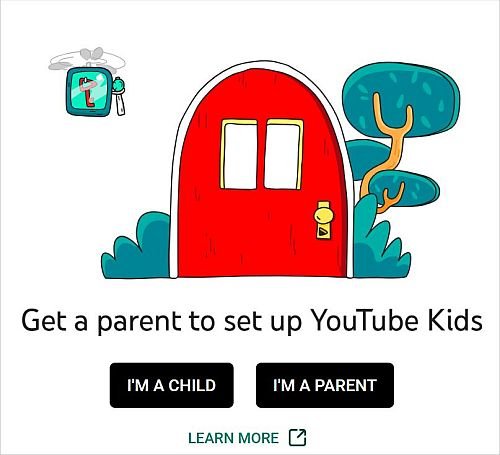
- YouTube: turn on Restricted Mode or a supervised experience, as shown in our guide to YouTube safety settings, or give younger kids the YouTube Kids app.
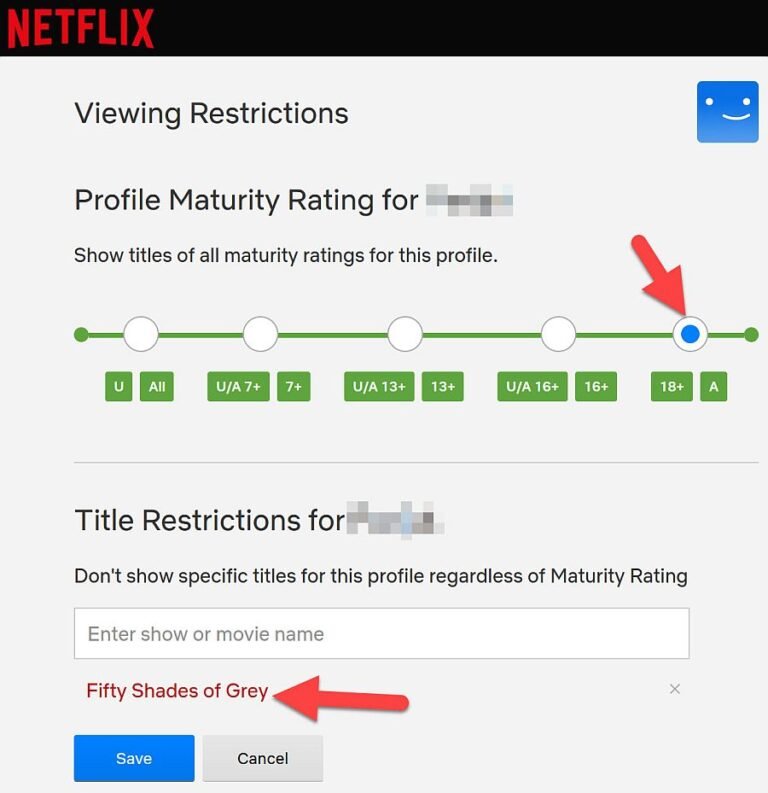
- Netflix: set a maturity rating and lock profiles, as in our Netflix profile and rating guide.
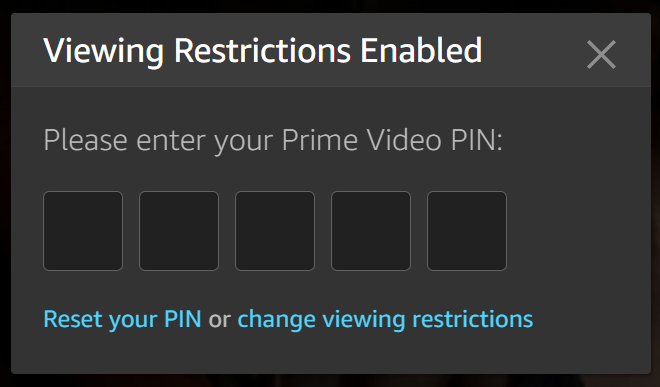
- Prime Video: set an age limit under Restrictions, explained in how to block adult content on Prime Video.
Social apps such as TikTok, Instagram and Snapchat have their own family or supervision features as well; check each app’s settings, and use the device’s app limits as a backstop.
Mixed families: iPhone parent, Android child (and the other way round)
- Your child has an Android phone, you have an iPhone: fine. Install Family Link on your iPhone and manage everything from there.
- Your child has an iPhone, you have an Android phone: Family Link can’t supervise an iPhone. Apple’s controls are managed from a parent’s iPhone, iPad or Mac in the Family Sharing group, so you’ll need an Apple device to manage them.
- Windows PC plus any phone: Microsoft Family Safety handles the PC and Xbox, while the phone keeps its own Apple or Google controls. Microsoft’s mobile screen time works on Android phones only.
When parental controls don’t seem to work
- Limits don’t apply: check the device is online and signed in to the child’s account, not yours. Family Link changes can take about five minutes to reach the device.
- The child has admin rights on Windows: change the account to a standard user; Microsoft’s family features may not work on an administrator account.
- Another browser gets around the filter: on Windows, keep the Edge web filter on so other browsers stay blocked. On iPhone, iPad and Mac, Approved Websites Only is the strictest choice for young children.
- Your child knows the passcode: change the Screen Time passcode or your Google or Microsoft password, and make sure it isn’t the device unlock code.
- Xbox time runs out too fast: screen time counts whenever someone is signed in, so sign out after playing.
Built-in tools or a paid parental control app?
For most families the free built-in tools are enough: they cover screen time, app approvals, purchases and web filtering, and they are hard for a child to remove. A paid parental control app makes sense when you want one dashboard across iPhone, Android and Windows, alerts about worrying messages, or more detailed reports. Whatever you choose, explain the rules to your child and revisit them as they grow; controls work best alongside a conversation.
FAQ
Are built-in parental controls free?
Yes. Apple Screen Time, Google Family Link and Microsoft Family Safety are all free and built into the devices or available as free apps.
Can I set up parental controls on my child’s iPhone from an Android phone?
Not with Family Link, which can’t supervise iPhones. Apple’s Screen Time controls are managed from a parent’s Apple device in the same Family Sharing group.
How do I set parental controls on a Windows 11 laptop?
Add your child to a Microsoft family group at account.microsoft.com/family, allow their account on the laptop under Settings > Accounts, keep it a standard user, then set screen time, app limits and Edge web filters from the Family Safety website or app.
Can kids turn off parental controls?
Not without your Screen Time passcode, Google password or Parent Access Code, or your Microsoft account password. Keep these private, and check the settings now and then in case a device was reset or signed in with a different account.
Stuck on a gift? Try our free Gift Idea GeneratorIdeas for anyone by age, job, interests and budget, with Amazon.com and Amazon.in linksFind gifts →Get our free weekly email: new tech guides and tools, no spam.
New and updated tech guides, a free tool worth bookmarking and one useful pick, once a week. No spam, unsubscribe anytime.
One email a week. Unsubscribe anytime. See our privacy policy.