Is It Down or Just Me? How to Check If a Website or App Is Down (and What to Do)
Is it down or just me? When a website or app stops loading, you can usually answer that in about a minute: check the service’s official status page, look at an outage checker such as Downdetector, then try the same site on another device or on mobile data. If everyone is affected, the fix is on the company’s side and you can only wait. If it’s only you, the problem is your connection, browser, app or account, and the steps below will sort it out.
Outages are not rare. After a run of large US tech outages recently, federal officials told Congress they had found no evidence the incidents were linked or caused by cyberattacks. Most outages come down to ordinary failures (a bad update, an overloaded server, a cloud provider problem), and they will keep happening, so it pays to know the checks before the next one.

Quick answer:
- Down for everyone: the official status page shows an incident, or an outage checker shows a spike in reports. Wait, and use another channel for anything urgent.
- Just you: the status page is clear and the site works on another device or network. Restart your router, try another browser, clear the cache, flush DNS, turn off your VPN, or update the app.
Table of Contents
How to check if a website is down for everyone or just you
Run these checks in order. Most of the time the first two give you the answer.
| Check | What it tells you | Time |
|---|---|---|
| Official status page | Whether the company has confirmed a problem | 30 seconds |
| Outage checker (Downdetector and similar) | Whether lots of other people are reporting it right now | 30 seconds |
| Another device or mobile data | Whether your Wi-Fi or home internet is the problem | 1 minute |
| Another website | Whether your whole connection is down | 10 seconds |
| Web version vs app | Whether only the app on your device is broken | 1 minute |
1. Check the official status page
Most big services run a public status page that lists current incidents, and it is the most reliable answer you can get. It usually works even when the service itself doesn’t, because it is hosted separately. A quick way to find one is to search for the service name plus “status”. Here are the official pages for some of the services people check most often:
| Service | Official status page covers |
|---|---|
| Google Workspace Status Dashboard (external site, opens in new tab) | Gmail, Google Drive, Docs, Meet, Calendar and other Workspace apps |
| Microsoft service status (external site, opens in new tab) | Outlook, Teams and other Microsoft 365 services |
| Apple System Status (external site, opens in new tab) | iCloud, App Store, Apple Music, iMessage, FaceTime and other Apple services |
| AWS Health Dashboard (external site, opens in new tab) | Amazon Web Services, which many other apps and websites run on |
| PlayStation Service Status (external site, opens in new tab) | PlayStation Network sign-in, online play and PlayStation Store |
| Xbox Status (external site, opens in new tab) | Xbox network sign-in, multiplayer, cloud gaming and store |
| OpenAI status (external site, opens in new tab) | ChatGPT and the OpenAI API |
A green or “all systems operational” page means the company is not aware of a wide problem yet. Status pages can lag a little behind the first user reports, so if the page is green but everyone around you is stuck, check again in 10-15 minutes. Many companies also post outage updates on their official support accounts on X or other social networks.
2. Look at an outage checker
Outage checkers answer the “is it down for everyone or just me” question from the outside. There are two kinds:
- Crowd-report sites such as Downdetector (external site, opens in new tab) collect problem reports from users and show a chart of reports over the last 24 hours. A sudden spike means many people hit the problem at the same moment, which is a strong sign of a real outage, often before the company confirms it.
- Website checkers such as Down for Everyone or Just Me (external site, opens in new tab) and Is It Down Right Now (external site, opens in new tab) try to load the address you type from their own servers. If the site loads for them but not for you, the problem is on your side.
Treat these sites as a strong hint, not an official answer. A few reports can come from people with their own Wi-Fi trouble, and a checker can reach a site’s home page while a login or payment page is broken. When an outage checker and the status page agree, you can be sure.
3. Try another device or network
Open the same site or app on a second device, or switch your phone from Wi-Fi to mobile data. This one test splits the problem in half:
- Works on mobile data, not on Wi-Fi: your home internet, router or DNS is the problem.
- Works on another device on the same Wi-Fi: the first device, its browser or app is the problem.
- Fails everywhere, and the outage checker shows a spike: it is down for everyone.
4. Check that other websites load
If no website opens at all, the service isn’t the problem; your connection is. Restart the router (unplug it for 30 seconds), and check your internet provider’s app or account page, which usually shows outages in your area. Our guide on telling a provider outage from a slow connection walks through it.
5. Compare the website and the app
Many services have both. If the website works in a browser but the phone or desktop app doesn’t (or the other way round), the service is up and only one version on your device is broken. That points to the fixes further down.
What the error message tells you
The error you see is a useful clue about where the problem is:
| You see | What it usually means | Whose problem |
|---|---|---|
| “This site can’t be reached”, DNS_PROBE_FINISHED_NXDOMAIN, “server not found” | Your device couldn’t look up the site’s address | Often yours (DNS, Wi-Fi, typo in the address) |
| ERR_CONNECTION_TIMED_OUT, ERR_CONNECTION_REFUSED | The site didn’t answer | Either: check a status page and another network |
| 500 Internal Server Error | The site’s server hit an error | The website’s |
| 502 Bad Gateway, 504 Gateway Timeout | A server in the chain didn’t get a reply in time | Usually the website’s or its provider’s |
| 503 Service Unavailable | The site is overloaded or down for maintenance | The website’s |
| 404 Not Found | The site is up, but that page doesn’t exist | Wrong or old link |
| App says “can’t connect” or keeps spinning | The app can’t reach its servers | Either: compare with the website |
Error codes in the 500 range almost always mean the problem is with the website, so there is little you can fix yourself. Name-lookup and connection errors are worth troubleshooting on your side first.
What to do when a website or app is down for everyone
When the outage is on the company’s side, nothing on your device will bring it back sooner. What helps:
- Don’t reset, reinstall or sign out. Deleting an app, removing an account or changing your password during an outage won’t fix anything and can leave you with a new problem when the service returns.
- Use another channel for urgent things: a phone call or SMS when a messaging app is down, your bank’s phone line or branch when its app is down, another email account for time-sensitive mail.
- Keep the app open if it works offline. Many email and note apps keep a local copy, so you can still read what you already downloaded, and messages you write wait to send.
- Check back on the status page rather than refreshing the broken site again and again. It will show when the fix is rolling out.
- Re-send anything important afterwards. Messages and payments started during an outage can be delayed or fail. Check your sent items and your bank or card statement before trying a payment again, so you don’t pay twice.
- Watch for outage scams. Scammers send fake “verify your account” emails and texts and post fake support phone numbers during big outages. Go to the company’s site or app yourself instead of clicking a link in a message, and never give a password or one-time code to someone who calls you.
Website not loading for you only? 9 fixes
If the status page is clear and the site works for other people, start at the top and stop when it works.
1. Reload properly and check the address
Check the spelling of the address, then do a hard reload, which skips the copy your browser saved: Ctrl + Shift + R on Windows or Cmd + Shift + R on a Mac in Chrome, Edge and Firefox. If you used a bookmark, try typing the main address instead; the old link may point to a page that moved.
2. Restart your device and router
Restarting clears stuck connections on both ends. Turn the device off and on, and unplug the router for about 30 seconds. If your Wi-Fi is slow rather than dead, see our guide on why your Wi-Fi is so slow.
3. Try a private window or another browser
Open the site in a private (incognito) window. If it works there, your normal browser profile is the problem: usually old cookies, cached files or an extension. Trying a second browser (Chrome, Edge, Firefox or Safari) tells you the same thing.
4. Clear the site’s cookies and cache
In your browser settings, clear cookies and cached images and files, either for that one site or for the last few days. You will need to sign in to the site again afterwards.
5. Turn off extensions, ad blockers and your VPN
Ad blockers, privacy extensions and VPNs can block parts of a site, especially sign-in and payment pages. Pause them for the site and reload. Some services also block traffic from certain VPN servers, so try once with the VPN off.
6. Flush your DNS or switch DNS servers
DNS turns a site’s name into the address your device connects to. If your device or your internet provider’s DNS has a wrong or stale entry, one site can fail while everything else works.
- Windows: open Command Prompt and run
ipconfig /flushdns. - Mac, iPhone and Android: restarting the device and the router clears the saved entries.
- Switch DNS: setting a public DNS service such as Cloudflare (1.1.1.1) or Google Public DNS (8.8.8.8) on your router or device often fixes sites that fail only on your home network.
7. Update or reinstall the app
If only the app fails, install any pending update from the App Store, Google Play or Microsoft Store. Old versions sometimes stop connecting after a service changes. On Android you can also clear the app’s cache in Settings > Apps. Reinstall only if the service is confirmed up, and make sure you know your password first.
8. Check your date, time and security software
A wrong date or time on your computer can make secure sites fail with certificate errors, so set the clock to update automatically. Antivirus web filters and work or school network filters can also block sites; try another network to rule them out.
9. Check whether your account is the problem
If the site loads but you can’t sign in, or it says your account is locked, the service is up and the problem is your account. Use the site’s own “forgot password” or account recovery page, typed in yourself, not a link from a message.
Is it down for everyone or just me on a work or school network?
Offices, schools and public Wi-Fi often block some sites on purpose. If a site fails only on that network and works on your phone’s mobile data, it is probably blocked, not down. Ask the IT team rather than trying to get around the block. For work tools, your IT team or admin console usually has a service health page with more detail than the public one.
How to be ready for the next outage
- Bookmark the status pages of the services you rely on most (email, bank, cloud storage, work chat).
- Keep a backup way to reach people: a second messaging app, phone numbers saved on your phone, a second email address.
- Keep important files available offline or in a second place, not only in one cloud service.
- Keep apps, browsers and your router’s firmware updated so a fixed bug doesn’t keep hitting you.
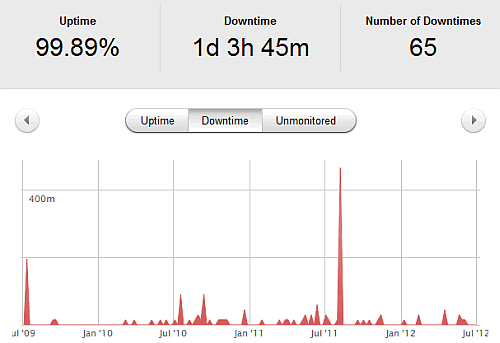
Specific guides help for the services you use most: see how to check if Outlook is down and fix it when it’s only you. If you run your own website and want to know when it goes down, read free website uptime monitoring tools and how to spot downtime in your hourly traffic stats.
FAQ
How do I know if a website is down right now?
Check the company’s official status page, then look at an outage checker such as Downdetector for a spike in reports in the last hour. If both look normal, try the site on another device or on mobile data; if it works there, the problem is on your side.
Why does a website work on my phone but not on my computer?
The site is up, so something on the computer is in the way: its browser cache or cookies, an extension, a VPN, its DNS settings or security software. Try a private window, another browser, and flushing DNS.
Why is a website down for me but not for others?
The most common reasons are your Wi-Fi or internet provider, a stale DNS entry, browser cache or extensions, a VPN, or a network that blocks the site. Switching to mobile data quickly shows whether it’s your home network.
Are outage checker sites accurate?
They are a good early warning, but not proof. Crowd-report sites count user reports, so a spike is meaningful while a handful of reports may not be. The company’s own status page is the official word, though it can lag behind the first reports.
How long do outages usually last?
Most are fixed within minutes to a few hours, but some large ones take most of a day. The status page usually gives updates as the fix rolls out; there is no fixed time.

Subscribe to our weekly tech newsletter
Free: 100 Tech Terms ebook (worth $2.99)
Unsubscribe anytime. Privacy