How to Switch Web Hosting: Lessons from DreamHost vs Lunarpages
In 2007 DreamHost offered a free year of hosting to Lunarpages customers who were unhappy with a change to their 404 pages. It was a reminder that you can always move your site if a host lets you down. This updated article covers that story and then shows how to switch web hosting safely today, step by step.
Quick answer: To switch hosts, sign up with the new host first, back up your files and database, copy them to the new server, and test the site there. Then update your DNS or nameservers and keep the old account running for a few days until the change has spread. Cancel the old plan only when everything works on the new host.
Table of Contents
The 2007 DreamHost and Lunarpages story
Web Hosting Talk reported in 2007 that Lunarpages had turned the default 404 pages of hosted sites (those without a custom 404 page) into sponsored-link ad pages. DreamHost grabbed the chance to win those customers with a promo code that gave current Lunarpages users their first year free, and promised never to do anything like it. The ad 404 pages were soon fixed.
Hosting was, and still is, a fiercely competitive business. The lesson for site owners: always set your own custom 404 page, read your host’s terms, and know how to move your site if you need to.
When should you switch web hosting?
- Your site is slow even after caching and image optimisation.
- You have frequent downtime or slow, unhelpful support.
- The host changes terms, adds ads or raises renewal prices sharply.
- You have outgrown shared hosting and need a VPS. See how to choose a VPS hosting plan and our KnownHost VPS review.
How to switch web hosting step by step
- Pick and set up the new host. Don’t cancel the old one yet.
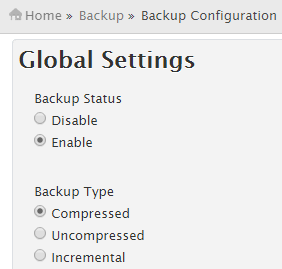
- Back up everything. Download your site files and export your database. Our guide to backing up websites on your hosting server covers cPanel, WHM and hPanel.
- Copy the site to the new host. Upload the files, create a new database and import the backup. Many hosts offer free migration, and WordPress sites can also use a migration plugin.
- Update settings. Change database details in your config file (for WordPress,
wp-config.php). - Test before going live. Use the new host’s temporary URL or edit your computer’s hosts file to preview the site on the new server.
- Move email. If your email is hosted with your web host, set up the same mailboxes on the new host or move email to a separate provider.
- Point your domain to the new host. Update the nameservers or DNS A records at your registrar. See how to set up private nameservers if you use your own.
- Wait for DNS to update. Keep both hosts running for a few days so visitors reach a working site either way.
- Set up SSL and check. Install a certificate on the new host, check pages, forms and email, and then cancel the old plan.
Tips to avoid downtime
- Lower your DNS TTL a day before the move so the change spreads faster.
- Avoid posting or taking orders during the switch, or copy the database again just before you change DNS.
- Keep a full backup on your own computer, not only on a server.
- Set a custom 404 page on the new host so visitors never see your host’s default page.
FAQ
Will switching web hosting hurt my SEO?
Not if the URLs stay the same and the site has little downtime. Search engines simply follow the new DNS.
How long does it take to switch hosts?
Copying a small site can take an hour or two. DNS changes can take up to a day or two to reach everyone.
Do I need to move my domain name too?
No. You can keep the domain at your registrar and only change where its DNS points.
Is free hosting a good idea?
For a hobby site maybe, but free plans often limit speed and features or add ads. A low-cost paid host gives you more control.
Get our free weekly email: new tech guides and tools, no spam.
New and updated tech guides, a free tool worth bookmarking and one useful pick, once a week. No spam, unsubscribe anytime.
One email a week. Unsubscribe anytime. See our privacy policy.