
How to Use Google Street View: Navigation Tips (2026)
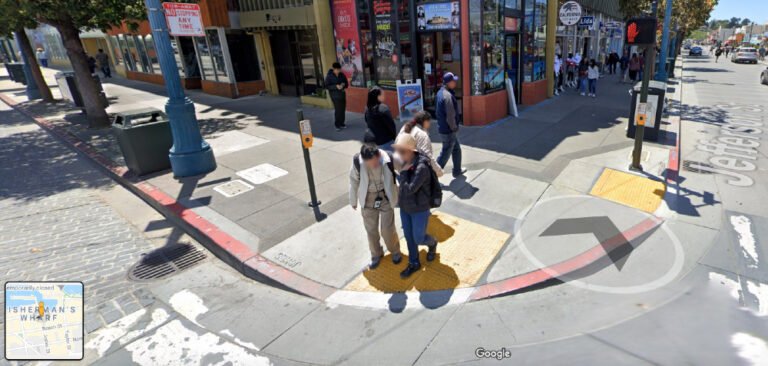
Google Street View lets you walk virtually down streets almost anywhere in the world. In 2009 Google added a faster way to get around: point at a spot and double-click to jump there instead of clicking road arrows. That “click to go” navigation is still how Google Street View works today, along with many newer tricks. Here’s how to use it on desktop and phone, see older imagery and protect your privacy.

Quick answer: On a computer, open Google Maps, drag the yellow Pegman onto any blue-highlighted street, then click or double-click where you want to go and drag to look around. On a phone, long-press a spot on the map and tap the Street View thumbnail, or turn on the Street View layer. To blur your home, open Street View, click “Report a problem” and request a blur.
Table of Contents
How to navigate Google Street View
On a computer
- Open Google Maps and find a place.
- Drag the Pegman (bottom right) onto a blue line or dot. Blue lines show Street View coverage; dots show user photospheres.
- Click anywhere on the road ahead to move there, or double-click to zoom to that spot, the quick navigation introduced in 2009.
- Drag to look around, use the arrow keys to move, and scroll to zoom.
- Press Esc or click the back arrow to return to the map.
On Android and iPhone
- Open the Google Maps app.
- Long-press a spot to drop a pin, then tap the Street View photo at the bottom left.
- Or tap the Layers button and turn on Street View to see blue lines.
- Tap arrows or double-tap ahead to move; swipe to look around.
Useful Street View tricks
- Time travel: on desktop, click “See more dates” (or the clock icon) to view older imagery of the same place.
- Indoor views: many museums, shops and restaurants have Street View tours.
- Immersive View: in supported cities, Google Maps offers 3D views of landmarks and routes.
- Share a view: copy the URL to send someone the exact spot and direction.
Protect your privacy on Street View
Google automatically blurs faces and licence plates. You can also ask Google to blur your home, car or yourself:
- Open the Street View image showing your home.
- Click the three dots or “Report a problem” at the bottom right.
- Position the box over what you want blurred, choose the reason and submit.
Blurring is permanent, so you can’t undo it later.
For live road conditions, see how to use Google Maps live traffic.
FAQ
How do I go back in time on Google Street View?
On desktop, click “See more dates” or the clock in the top-left box to choose older images where available.
Why can’t I see Street View in my area?
Coverage varies. If no blue lines appear when you drag the Pegman, there’s no Street View imagery there yet.
Can I remove my house from Google Street View?
You can’t remove it, but you can request a permanent blur through “Report a problem”.
Get our free weekly email: new tech guides and tools, no spam.
New and updated tech guides, a free tool worth bookmarking and one useful pick, once a week. No spam, unsubscribe anytime.
One email a week. Unsubscribe anytime. See our privacy policy.




How can I download Google Earth street map on my Garmin GPS.
can i get google street view on my blackberry curve? Iv downloaded google maps with no luck of getting street view.