
Gmail Spam Folder Missing? How to Restore Spam, Trash, Starred and All Mail (2026)
Is the Gmail spam folder missing from your sidebar? Back in 2009 our Spam, Starred, Trash, Chats and All Mail links suddenly vanished, and we went looking for them. Gmail had turned these folders into “system labels” and started hiding some of them under More. Gmail still works this way in 2026, so here is how to find and restore any missing Gmail folder on the web and on your phone.
Quick answer: On a computer, click More at the bottom of the Gmail sidebar to see hidden folders such as Spam, Trash and All Mail. To keep them visible, open Settings (gear icon) > See all settings > Labels, and choose show next to each system label you want. In the Gmail app, tap the menu (three lines) and scroll down to find Spam and Trash.
Table of Contents
Why Gmail folders go missing
Gmail treats Inbox, Starred, Snoozed, Sent, Drafts, Spam, Trash and All Mail as system labels. Each one can be set to show, hide or show if unread. Labels set to hide move under the More link, which is why Spam and Trash often seem to disappear. A collapsed sidebar or a narrow window can also hide them.
How to restore missing folders in Gmail (computer)
- Open Gmail in your browser.
- Click the gear icon at the top right, then See all settings.
- Open the Labels tab.
- Under System labels, click show next to Spam, Trash, Starred, All Mail, Chats or any other folder you want in the sidebar.
- Changes save straight away. Go back to your inbox and the folders now appear in the sidebar.
Prefer a quick fix? Click More in the sidebar and drag a folder up into the main list, or hover over a label, click the three dots and choose Show.
Find Spam and Trash in the Gmail app
- Android and iPhone: tap the menu (three lines) at the top left and scroll down. Spam, Trash and All mail are listed under All labels.
- You can’t hide system labels in the app, so if you don’t see them, scroll further or update the app.
Still can’t find it?
- Expand the sidebar: click the menu icon (three lines) next to the Gmail logo if you only see icons.
- Search instead: type
in:spam,in:trashoris:starredin the search box to open that folder directly. - Chats: Google Chat now lives in its own panel or at chat.google.com. Old saved chats appear under the Chats label if it is set to show.
- Work or school accounts: your administrator may control some Gmail features.
Check your spam folder regularly
We check Spam often, because Gmail sometimes marks real emails as spam. If you find a good message there, open it and click Report not spam so Gmail learns. Remember that Gmail deletes messages in Spam and Trash for good after 30 days.
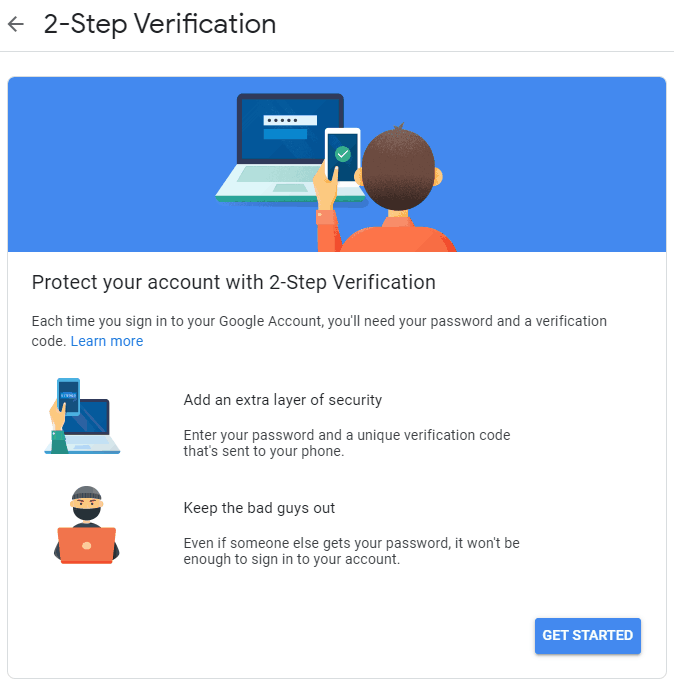
More Gmail help: turn on Gmail tabs and inbox categories, set up Gmail 2-step verification and open mailto links in Gmail by default.
FAQ
Why did my Gmail spam folder disappear?
It is set to hide in Settings > Labels, so it sits under the More link. Set it to show to bring it back.
How long does Gmail keep spam?
Messages in Spam are deleted automatically after 30 days. The same applies to Trash.
Can I delete the Spam or Trash folder?
No. System labels can only be shown or hidden, not deleted.
What is All Mail in Gmail?
All Mail shows every message in your account, including archived emails, but not Spam or Trash.
Stuck on a gift? Try our free Gift Idea GeneratorIdeas for anyone by age, job, interests and budget, with Amazon.com and Amazon.in linksFind gifts →Get our free weekly email: new tech guides and tools, no spam.
New and updated tech guides, a free tool worth bookmarking and one useful pick, once a week. No spam, unsubscribe anytime.
One email a week. Unsubscribe anytime. See our privacy policy.

xcxz
missing chats
missing chats mail
ah, thanks for the reminder!