Gmail Priority Inbox: How to Set It Up and Beat Email Overload (2026)
When Google launched Gmail Priority Inbox in August 2010, we hoped it would finally fix email overload: important messages lost under newsletters and notifications, or “bacn”, email you signed up for but don’t want right now. Sixteen years later, Priority Inbox is still in Gmail as one of several inbox types. Here’s how it works, how to turn it on in 2026, and how it compares with Gmail’s other inbox layouts.
Quick answer: On a computer, open Gmail, click the Settings gear and choose Priority Inbox under Inbox type. Your inbox then splits into sections such as Important and unread, Starred and Everything else. Gmail learns which mail is important from what you open and reply to, and you can train it by marking messages as important or not important. You can also choose sections based on your own labels.
Table of Contents
What is Gmail Priority Inbox?
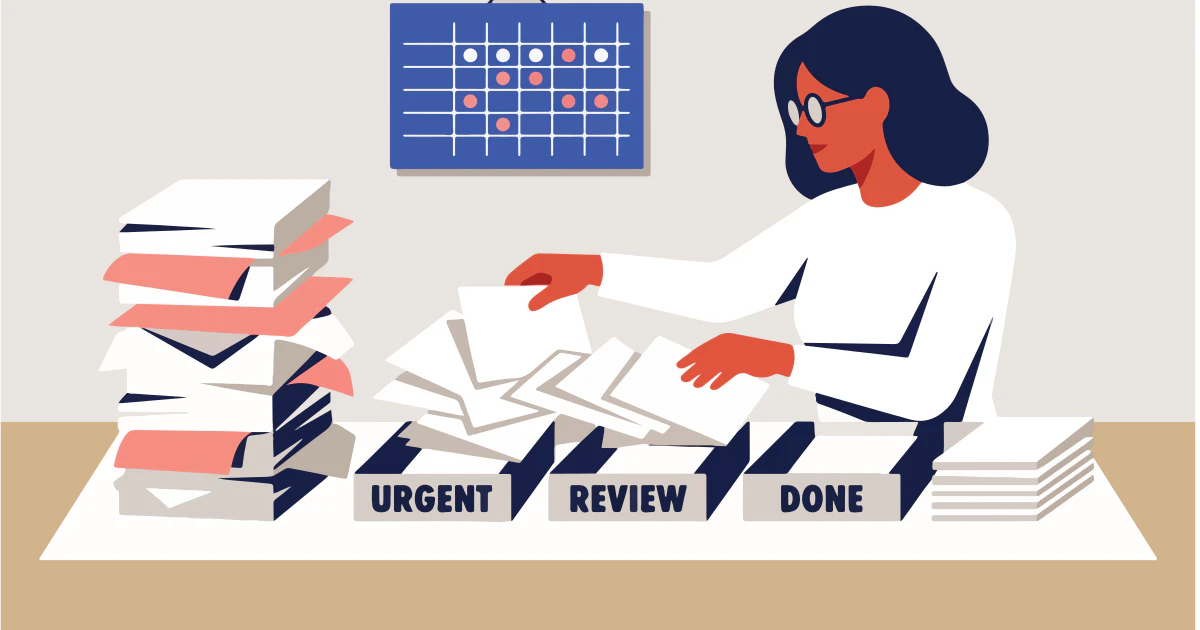
Priority Inbox is an inbox type that automatically sorts your mail into sections so the messages that matter appear at the top. Google uses signals such as which emails you open and reply to, and the senders you interact with most, to predict which messages are important. Predictions improve as you use it.
In 2010 the default sections were Important and unread, Starred, and Everything else. Those are still the main options today, and you can add a section based on a label you’ve created.
How to turn on Priority Inbox
- Open Gmail in a web browser on your computer.
- Click the Settings gear in the top right.
- Under Inbox type, choose Priority Inbox.
- Choose which sections you want to see, such as Important and unread, Starred, Everything else, or one of your labels.
Google’s help page on how to change your Gmail inbox layout has the latest steps.
Train Priority Inbox to get better
- Mark messages as important or not important when Gmail gets it wrong; it learns from your corrections.
- Star messages you need to come back to so they stay in the Starred section.
- Use filters to label newsletters and notifications automatically, then keep them out of your top section.
- Unsubscribe from newsletters you never read to cut down the “bacn”.
Gmail inbox types compared
- Default: sorts mail into tabs such as Primary, Social, Promotions, Updates and Forums. See our guide to Gmail tabs.
- Important first, Unread first, Starred first: two sections, with your chosen type on top and everything else below.
- Priority Inbox: multiple sections that combine importance, stars and labels.
- Multiple Inboxes: several custom sections based on searches or labels, like a dashboard.
If you get lots of promotional email, the Default tabs may suit you better; if your inbox is mostly person-to-person mail and you want important messages first, Priority Inbox works well.
More ways to beat email overload
- Use search operators such as from:, has:attachment and older_than: to find and clear old mail quickly.
- Archive instead of delete to keep your inbox clear without losing anything.
- Schedule emails and turn on Undo Send for a calmer workflow.
Find more ideas in our useful Gmail tips and tricks, and make your messages look professional with a Gmail signature with images and links.
FAQ
Is Gmail Priority Inbox still available?
Yes. Priority Inbox is one of the inbox types you can choose in Gmail’s settings on a computer.
How does Gmail decide what’s important?
It uses signals such as which messages you open and reply to and who you email most, and it learns from messages you mark as important or not important.
What’s the difference between Priority Inbox and Important first?
Important first shows two sections: important mail and everything else. Priority Inbox lets you show several sections, such as important and unread, starred and label-based sections.
How do I switch back to the default Gmail inbox?
Open the Settings gear and choose Default under Inbox type.
Get our free weekly email: new tech guides and tools, no spam.
New and updated tech guides, a free tool worth bookmarking and one useful pick, once a week. No spam, unsubscribe anytime.
One email a week. Unsubscribe anytime. See our privacy policy.