Free Winter Theme for Windows 11: Get One or Make Your Own (2026)
Every December we used to download Microsoft’s official Windows 7 Winter theme pack to bring snowy scenes to the desktop. Windows 7 is long retired, but getting a free winter theme for Windows 11 is even easier today: Microsoft still offers free theme packs, and you can build your own winter look in a couple of minutes. Here is how.
Quick answer: To get a winter theme for Windows 11, open Settings > Personalization > Themes, click Browse themes, search the Microsoft Store for “winter” or “snow” and install a free theme pack; it appears in your Themes list. Or make your own: pick winter photos as a desktop slideshow under Personalization > Background and choose a matching accent colour.
Table of Contents
The original Windows 7 winter theme pack
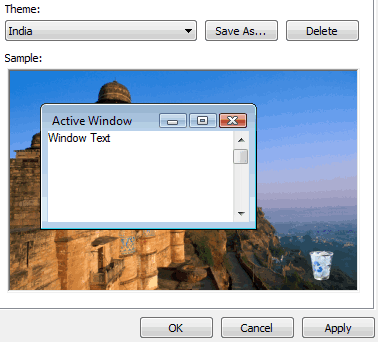
Microsoft’s 2010 Winter theme for Windows 7 bundled snowy landscapes and frosty close-ups as a .themepack file that changed the wallpaper, window colour and sounds in one click.


The old download page is gone, but Windows 11 still reads the same .themepack and .deskthemepack formats, so any theme pack you saved still works.
How to install a winter theme for Windows 11
- Right-click the desktop and choose Personalize, then Themes.
- Click Browse themes. The Microsoft Store opens on its themes collection.
- Search for winter, snow or Christmas and pick a free theme pack.
- Click Get, then Open. The theme appears under Personalization > Themes; click it to apply.
Make your own winter theme
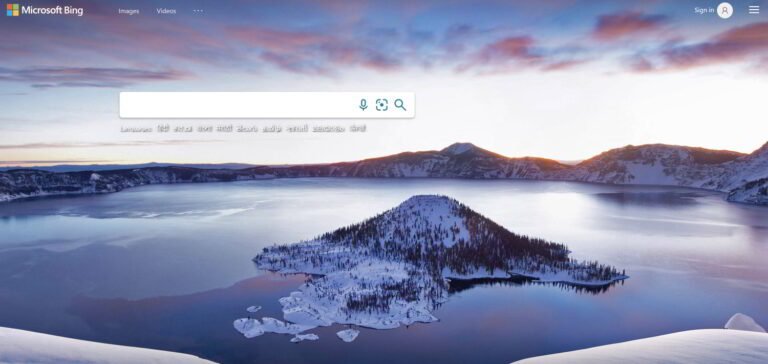
- Save a few winter photos you like into one folder. Free photo sites and the daily Bing images are good sources; see how to download Bing wallpapers daily.
- Go to Settings > Personalization > Background and choose Slideshow, then pick your folder and set how often it changes.
- Under Colors, choose a cool blue or white accent colour, or let Windows pick one from your wallpaper.
- Go back to Themes and click Save to keep it as your own winter theme.
To rotate wallpapers automatically all year, see our guide to change the desktop background daily. For older versions of Windows and more theme tips, read how to download and install Windows themes and wallpapers.
Finish the winter look: lock screen, cursor and sounds
- Lock screen: in Settings > Personalization > Lock screen, choose Picture and pick a snowy photo, or keep Windows Spotlight, which often shows seasonal scenes in winter.
- Mouse pointer: under Accessibility > Mouse pointer and touch, pick white or a custom colour to match an icy theme.
- Sounds: some Store theme packs include their own sound scheme; change it under System > Sound > More sound settings > Sounds.
- Taskbar: turn on “Show accent colour on Start and taskbar” under Colors so the taskbar picks up your winter blue.
Tips
- Install themes only from the Microsoft Store or trusted sources; random “theme” downloads can carry adware.
- Dark winter photos look great with Windows dark mode (Personalization > Colors > Choose your mode).
- Switch back to your usual theme in spring from the same Themes page.
FAQ
Are Windows 11 themes free?
Most themes from Microsoft in the Store are free.
Can I use Windows 7 theme packs in Windows 11?
Yes. Double-click a .themepack file and Windows 11 applies its wallpapers and colours.
Where are theme files saved in Windows 11?
Installed themes are stored in your user profile under AppData\Local\Microsoft\Windows\Themes. Wallpapers from Store themes are kept in the same folder.
How do I delete a theme in Windows 11?
In Settings > Personalization > Themes, right-click a theme you are not using and choose Delete.
Get our free weekly email: new tech guides and tools, no spam.
New and updated tech guides, a free tool worth bookmarking and one useful pick, once a week. No spam, unsubscribe anytime.
One email a week. Unsubscribe anytime. See our privacy policy.