
How to Back Up Websites on Your Hosting Server (WHM, cPanel, hPanel)
Do you know if your website is actually backed up? Many site owners rely on their hosting provider and have never checked. If your site is hacked, a plugin update breaks it, or the server fails, a recent backup is the only quick way back. Here’s how to back up websites on your hosting server easily, with WHM on a VPS or dedicated server, or with the backup tools in cPanel and hPanel on shared hosting, plus the settings that matter most.
Quick answer: On a VPS or dedicated server, log in to WHM as root and open Backup > Backup Configuration. Enable backups, choose daily, weekly and monthly schedules and how many copies to keep, store them in /backup (not /home), and add an off-site destination. On shared hosting, use your control panel’s backup tool (cPanel Backup, JetBackup or hPanel Backups) and download a copy regularly.
Table of Contents
Back up a VPS or dedicated server with WHM
If you manage your own server with root access, WHM can back up every account, its files and its databases on a schedule.
Step 1: Open Backup Configuration
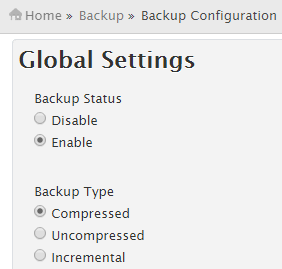
Log in to WHM as root and go to Backup > Backup Configuration. Turn on Enable Backups and choose Compressed backups to save space.
Step 2: Set the schedule and retention
Choose how often backups run (daily, weekly, monthly) and how many copies of each to keep.

Step 3: Choose what to back up
Back up user accounts, their files, and all databases. Including system files makes restoring a whole server much easier.

Step 4: Pick a safe backup directory
WHM stores backups in /backup by default, outside the /home folder where all the sites live. Keep it that way. Never store backups in /home: if someone gains access to a user account, they could tamper with backups there, but they can’t touch a root-owned folder.

Also tick the option to retain backups in the default directory, so local copies are kept even after they’re copied to another destination.

Step 5: Add an off-site destination
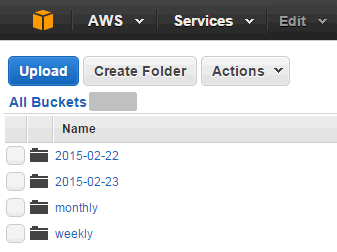
A backup on the same server won’t help if the whole server fails. In Additional Destinations, add Amazon S3, an S3-compatible service, SFTP or Google Drive. Here’s how we set up website backups on Amazon S3.
Watch your storage space
Backups are big. When we set this up, each daily backup of our server used about 1 GB. Keeping two daily, two weekly and two monthly backups used over 6 GB, about 30% of our 20 GB hosting plan, and more frequent backups could easily fill half of it. Balance how many copies you keep against your disk space, and move older copies off-site.
Back up websites on shared hosting
Most shared hosting plans don’t give you WHM, but they still include backup tools:
- cPanel Backup: go to Files > Backup to download a full account backup, or separate home directory and database backups.
- JetBackup: many cPanel hosts include it, with daily snapshots you can restore with one click.
- Hostinger hPanel: Files > Backups shows automatic weekly or daily backups, depending on your plan, and lets you create and download your own.
Don’t rely only on your host’s automatic backups. Download a copy every month, or use a plugin to send backups off-site automatically.
WordPress backup plugins
For WordPress sites, a plugin adds a second layer. UpdraftPlus (free) schedules backups to Google Drive, Dropbox or S3. Jetpack VaultPress Backup, which we’ve used for years, takes real-time cloud backups and offers one-click restores. Knowing how to work with your database also helps in emergencies, for example to change a WordPress password with phpMyAdmin.
Follow the 3-2-1 backup rule
Keep 3 copies of your data, on 2 different types of storage, with 1 copy off-site. For a website that could mean the live site, a server backup, and an off-site copy on S3 or Google Drive. And test a restore every few months, because a backup that won’t restore is no backup at all.
Frequently asked questions
How often should I back up my website?
Daily for sites that change often, such as stores or busy blogs. Weekly is enough for sites that rarely change.
Does my hosting company back up my site?
Most do, but retention and restore options vary, and backups may be on the same infrastructure. Check your plan, and keep your own copies.
Where are WHM backups stored?
In /backup by default, plus any additional destinations you configure.
Have you checked the backup settings on your server lately? Do it today.
Get our free weekly email: new tech guides and tools, no spam.
New and updated tech guides, a free tool worth bookmarking and one useful pick, once a week. No spam, unsubscribe anytime.
One email a week. Unsubscribe anytime. See our privacy policy.




Would be nice to move hosting backup files to another FTP or other web space to avoid disk space eat.
Informative!
Backing up your website is the most most important part, i realized it after i lost my data from SIteground. They can’t recover it
thanks for the tips! Thanks a Alot Mr.P.Chandra for this Informative Article related to the Backup of the Websites Which is essential in the recent days. I am a Regular reader of the QOT Since past 2 years. you are rocking keep the graph constant. … By a Regular QOT reader
Informative
I was just looking for this tutorial thanks.. as my hosting support has said without backup space you can’t backup uploaded stuff. well they mis understood as i just wanted to backup my wordpress and database.. thanks for information
Hi,
If you running a website on WordPress platform, you can just let plugin do the backup for you automatically everyday.
Cheers,
Skytech
Thanks for these information & really like this.your tips is really very helpful for me and now i take backup of my website. My database of backup was corrupted. Let me try this method.
Thanks for Sharing Article. Your tips are helpful for my website and Server backup point is very helpful for us.
I am trying to take backup of my website but can’t do that, your tips is really very helpful for me and now i take backup of my website.
Well am also searching like this and found on your website i will first search on your site then other thanks
Thanks for sharing! Really this will help for people change their web hosting from one to another.
I tried one wordpress plugin long back. i dont remember. My database of backup was corrupted. Let me try this method.
Informative!
Backing up your website is the most most important part, i realized it after i lost my data from previous hosting..
Thanks a Alot Mr.P.Chandra for this Informative Article related to the Backup of the Websites Which is essential in the recent days. I am a Regular reader of the QOT Since past 2 years. you are rocking keep the graph constant. …
By a Regular QOT reader
>>>Ashik<<<
Thanks for the tips. Does this work on shared hosting too?
Hello P Chandra,
I think majority of WordPress users are using shared hosting and WHM control panel is not provided in that. WHM is only available in VPS, correct me if i am wrong?
i have 10 GB storage space, so what option i should choose to backup weekly or monthly
Thanks for sharing the great post with great tips. This will help me to backup my site regularly.