
How to Auto-Update WordPress Plugins and Themes (2026 Guide)
Want to auto-update WordPress plugins and themes so your site stays secure without daily clicking? WordPress has let you auto-update plugins and themes since WordPress 5.5, and this enables the much-requested feature to be part of the WordPress core and enhance server security as it would auto patch security issues and bring feature updates on all installations in a one-click setup.
I remember a decade back how tedious it used to be to manually download, install, and update plugins, till WordPress introduced one click updates in WordPress 2.5, which we are so used to now.

Quick answer: In WordPress, go to Plugins → Installed Plugins and click Enable auto-updates next to each plugin (or select several and use the bulk action). For themes, go to Appearance → Themes, open a theme and click Enable auto-updates. WordPress checks for updates twice a day and emails you when something updates.
Table of Contents
How we Update Plugins/Themes Now
I always used the Companion WordPress Auto Updater plugin which does a great job to allow auto-update of WordPress plugins whenever an update is pushed to the WordPress admin.
However themes I like to manually update depending on whether I have a child theme or not or I am playing with directly editing my themes without a child theme, in which case you might want to back up with FTP.
Many people disable updates, but that is not a good idea. BTW I make it a point and is a good practice to look at the changelog of the WordPress plugin (by clicking on the ‘View details‘ link) so you realize and appreciate all the effort which the WordPress plugin developer has done to make your plugin more efficient as well as safer for you to use and enjoy.
Auto-update WordPress Plugins
This is a no-brainer as far as updating WordPress plugins is concerned because most people do not edit WordPress plugins, unlike WordPress themes.
So it makes sense to auto-update WordPress plugins rather than manually get those notifications in the WordPress admin sidebar and manually go and click those plugin updates.
The link to enable or disable plugin auto-updates can be seen in the plugin menu of WordPress Admin.

I think most people would really appreciate this feature because plugin updates not only give new features but more importantly it fixes WordPress security. So this feature is really appreciated as now it is part of the WordPress core and it will really dramatically improve the safety of WordPress installations across the globe
Auto-update WordPress Themes
Should you enable the auto-update themes feature when prompted to is a question that is easy to answer if you use a WordPress Child Theme or you use the default WordPress themes and options and do not edit theme files, so do not risk losing any theme design changes.
Either way, a WordPress child theme is a better way to use WordPress because any WordPress theme updates will automatically override your custom theme change. If you create theme files regularly, then you will become hesitant to click the Theme update options and continue with the outdated theme and keep criticizing the theme designer, who may have fixed issues in a new update.
You can find the option, when you go to WordPress Admin> Appearance> Theme Details > Enable AutoUpdates
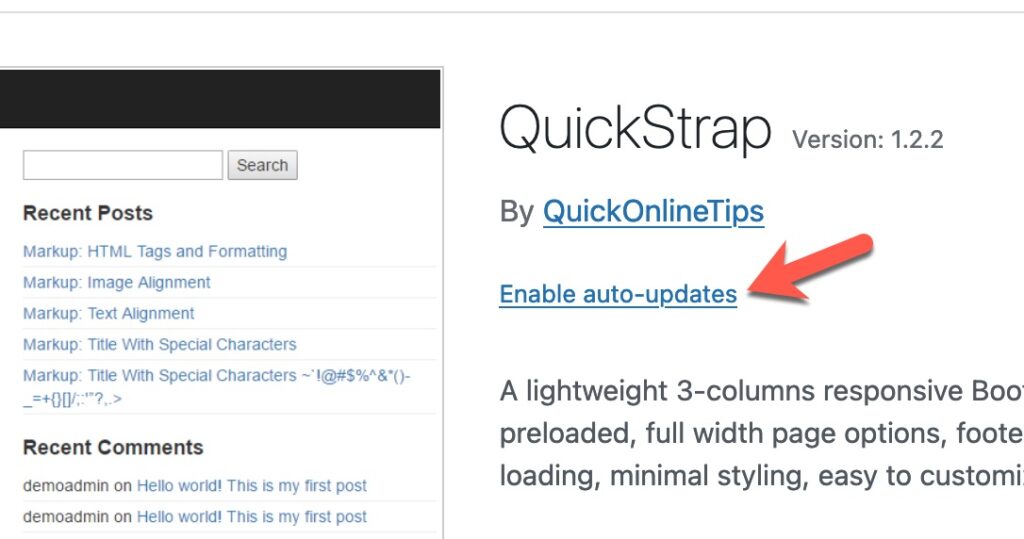
Therefore it’s a good idea to update WordPress themes as theme designers continue to improve theme code and fix glitches in design as well as incorporate new features and functionality in theme design
Try WP-Autoupdates Plugin
It is also notable that while this feature was being tested, you could try it through a separate WordPress plugin called WP-Autoupdates which is now modified and part of the WordPress core.
They recommend that the plugin is in beta phase and you would not want to run it on a production website, still, if you want to try it out on a demo site or a test site it is a good idea to do a test run and see how it will be integrated and how it will work when it comes out in the next WordPress version. Till then enjoy the plugin.
They will provide options that are at a granular level, where you can enable auto-update of all themes and plugins or you can choose to manually select which themes or plugins you want to continue updating. Looking forward to this …
What’s new with WordPress auto-updates in 2026
- Safer plugin auto-updates: since WordPress 6.6, if a plugin auto-update breaks your site, WordPress automatically rolls back to the previous version.
- Email notifications: WordPress emails the site admin after automatic updates, including any that failed.
- Site Health: Tools → Site Health warns you if background updates aren’t working.
- Core updates: minor security releases of WordPress itself update automatically by default. You can also turn on automatic major updates under Dashboard → Updates.
Turn on auto-updates for all plugins with code
To auto-update every plugin and theme, add these lines with a code snippets plugin or in a site-specific plugin (WordPress explains the options in its auto-updates documentation):
add_filter( 'auto_update_plugin', '__return_true' );
add_filter( 'auto_update_theme', '__return_true' );
Tips for safe auto-updates
- Keep regular backups so you can restore your site if an update causes problems.
- Use a child theme for any theme code changes, so updates don’t erase them.
- Be careful with critical plugins like ecommerce or membership plugins: test major updates on a staging site first.
- Remove unused plugins and themes; they still need updates and can be a security risk.
Frequently asked questions
Is it safe to auto-update WordPress plugins?
For most sites, yes. Security fixes arrive faster, and WordPress now rolls back failed plugin updates automatically. Keep backups and watch the update emails.
How often does WordPress check for updates?
WordPress checks for updates about twice a day and installs enabled auto-updates in the background.
Why are my WordPress auto-updates not working?
Common causes are WP-Cron not running (often on low-traffic sites), file permission problems or a host that disables automatic updates. Check Tools → Site Health for details.
Stuck on a gift? Try our free Gift Idea GeneratorIdeas for anyone by age, job, interests and budget, with Amazon.com and Amazon.in linksFind gifts →Get our free weekly email: new tech guides and tools, no spam.
New and updated tech guides, a free tool worth bookmarking and one useful pick, once a week. No spam, unsubscribe anytime.
One email a week. Unsubscribe anytime. See our privacy policy.



This is a good news but also a bad news. Auto update is surely will make our website keep up to date, but all those new update often bring an error or still have a bug as well.