
YouTube Annotations Are Gone: Use Cards and End Screens (2026)
In June 2008 YouTube launched YouTube annotations: speech bubbles, notes and clickable boxes creators could place on top of their videos, even to build choose-your-own-adventure stories. We liked the idea but warned that some videos were so cluttered they became unwatchable. YouTube eventually agreed. Annotations are gone, replaced by cards and end screens. Here’s what changed and how to add interactive links to videos today.
Quick answer: YouTube removed annotations in 2019 because they didn’t work on mobile and annoyed many viewers. Today you add interactivity with cards (small “i” pop-ups linking to videos, playlists, channels or approved sites), end screens (clickable elements in the last 5-20 seconds), chapters in the description, and pinned comments. Add them in YouTube Studio under Content > Details > Editor or Cards / End screen.
Table of Contents
What YouTube annotations did
- Speech bubbles, notes, titles and spotlight boxes over the video.
- Links to other videos, channels or search results at any time in the video.
- Branching stories where viewers chose what happened next.
Viewers could turn them off, but many didn’t know how, and on phones annotations often didn’t appear at all.
Why YouTube annotations were removed
As most viewing moved to phones and TVs, desktop-only annotations made less sense. YouTube stopped letting creators add new annotations in 2017 and removed existing ones from videos in January 2019, pointing creators to cards and end screens, which work across devices.
How to add YouTube cards
- Open YouTube Studio and select your video under Content.
- Click Cards on the right of the Details page.
- Choose a video, playlist, channel or link (links require the YouTube Partner Program).
- Set when the card appears and add a short teaser text, then save.
You can add up to 5 cards per video.
How to add an end screen
- In YouTube Studio, open the video and click End screen.
- Pick a template or add elements: video, playlist, subscribe button, channel or link.
- Place elements over the last 5-20 seconds and save.
Other ways to make videos interactive
- Chapters: add timestamps (starting at 0:00) in the description so viewers can jump to sections.
- Pinned comments with links or questions.
- Polls and quizzes in the Community tab or as stickers in Shorts.
- Related video link on Shorts to send viewers to a long video.
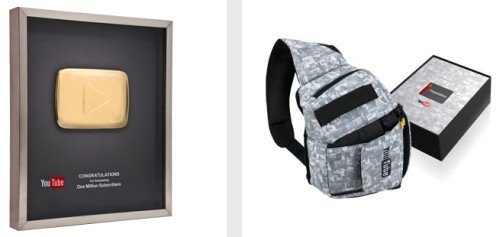
Growing a channel? See what YouTube offers at milestones in our post on YouTube rewards for popular channels.
FAQ
Can I still add annotations on YouTube?
No. Annotations were removed in 2019. Use cards and end screens instead.
What happened to my old annotations?
They no longer display on any device.
Do cards work on mobile?
Yes, cards and end screens work on desktop, mobile and most TV apps.
Get our free weekly email: new tech guides and tools, no spam.
New and updated tech guides, a free tool worth bookmarking and one useful pick, once a week. No spam, unsubscribe anytime.
One email a week. Unsubscribe anytime. See our privacy policy.


on youtube there’s a new interactive video by Panasonic! ;)
http://www.youtube.com/watch?v=hdN-0XRQ-Zg
Looks like companies are using it now too. Gillette has some choose your own adventure stuff going on.
That’s a great release by Youtube!
Thanks for the info..
I noticed this while I was uploading a video for my blog earlier today.
Ok so its an official feature now :O
I saw an video using this new feature today and it kept me thinking how the hell the guy made this lol