
Use Apple Mac Keyboard on Windows PC Computer
I started using a new Apple Mac keyboard on my Windows PC computer. I replaced my old Microsoft Windows Vista PC computer keyboard. Although I was concerned if the Apple keyboard would work properly without errors, it displayed an excellent compatibility with Windows and is totally amazing.
Apple Windows PC Computer Compatibility
I was always inspired to buy a Apple keyboard after I tried the amazing iMac at a friend’s place. I checked the Apple keyboard page, but the system requirements clearly stated
- Mac computer with available USB 1.1 or USB 2.0 port
- Mac OS X v10.4.10 or later
- Keyboard software update
There was no mention of Windows compatibility. But I still went ahead and bought the full size wired Apple keyboard with numeric keypads.
Wireless or Wired Apple Keyboard?
Why I preferred a wired over the Apple wireless keyboard?
- No numeric keypad – I personally find the numeric keypad on the right side very useful in my daily computing tasks and calculations, but the wireless model has no numeric keypad.
- Small Arrow Keys – I play many games which require arrow keys to navigate. The wireless keyboard squeezes them in one corner to fit all keys in, making arrow keys difficult to use freely.
- Missing keys – the middle column is gone in the wireless model – so no home, delete, end, page up or page down keys. Not workable.
- Bluetooth Required – While I was still concerned if the keyboard would work, adding another bluetooth compatibility issue was avoidable.
- Bluetooth Adapter – My PC would required a bluetooth adapter to communicate with the wireless keyboard. Buying one more gadget to make a new gadget work… pass.
- Batteries Needed – Wireless keyboards are powered by batteries (three AA batteries), while wired keyboards draw power from the USB port, which also makes them lighter. Wireless keyboards can run out of battery and make your computer tasks difficult till you replace them.
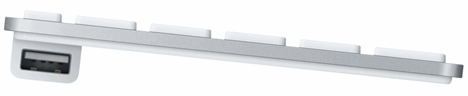
- No USB ports – The wired version had enough space to fit in 2 USB ports in the footpads, which is great to attach the USB mouse and flash drives. The wireless mouse needs that space to fit in batteries.
Apple Keyboard Installation
The Apple Keyboard installation was easier and smoother than I thought. Upon unboxing the new keyboard, I found no CD or software to install. I simply plugged in the USB cable into my Windows PC USB port and started it up. The keyboard started working instantly at startup and continued to work just fine.
- Changed Keys – Some keys changed though like the Command key functioned as the Windows Key. The function keys worked just as usual like F5 for refresh, F11 for full screen etc. Of course on Mac they had some more great functions to perform and could be easily customized.
- Non working keys – some keys did not work since they had no function assigned to perform. Extra function keys from F13-F19 were of no use right now. The Eject key used to eject DVD on Mac also served no purpose now.
- Missing keys – I really missed the popular 3 keys on the top right corner – Print Screen, Scroll Lock and Pause Break. Also can’t find the Num Lock. Of these I used the Print Screen the maximum to take quick screenshots, but as an alternative I continue to use Snagit or Pearl Crescent Page Saver Firefox extension for this purpose.
- New keys I found and really liked was that the numeric pad had a clear key and an equal key which was very useful.
On one USB port I quickly connected my mouse and on the other I fixed a 8GB USB flash drive. Super.
Apple Keyboard Usage
I have used many keyboards before, but the Apple keyboard is so amazing, I wondered why I never bought it before. Now as my fear of Windows Systems requirement was over, I really marveled at the elegant anodized aluminum body, super thin contour and soft responsive keys which were a pleasure to type. The separation of the keys ensured I had much less typos too. The product quality was simply outstanding as was the packaging. All I can say is another great Apple product totally worth the price and highly recommended.
Windows PC users can buy the Apple keyboard and enjoy the typing experience which this amazing Apple product offers even without buying an iMac computer. Let me surprise you with the cost of the keyboard – $49 only! You can buy it online from the Official Apple Store.
Update: I also tried the Apple Mighty Mouse on Windows PC. Read about my experience.