Laptop Laser Engraving: Customise Your Laptop Lid (2026)
Laptop laser engraving lets you put a logo, artwork or your name permanently on the lid of a laptop. This guide covers how laptop laser engraving works, where to get it done, what it costs you in risk, and easier reversible options like skins.
Quick answer: A laser engraver burns or removes a thin surface layer of the lid to leave a permanent design. On aluminium laptops such as a MacBook, the laser removes the coloured anodised finish and shows the bare metal underneath. It cannot be undone, so test your design first, or use a vinyl skin if you want something you can remove later.
Table of Contents
My first look at a laser etched laptop
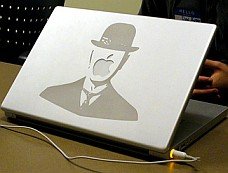
I first saw a laser-etched PowerBook on TechEBlog back in 2006. Soon after, Lifehacker showed how a design made in Photoshop was loaded into Corel Draw, lined up around the Apple logo and etched onto a PowerBook lid, and there was even a photo of Kevin Rose with a Digg logo etched on his laptop. The Make blog team used a $20,000 laser cutter to etch a 19th-century engraving of a tarsier on a 17-inch PowerBook. The machines behind many of these jobs came from Epilog Laser, which makes laser engraving, cutting and marking systems.
The PowerBook is long gone, but laptop laser engraving is still a popular way to make a plain laptop your own.
How laptop laser engraving works
The engraver follows a design file (usually a vector file such as SVG, or a high-contrast image) and moves a focused laser beam across the surface. What you get depends on the material:
- Anodised aluminium (MacBook and many premium laptops): the laser removes the coloured anodised layer and leaves a light, matt metal design.
- Painted or coated metal: the paint is burned away to show the metal underneath.
- Plastic lids: results vary a lot by plastic type, and some plastics melt or give off harmful fumes, so only an experienced shop should try them.
Where to get laptop laser engraving done
- Local engraving or trophy shops often do one-off laptop jobs. Ask to see photos of laptops they have done before.
- Makerspaces and fab labs may have a laser cutter you can book after a short safety induction.
- Home laser engravers such as Glowforge or Epilog machines can mark anodised aluminium, but check the maker’s guidance for your exact material before you start.
Tips before you engrave
- Use simple, bold line art. Fine detail and photos do not always etch well.
- Make a test on scrap material of the same kind first.
- Back up your data first, and ask the shop how they will protect the laptop during the job.
- Remember that a permanent design can lower resale value. If you plan to sell the laptop, read our tips on what to consider before buying a laptop.
Reversible alternatives to engraving
If you are not ready for a permanent change, a vinyl laptop skin or decal gives a similar custom look and peels off without marks. You can find printed and custom laptop skins on Amazon for most popular models. A clear hard-shell case with a sticker underneath is another easy option.
FAQ
Is laptop laser engraving permanent?
Yes. The laser removes or changes the surface layer, so the design cannot be wiped or peeled off.
Can you laser engrave a MacBook?
Yes. MacBooks have anodised aluminium lids, and a laser removes the coloured layer to leave a light metal design.
Does engraving damage the laptop?
Done by a skilled operator with the right settings it only marks the surface. Wrong settings can overheat the lid, so choose an experienced shop.
What is a cheaper alternative?
A vinyl laptop skin or decal. It looks custom, protects the lid and can be removed later.
Disclosure: As an Amazon Associate, QuickOnlineTips earns from qualifying purchases.
Get our free weekly email: new tech guides and tools, no spam.
New and updated tech guides, a free tool worth bookmarking and one useful pick, once a week. No spam, unsubscribe anytime.
One email a week. Unsubscribe anytime. See our privacy policy.