How to Secure Sensitive Business Information: 10 Steps (2026)
A single leaked customer list, payroll file or password can cost a company money, customers and its reputation. This guide explains how to secure sensitive business information in 2026, from turning on multi-factor authentication to encrypting devices and training staff. The original 2010 version focused on firewalls and dedicated computers. Today most business data lives in cloud apps and on laptops and phones, so the advice has changed.
Quick answer: To secure sensitive business information, turn on multi-factor authentication for every account, use a business password manager, encrypt laptops and phones, give people access only to the data they need, keep software updated automatically, back up data with an offline or immutable copy, and train staff to spot phishing. Small businesses can get most of this from Microsoft 365 or Google Workspace security settings plus a password manager like Bitwarden or 1Password.
Table of Contents
What counts as sensitive business information?
- Customer and employee personal data (names, addresses, ID numbers, health or payment details)
- Financial records, bank logins and tax files
- Contracts, pricing, trade secrets and product plans
- Passwords, API keys and admin accounts for your website and cloud services
Start by listing where each type of data lives (email, shared drives, accounting software, laptops) and who can open it. You can’t protect what you haven’t found.
10 ways to secure sensitive business information
1. Turn on multi-factor authentication (MFA)
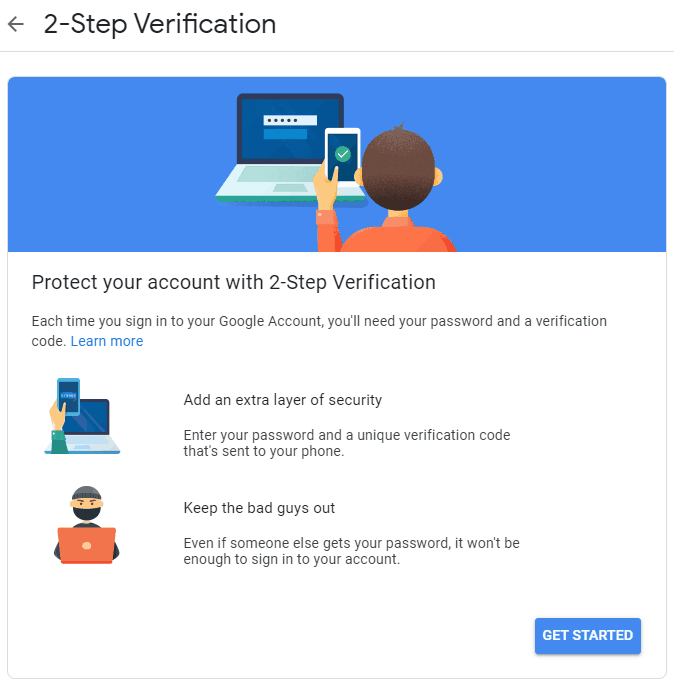
Stolen passwords are one of the most common ways attackers get in. Require MFA on email, cloud storage, banking, payroll and admin accounts. Authenticator apps, passkeys or hardware security keys are stronger than SMS codes.
2. Use a business password manager
A password manager gives every employee unique, strong passwords and lets you share logins securely without pasting them into chat. Popular options include Bitwarden and 1Password, both of which have team plans.
3. Encrypt devices and files
Encryption makes data unreadable to anyone without the key, which matters most when a laptop or phone is lost. Turn on BitLocker or Device Encryption on Windows and FileVault on Mac; modern iPhones and Android phones encrypt automatically when a passcode is set. For files you send outside the company, use encrypted sharing links with expiry dates rather than email attachments.

4. Give least-privilege access
Not everyone needs access to everything. Limit sensitive folders and apps to the people who need them, use separate admin accounts for IT tasks, and remove access the same day someone leaves the company.
5. Keep software and devices updated
Unpatched operating systems, browsers, routers and website plugins are an easy way in. Turn on automatic updates and replace devices that no longer get security updates.
6. Use a firewall and endpoint protection
The 2010 advice to use firewalls still holds: keep the built-in Windows or macOS firewall on and change your router’s default admin password. Add endpoint protection such as Microsoft Defender (included in Windows) to catch malware and ransomware.
7. Secure your email and collaboration tools
Business suites like Microsoft 365 and Google Workspace include spam and phishing filtering, data loss prevention options and security dashboards. Review sharing settings so files aren’t open to “anyone with the link” by default.
8. Back up data the right way
Follow the 3-2-1 rule: three copies of important data, on two different types of storage, with one copy offsite or offline. Ransomware can encrypt connected backups too, so keep at least one copy that can’t be changed, and test restoring it.
9. Train employees to spot phishing
Most breaches involve a human click. Run short, regular training on fake invoices, urgent “CEO” payment requests and login pages that look real. Make it easy to report a suspicious email without blame.
10. Protect calls, remote work and public Wi-Fi
The original article warned that early VoIP calls could expose data. Modern business calling apps such as Teams, Zoom and Google Meet encrypt calls in transit. The bigger risk today is staff working on public Wi-Fi or personal devices, so require device passcodes, a VPN or zero-trust access for internal systems, and screen locks.
Have a plan for when something goes wrong
Write down who to call, how to disconnect affected devices, how to reset passwords and when you must notify customers or regulators. Many US states and the EU’s GDPR require prompt breach notification. The US Cybersecurity and Infrastructure Security Agency (CISA) publishes free guidance for small businesses.
Related guides: remove malware from Windows, take our phishing quiz and stop brute force attacks on your WordPress site.
Originally written by guest author Selena Narayanasamy, a writer who loves technology, productivity, entrepreneurship and social media. Updated for 2026 by QuickOnlineTips.
FAQ
What is the easiest way to protect business data?
Turn on multi-factor authentication for every account and use a password manager. Those two steps block a large share of account takeover attacks.
Do small businesses need encryption?
Yes. Device encryption is built into Windows, macOS, iOS and Android, so it costs nothing and protects data if a device is lost or stolen.
How often should a business back up data?
At least daily for active files, with one offline or immutable copy. Test a restore every few months.
Is cloud storage safe for sensitive business information?
Major cloud providers are generally safe when you enable MFA, restrict sharing and limit access to the people who need it. Most cloud breaches come from weak passwords or misconfigured sharing.
Stuck on a gift? Try our free Gift Idea GeneratorIdeas for anyone by age, job, interests and budget, with Amazon.com and Amazon.in linksFind gifts →Get our free weekly email: new tech guides and tools, no spam.
New and updated tech guides, a free tool worth bookmarking and one useful pick, once a week. No spam, unsubscribe anytime.
One email a week. Unsubscribe anytime. See our privacy policy.