
How to Capture Screenshots from Windows Media Player (Fix Black Screen)
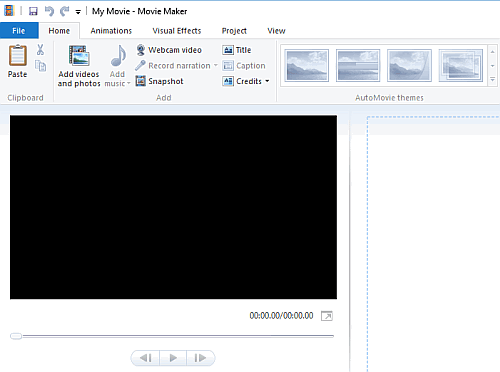
Want to capture screenshots from Windows Media Player but got a black or blank image? That’s a common problem: the video is drawn using hardware acceleration (video overlays), so the Print Screen key often can’t see it. I ran into this back in 2005 with Windows Media Player 10, and the same fix still works in the classic player today. Here’s how to capture screenshots from Windows Media Player and the new Windows 11 Media Player, plus easier free alternatives.

Quick answer: Pause the video and press Windows + Shift + S to snip it with the Snipping Tool. If you get a black image in classic Windows Media Player, go to Tools → Options → Performance → Advanced and uncheck Use overlays. Or open the video in VLC and use Video → Take Snapshot.
Table of Contents
1. Capture screenshots in Windows 11 Media Player
Windows 11 includes the new Media Player app, which replaced Groove Music and plays most video formats.
- Play the video and pause it on the frame you want.
- Press Windows + Shift + S, or press the Print Screen key (on Windows 11 it opens the Snipping Tool by default).
- Drag to select the video area. The screenshot is copied to the clipboard and saved in Pictures → Screenshots.
The Snipping Tool can also record short video clips of your screen. More options are in our guide to capture desktop screenshots in one click.
2. Capture screenshots from Windows Media Player (classic) without a black screen
The legacy Windows Media Player (Windows Media Player Legacy) is still included in Windows 10 and 11. If screenshots come out black or blank:
- Open Windows Media Player and press Alt to show the menu bar.
- Go to Tools → Options and open the Performance tab.
- Click Advanced under Video acceleration.
- Uncheck “Use overlays” and click OK.
- If it still fails, move the Video acceleration slider to None on the Performance tab.
Now play the video at any size, pause it and use Print Screen or the Snipping Tool. Turn acceleration back on afterwards for smoother playback.
3. Take a snapshot in VLC (easiest free option)
VLC Media Player is free and has a built-in frame capture that saves the full-resolution image, not just what’s on screen.
- Pause the video on the frame you want.
- Click Video → Take Snapshot, or press Shift + S on Windows (Cmd + Alt + S on Mac).
- VLC saves a PNG to your Pictures folder. Change the folder and format in Tools → Preferences → Video.
4. Save frames with MPC-HC
MPC-HC (Media Player Classic Home Cinema) is a lightweight free player that’s still updated. Pause the video and use File → Save Image (Alt + I) to save the current frame as JPG or PNG. Use the arrow keys or Ctrl + → to step frame by frame and find the exact shot.
Why do video screenshots turn black?
- Hardware acceleration: the video is drawn directly by the graphics card, outside the normal screen image.
- DRM-protected video: movies from streaming apps and some purchased videos are deliberately blocked from screenshots. These tips won’t capture protected content, and you should respect copyright when sharing frames.
Frequently asked questions
Does Windows Media Player have a screenshot button?
No. Neither the classic nor the new Media Player has a built-in snapshot feature. Use the Snipping Tool, or VLC’s Take Snapshot.
How do I capture a video frame at full resolution?
Use VLC or MPC-HC, which save the actual video frame at its original resolution rather than a screen capture.
Where does the Snipping Tool save screenshots?
In Windows 11, screenshots are saved automatically to Pictures → Screenshots and also copied to the clipboard.

I have tried all of the abover and i still am only getting a black screen…it’s driving me insane… i have WMP 9 and nothing works..
This has puzzled me for such a long time, you have the most utter determination on finding the right answer to questions
Thank you for being Google-able!
You made my night when I was trying to pull screenshots off of a few dance videos for my blog. I don’t see the purpose of overlays anyhow.
Thanks again,
Karen
(PS: tracked my blog post back to you)
I really appreciate it! I was able to get my old Windows Media Player to do screenshots, but when I got a new computer, a new OS, and a new version of WMP, I was getting frustrated. Thanks! :o)
Thankyou, Thankyou, – I was watching CBT Nuggets and was trying to copy some of the screens for my study notes. I thought I was going crazy as it was linking parts of the screen shots to the media, I tried all the options, paste specails, editing tools and even tried using different media players. I don’t no how I missed this one or why MS has it so tucked away. Big ups to you
Believe it or not. This question stumped onto my head about two minutes ago.
Off I go onto google and to find this. Amazing.
Thx.
Thank you for this advice and for going through the work to figure it out. The closest I came was the advice to reset the “video acceleration” bar to none, which is a complete overkill versus your solution. For those who are lazy, here is the Player Help description of the overlay feature that you turn off:
“Enables the graphics/video display card to display and scale video from an alternate source on top of the image displayed on the monitor. If you select this option and overlay hardware is available, video is displayed using the overlay hardware of the video card.”
Seems like most of us neither have the hardware, nor have the use for this feature at all. Thanks again!
VERY USEFULL!!!!
Thank you now i can capture the moveis i like most on pictures instead of looking from the internet!!!!
THANK YOU! You’ve no idea how much this has helped.
Usually I just open the files in PowerDVD, but this one wouldn’t open.
This also works for WinAmp, btw–Options>Preferences>Video. And it works well with screencapping utilities.
Thanks again!
awesome! thanks.
doesn’t work for dvds on my system, but otherwise fantastic.
For those of you who have tried modifying WMP v10 settings and still got a black screen shot, you need to put the WMP settings back to full (or whatever they were set to) and modify display properties. Do this selecting Control Panel > Display > Settings tab > Advanced button > Troubleshoot tab. Drag the hardware acceleration to None and get your screenshot. I use SnagIt for full control of which screen elements I want to get. Don’t forget to set it back when you’re done. Good luck.
OMG after trying to capture the screen, and it not working… I had just given up. This page has given me new hope!!! :) Thanks to the creator of this topic thing, and to Arthur for the great tips!!!
Just wanted to note that you gotta uncheck the “Use overlays” box under “Video Acceleration” rather than the one under “DVD video” to do the trick. Great tip, though. Thanks!
words cannot express my gratitude for ur help. i am running out of HDD space and just wished to capture some memorable images from anime. thanks to u that dream will be a reality now.
– austen
Still no luck after trying your method. When I push prt scr, and paste it into an image program, the picture disappears after I turn off WMP. Or if I paste the picture and play WMP the image that was pasted will begin to play.
I’ve tried everything, nothing has worked.
(I have WMP XP)
The suggested method didn’t work for me with a WMV embedded in a webpage, however what worked for that case was:
– start a video playing in WMP with overlays enabled
– open the webpage
– hit alt-printscreen
The reason this works is because most video cards, mine included, can only do one overlay at a time. By using that up with standalone windows mediaplayer, the one embedded in the webpage has to fall back on drawing without overlays.
Presumbably this would work to capture shots from other players (realplayer, quicktime) as well.
Everything has already been said, but I pose a question.
Why does Ctrl – I work for some people?
Hmmm? Doesn’t work for me.
For those that do not get it to work right away, go into WMP->Tools->Options->Performance tab
then, down where the Advanced button is (like in the screenshot), you NEED to drag the Video Acceleration from Full to None.
Then you will be able to get something other than a black screen! Remember to drag it back, afterwards!
If you can’t drag it, try resetting to your defaults.
Thanks again! As has been said, this is the MOST useful tidbit on the ‘Net!
With two computers at home i would have thought this tip would work on one of them. Both pc with xp, one with WMP 10 the other 9. Neither worked so i tried advice from a guy on top he said download BSPlayer. Prt Sc works perfectly. No complaints. Thanks to evry1’s input. Awesome sight.
Thank you so much!!
You’re such a legend. ^_^ That is by far the best computer tip I’ve ever been given.
I’ve been trying to do this for years and finally someone was able to figure it out and share it.
You deserve a pat on the back and a “Thank You” from all of us that wanted to do this but were unsable . . . until now! Thanks!
woo hoo!
lots of cool desktop wallpapers to be created now…. mwaahhhhhhh
Thanks sooo much! I was looking for this trick forever and finally I found it on your page! Thanks SO much!
“Can someone please help me? I tried disabling video acceleration, overlays, and I tried using ctrl-i, and nothing seems to work. The first two, in conjunction with print screen, just result in the same problem, and ctrl-i does nothing.”
I have this same problem, maybe the author can figure it out.
On Windows 2000 with Media Player 9, neither the CTRL-I or unchecking overlay methods works.
I’m still bummin.
J
THANK YOU SO MUCH!! in the past ive found that SOMETIMES WMP will let me screencap, and if that doesn’t work (which is most of the time) then sometimes winamp will let me screencap. Sometimes neither work though.. also, winamp doesn’t really play DVDs, so when I need to screencap a DVD i’m screwed! Anyway, bless your heart for posting this info, can’t tell ye how much I appreciate it! Makes all those money-grubbing screencap programs seem a bit silly, huh? :D
i love it it is the best thing ever you totaly rock i am loving it. your the best. it took me 5 years to figuire this out. your are the bomb. love ya lov ya. woot. this is the best thing thats hapened in my life love ya
Ahhh, I can now take a screen shot! The problem now is, when I try to crop it in Paint (i.e., to crop out the Windows Media Player), whatever I try to crop gets a black bar across half of the picture, and only the top half of the picture comes out at the bottom.
Eh, perhaps I need to consult a Paint expert. Thanks again for the great information!
Awesome Info, Thanks!!
I too attempted the Ctrl-I option and nothing happens. I have v10 w/XP. Is tehre a setting for this?
However, turning off the Overlay worked great and I use HyperSnap DX (Best screen capture software out there).
There is a much easier solution by just pausing the movie and pressing ctrl-i, which will save a screenshot of the movie. I tried it on WMP10 and it works fine.
Thanks for the information! It works just great for videos I have on my hard drive, i.e., short interview clips that I’ve downloaded, but when I try to get a screen capture from a DVD playing in my player and import it into Paint, the top half of the image is black, and the bottom half of the image is the half of the image I was trying to capture. Any hints?
Thanks so much, I tried to download a few shareware titles but had no luck.
Now I can screen cap to my hearts content :)
It saves to clipboard but once media player is closed the video image goes away and I am left with a black screen with a WMP border. Am I missing something here? Have WMP 10. Thx 4 any help.
That was truly a great tip. Capturing screen shots in WMP has eluded me over the years but now I know how to do it. Thanks for sharing. :)
I use WMP 10 with WinXP. The Ctrl-I didn’t do anything though.
Jasmine, I’m not sure what’s wrong there. Could it be a Win98 issue?
I tried both ways :
1) unchecking “use overlay”–
still get blank screen
2)pressing Ctrl+I but it does not bring up a Save Captured Image dialog
I am using Window 98 and WMP is version 9.
Could someone assist me?
Thanks so much for the tip. Really appreciate your efforts. It works great to save the image to the clipboard, but once I paste it into photoshop it seems that the image and the player are two separate images. If I try to crop the player out, it results in some strange clipping and if I try to save the image as a .jpg it comes up black. If I try to just capture the video image in paint without hte player border using the select function it doesn’t keep the frame of video in the highlighted space. Any ideas?
ohmygod I love you.
No, no, really, I do.
This is a fabulous thing, who knew you could tweak with WMP and be able to print screen things? I Should sell your idea; do you mind? lol
actually, my friend was in a job interview with ATI and the guy asked him why it appears blank and why. My friend drew a blank. The reason as explained by the interviewer is something due to the video card rendering the video directly , but your windows desktop is in 2d mode and that is done seprately, so when you do screen captures, you only get the 2d content. The reason why disabling hardware acceleration works is becasue you are now forcing the computer to render everything in software, the 2d content along with the rendered video.
thanks 4 this one i’ve been tryin for ages to capture screens from media player
It actual does work in winamp.
Just go into the preferences, then video, and at the bottom it has the overlay option I turned it off and it worked.
I Can’t Belive it was that easy, Thanx alot for the tip.
NOW using camtasia capture and yahoo music we may capture dvd music clips hehe, and burn our oun dvds.
100 BIG THANKS
Can someone please help me? I tried disabling video acceleration, overlays, and I tried using ctrl-i, and nothing seems to work. The first two, in conjunction with print screen, just result in the same problem, and ctrl-i does nothing.
OMG!!! Thank you so much! I’d been fiddling around with my media player for months trying to figure out what was wrong with it. I’m so happy I found your site on google.
ctrl-I does a fine job. i think setting your hardware acceleration to none also works for the print screen method as well. i don’t recomend keeping those setting tho–
HELLO,
can somebody tell me please if is possible to take capture images from a ram or rm file using Real Player? Thank you!!!
I always thought it was something on the hardware level that caused the blank screen to show up. Now I know!
Disabling overlays will result in poor playback performance on some machines. Not a good long term solution.
If you need to get a full screen shot of everything on the screen, video included, then yeah, disable the overlay and hit the print screen button.
But if you just need a shot of the video, use CTRL-I. Or use another player like VLC or BSPlayer, which can do this too.
Well, since this doesn’t work for BSplayer, RealOne player, winamp and other players, i made another thing to do (Windows 2000 and Windows XP ONLY!!)
1. Click Windows Start > Settings > Control Panel, the Control Panel displays.
2. Double-click Display, the Display Properties dialog box displays.
3. Click the Settings tab.
4. Click the Advanced button, the Advanced Settings dialog box displays.
5. Click the Troubleshoot tab.
6. Click and drag the Hardware Acceleration slider to the left, changing the setting from Full to None. This disables all accelerations.
7.Click the Apply button to apply the settings to your desktop.
8. Click the OK button to save your changes and close the Advanced Settings dialog box.
9. Click the OK button to close the Display Properties dialog box.
Et voila! Tu n’as pas de PrtScr anymore!
An easier way: In WMP, at least since version 9, you can use Ctrl-I to capture a frame, either when playing or when paused for greater accuracy. It brings up a Save Captured Image dialog which handily defaults to a jpeg.
It’s people like you that help make the Internet great! I knew someone would have a an answer on how to do this for FREE!