
How to Capture Screenshots from Windows Media Player (Fix Black Screen)
Want to capture screenshots from Windows Media Player but got a black or blank image? That’s a common problem: the video is drawn using hardware acceleration (video overlays), so the Print Screen key often can’t see it. I ran into this back in 2005 with Windows Media Player 10, and the same fix still works in the classic player today. Here’s how to capture screenshots from Windows Media Player and the new Windows 11 Media Player, plus easier free alternatives.

Quick answer: Pause the video and press Windows + Shift + S to snip it with the Snipping Tool. If you get a black image in classic Windows Media Player, go to Tools → Options → Performance → Advanced and uncheck Use overlays. Or open the video in VLC and use Video → Take Snapshot.
Table of Contents
1. Capture screenshots in Windows 11 Media Player
Windows 11 includes the new Media Player app, which replaced Groove Music and plays most video formats.
- Play the video and pause it on the frame you want.
- Press Windows + Shift + S, or press the Print Screen key (on Windows 11 it opens the Snipping Tool by default).
- Drag to select the video area. The screenshot is copied to the clipboard and saved in Pictures → Screenshots.
The Snipping Tool can also record short video clips of your screen. More options are in our guide to capture desktop screenshots in one click.
2. Capture screenshots from Windows Media Player (classic) without a black screen
The legacy Windows Media Player (Windows Media Player Legacy) is still included in Windows 10 and 11. If screenshots come out black or blank:
- Open Windows Media Player and press Alt to show the menu bar.
- Go to Tools → Options and open the Performance tab.
- Click Advanced under Video acceleration.
- Uncheck “Use overlays” and click OK.
- If it still fails, move the Video acceleration slider to None on the Performance tab.
Now play the video at any size, pause it and use Print Screen or the Snipping Tool. Turn acceleration back on afterwards for smoother playback.
3. Take a snapshot in VLC (easiest free option)
VLC Media Player is free and has a built-in frame capture that saves the full-resolution image, not just what’s on screen.
- Pause the video on the frame you want.
- Click Video → Take Snapshot, or press Shift + S on Windows (Cmd + Alt + S on Mac).
- VLC saves a PNG to your Pictures folder. Change the folder and format in Tools → Preferences → Video.
4. Save frames with MPC-HC
MPC-HC (Media Player Classic Home Cinema) is a lightweight free player that’s still updated. Pause the video and use File → Save Image (Alt + I) to save the current frame as JPG or PNG. Use the arrow keys or Ctrl + → to step frame by frame and find the exact shot.
Why do video screenshots turn black?
- Hardware acceleration: the video is drawn directly by the graphics card, outside the normal screen image.
- DRM-protected video: movies from streaming apps and some purchased videos are deliberately blocked from screenshots. These tips won’t capture protected content, and you should respect copyright when sharing frames.
Frequently asked questions
Does Windows Media Player have a screenshot button?
No. Neither the classic nor the new Media Player has a built-in snapshot feature. Use the Snipping Tool, or VLC’s Take Snapshot.
How do I capture a video frame at full resolution?
Use VLC or MPC-HC, which save the actual video frame at its original resolution rather than a screen capture.
Where does the Snipping Tool save screenshots?
In Windows 11, screenshots are saved automatically to Pictures → Screenshots and also copied to the clipboard.

dear sir,
i forgot to tell, VCD capture is ok, but DVD capture is not working the same way.
Kannan
Dear Sir,
today i try to capture some snaps from my DVD, i played the DVD and did pause, then i pressed ‘print screen’ the i opened paint brush, then i paste the picture, then i saved bitmap format. then i try open the file (photo) its come blank. please advise me how to do?
i am using windows media player 10
thanks sir
maybe you should add that this (ctrl-i) works for .mpg but NOT for .wma
Don’t know if this is mentioned yet, but none of those methods worked for you, you can just use Media Player Classic (google to download it)
Open the videos using this media player and the option to save image (or thumbnails) is under the file menu.
Where do you go to view the images afterwards????
it used to work! Now, it doesn’t! its so strange, erm help?
Windows Media Player 11 has a screen capture feature but it does not tell you where it placed the captured screen.
Anyone know where Windows Media Player 11 places the screen capture?
It worked. Many thanks.
OMG!! How friggin’ easy was that…I mean…really. Thanks!!
None of them work for me =/
It still brings up either a black screen, or the moving video if its still playing. Ctrl + I does nothing at all either.
Thanks a lot! I used a program called Hypersnap DX for capturing screenshots from Windows Media Player but now I see that with the help this little tip you can do the job by yourself for free. It saves you lots of time, too. Thanks a lot one more time!
this really was useful for me!!
big thx for you!
keep up posting these kinda stuff ;)
I’ve just shouted to the rest of the office “Yipee I’ve done it!!”
Thank you, thank you, thank you. I wasn’t going to be defeated so you’ve helped me out big time.
This is one of the best days of my life. This tip is a godsend.
Nothing worked for me as I try to capture stills from a school talent show DVD, I have WMP 10 with Windows XP. I’ve read through all the suggestions and tried them to no avail. I can use print screen and then paste but it can’t be cropped because it keeps moving around as I try to crop. Very disappointing.
One problem with Ctrl+I is that it distorts the aspect ratio :/
You are a genius man.I loved it
Such a simple solution. Thank you for making my day better (and I guess thanks to Google too).
Thanks a million!
YOU ARE A GENIUS! THANK YOU! Like you, I tried almost everything. Didn’t want to pay for something that I would eventually figure out myself and after hours and hours of trying all, I finally gave up for the night. THEN, I searched for capturing images and FOUND YOU. Just how lucky can one get!
THANK YOU FOR TEACHING ME SOMETHING NEW TODAY!
does this work on shows like on mtv
Excellent! I’ve always wondered how to capture from WMP! You are awesome! [bows] Thank you. 8]
Nice, but why would you even consider using Windows media player to capture a screenshot when there is VLC player.
No damn complicated stuff. It plays pretty much everything and capturing a screenshot is very easy
Cool! I’ve been trying to capture from WMP for the longest time. Thank you for the tip! :)
I can screenshot from music videos but not DVDs… This is very annoying!
I’m still having difficulties. I’m doing everything. But I can’t seem to save the picture. When I do that… I only get a black screen.
Are you surprised? It’s something called XVideo (or Xv) in X Window world (found on popular Unix like distros like Linux), and also called “video overlay”, but not the name is the important thing but the fact that modern video cards have hardware acceleration ability to scale an image and/or convert colour space info (like directly accepted YUV data instead of RGB for example). This feature is designed for displaying displaying video with high performance and quality (scaling). It’s quite normal that you can’t see it on a normal screenshot, since the content of the WMP window is NOT present in the video ram for real either! The video RAM contains only a surface with “colour key” (like some black or blue, or something depends on the software solution). The solution on every platform (even on Linux for example with many open source players) is switching output not to use this video overlay unit (or Xv, or whatever). Than it becomes slower (or at least requires much more CPU power) and maybe uglier (no smooth scale algorithm in the player for example), but the content is shown as “normal” video data.
i tried this and i can get screen shots kinda but when i move the captured image around it changes as if it is folowing the video so eg if i had a whole face and move the picture down the page i end up with the bottom half of the face! ne help pls?????
I can’t get Ctrl-I to work for wmv
other formats can
why
Great!!
I thought it was a protection system so you could not easisly ‘steal’ images of possibly copyrighted videos.
It may depend on your video hardware (card) as well. On my laptop (which has a Radeon 9000 display adapter), I wasn’t able to slide the Video Acceleration in WMP 9 under W2K – it was greyed out. I was able to acheive a PrintScreen capture of the video only after unchecking all options to do with Video Acceleration. Later I discovered that if I pressed the ‘Restore Defaults’ button beside the ‘Advanced’ button, I had control of the Video Acceleration slider again and with it at ‘None’ I could get a capture.
However, I can’t get Ctrl-I to work for the life of me – nothing happens (I tried the capital I, the small i, the small l, and the number 1!)
I could not get any of the above tips to work, including unchecking the overlay options in Windows Media Player, I tried everything in several configurations. Eventually I checked in the VLC Media Player options, and if you go
Settings > Preferences > General Settings > Video > and then make sure the “Overlay video output” option isn’t checked. (You might need to check the “Advanced options” box in the bottom right hand corner of the panel to see all the options.)
Voila! I can now take screencaps from all kinds of media files including DVDs with the PrtSc or Alt+PrtSc options.
BRILLIANT!!! At first I was trying all the different things that were suggested on this page, but it wasn’t until Dan(http://www.blogger.com/profile/5212233) pointed out that “you gotta uncheck the “Use overlays” box under “Video Acceleration” rather than the one under “DVD video” to do the trick”….now I can screen capture to my heart’s content!! Oh I’m so happy :D
~Caitlin H.
Thatks for the incredible tip on how to get genuine, clean screengrabs from WMP…
Before i stumbled on this little tip, i’d use the client area capture function in ArcSoft’s Photo Studio, but the images always came out looking jagged and had artifacting in them.
And also, i noticed by doing this tweak to the setting, the films themselves no longer have that odd rendering with color shading and play more smoothly.
Thanks a whole bunch for this tip! Mucho appreciados!
thanks for the tip
But this really reduces the video quality. IS there any way we can maintain the vidoe quality when we uncheck ‘User overlay’
regards
Hi there, i have a new laptop with windows 2000 loaded, earlier i have used CTRL+I while i had my desk top, and it worked fine, however, the same function with on the laptop is not activated, i am wondering why.
however, i have irfan view with me, and it has this cool feature of screen capture. by pressing “C”. a separate window pops up to ask whether we want the entire screen, or the foreground or the foreground with the client area. select the last option i.e. with foreground with client area and press start, and press ctrl +f11, thats it. (hope u guys understood what i meant) anyway, please download irfanview and it is very easy.
Speechless I am. I’m not only impressed with the simplicity of the fix, and your generocity in sharing, but with all the great compliments everyone has.
Well done to everyone!
For those who say it still won’t work, and since others have been offering other solutions as well…
What has worked for me for a long while, annoying though it is, is to open up two videos at the same time. Two different ones, or the same one, doesn’t matter as long as you have two videos loaded into two different windows. Then when you print screen, the second one opened will always capture fine. It’s worked for me in WMP, Winamp, DivX… everything.
CTRL+I FOR THE WIN
Thanks a lot mate – i cant believe something simple like this has annoyed so many other ppl lol
all i wanted was a screen shot for my msn and it was so annoying! anyway thanks – simple , easy instructions – voila
altho the one thing you might need to pointout is (as stupid as it may seem) how to find the tool bar! as i couldnt find it until i madly clicked mediaplayer and it came up with another menu!
anyway less of the moan, thanks for the help on your site
I read this post, and tried this method to get a screen capture from a DVD. It did not work.
I tried this same method again, using a normal *AVI file on my computer. This time it did work.
It seems like other people who have responded have the same problem:
This method works for normal files on your hard drive, but not for taking screen captures of DVDs. :(
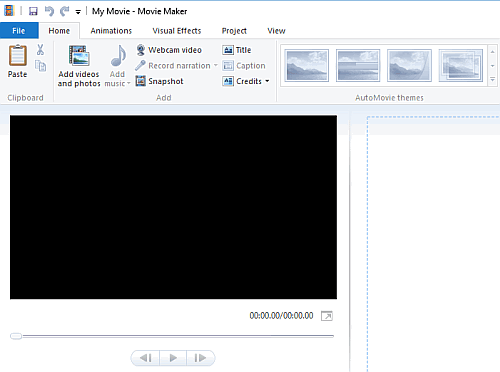
The easiest thing to do is to import the WMV file into the program Movie Maker, and cap from there. It’s included in most Windows computers.
Thank for the great tip, it works perfectly only for Video CD (VCD) movie. But it did NOT work for me when I played a DVD movie, I pasted the capture image to the same MS WORD file, this image was playing as Windows Media Player on playing, when I closed the WMP, the pasted image became black screen image. Since we use DVD more than VCD nowadays. Can anyone help me to solve this problem. Many thanks in advance.
Andi
I LOVE YOU AS WELL!!!!
It was so weird. Yesterday I was doing screen captures perfectly fine and then suddenly I started getting shots a few seconds too late or I’d capture another shot and it would replace the previous shot in Photoshop CS before I even opened a new file and pasted (in the previous opened document) and then – and this is really weird – if I just let the video keep running – switched over to photoshop – the document would be PLAYING the video clip IN PHOTOSHOP!! I could NOT believe my eyes.
So I would pause Media Player and print screen and then open new doc. and paste and if I would try to resize the window – the area that was the media player would move around overtop the area that was the image of the video (in photoshop) so I KNEW this was a layer issue as well. And I looked through the preferences – I’ve been up for two days looking around – but I MISSED the overlay tab!
It was simple and I don’t know why I didn’t see that box – if I had it would have made perfect sense to me as well. I was looking for something that would “lock” media player or something to the video because I could tell it was floating over the video by the way it was displaying in Photoshop.
Very strange – but I guess it’s suppose to work that way – now I’m going to find out why Photoshop does this because I’m sure there is a very cool reason.
I also tried Control L (or whatever it was – it’s gone from my memory right at this moment) and it didn’t work for me either – so I guess different things work for different people’s computers.
But THANK YOU – I was going mental!!!
Sorry so long!
LuCynda
Truly the best hint I saw on internet, simple, easy, and work!!.
Well with the hint of the overlay, i test it in other players, and for de Media Player Classic (i know the thing of the Ctrl-8 but for my don’t work and the Imp Pant don’t work either) you go to View>Options>Playback>Output and change where say “Direct Show Video” to “VMR9 (windowed) if you have DirectX9 installed, I haven’t test if work changing in “VMR 7/9 & DirectX7/9” to “Use regular offscreen plain surfaces”
Thank you Very Much
Muchas Gracias
Arigatou Gozaimasu
Thank you SO much! It worked perfectly! I’ve only been trying to figure out how to cap from WMP for like a year and a half now :-P
Hmmm… these packages exist for a reason. So although this simple settings tweak will allow about 2% of people to capture videos, for most people it makes no difference at all.
Wow! Works great (I have XP and WMP V10). Especially the “Ctrl and I” function since it means I don’t have to do any cropping (which I will need to do if I use the screen capture method).
Also, note that MS Movie Maker has a “Take Picture From Preview” function under the Tools menu which does pretty much the same thing.
Thanks
Thank you for the WinMP tip! I was about to download screencap programs but good thing i found your blog! do you just love google hehehe
Just a word on the Ctrl-I feature:
It works on some files and not on others. One of the tech geniuses could tell you why, but I have no trouble using WMP 10 to caputre DVD video, but it doesn’t work on .WMV files at all.
For WMP 9: Unclick: Use overlays,Use YUV flipping, Use RGB flipping and use primary surfaces. Hope that helps.