
How to Capture Screenshots from Windows Media Player (Fix Black Screen)
Want to capture screenshots from Windows Media Player but got a black or blank image? That’s a common problem: the video is drawn using hardware acceleration (video overlays), so the Print Screen key often can’t see it. I ran into this back in 2005 with Windows Media Player 10, and the same fix still works in the classic player today. Here’s how to capture screenshots from Windows Media Player and the new Windows 11 Media Player, plus easier free alternatives.

Quick answer: Pause the video and press Windows + Shift + S to snip it with the Snipping Tool. If you get a black image in classic Windows Media Player, go to Tools → Options → Performance → Advanced and uncheck Use overlays. Or open the video in VLC and use Video → Take Snapshot.
Table of Contents
1. Capture screenshots in Windows 11 Media Player
Windows 11 includes the new Media Player app, which replaced Groove Music and plays most video formats.
- Play the video and pause it on the frame you want.
- Press Windows + Shift + S, or press the Print Screen key (on Windows 11 it opens the Snipping Tool by default).
- Drag to select the video area. The screenshot is copied to the clipboard and saved in Pictures → Screenshots.
The Snipping Tool can also record short video clips of your screen. More options are in our guide to capture desktop screenshots in one click.
2. Capture screenshots from Windows Media Player (classic) without a black screen
The legacy Windows Media Player (Windows Media Player Legacy) is still included in Windows 10 and 11. If screenshots come out black or blank:
- Open Windows Media Player and press Alt to show the menu bar.
- Go to Tools → Options and open the Performance tab.
- Click Advanced under Video acceleration.
- Uncheck “Use overlays” and click OK.
- If it still fails, move the Video acceleration slider to None on the Performance tab.
Now play the video at any size, pause it and use Print Screen or the Snipping Tool. Turn acceleration back on afterwards for smoother playback.
3. Take a snapshot in VLC (easiest free option)
VLC Media Player is free and has a built-in frame capture that saves the full-resolution image, not just what’s on screen.
- Pause the video on the frame you want.
- Click Video → Take Snapshot, or press Shift + S on Windows (Cmd + Alt + S on Mac).
- VLC saves a PNG to your Pictures folder. Change the folder and format in Tools → Preferences → Video.
4. Save frames with MPC-HC
MPC-HC (Media Player Classic Home Cinema) is a lightweight free player that’s still updated. Pause the video and use File → Save Image (Alt + I) to save the current frame as JPG or PNG. Use the arrow keys or Ctrl + → to step frame by frame and find the exact shot.
Why do video screenshots turn black?
- Hardware acceleration: the video is drawn directly by the graphics card, outside the normal screen image.
- DRM-protected video: movies from streaming apps and some purchased videos are deliberately blocked from screenshots. These tips won’t capture protected content, and you should respect copyright when sharing frames.
Frequently asked questions
Does Windows Media Player have a screenshot button?
No. Neither the classic nor the new Media Player has a built-in snapshot feature. Use the Snipping Tool, or VLC’s Take Snapshot.
How do I capture a video frame at full resolution?
Use VLC or MPC-HC, which save the actual video frame at its original resolution rather than a screen capture.
Where does the Snipping Tool save screenshots?
In Windows 11, screenshots are saved automatically to Pictures → Screenshots and also copied to the clipboard.

TO EVERYONE WHO IS STILL HAVING TROUBLE:
Tip #213 works!!!!
It is the easiest solution to this problem. Stop trying to make WMP work. I tried for hours one day with all the previous directions and never could get it to capture for me.
http://www.videolan.org
Try it, you will be glad you did.
Hi..
I have tried as you expalined:
open movie player, clicked on tools , clicked options , clicked performance..but, i can find the “advance tab ” (the one you said way low down below. Its just not there.
Please kindly help..as i am soso tired trying to take a frame . capshot form WMP.
I am using ME
Thank you so much for helping..
kind regards
robert K
Thanks, I just did an important video and needed a few pics. Your procedure worked perfectly. Saved me a couple hours for sure.
I don’t know what’s up with my WMP. The CTRL+I trick worked for me for quite a while. But for some reason, it no longer brings up a save window for me even though “Used Overlayers” is unchecked! 9_9 Someone help me, please.
THANK YOU! I was furious earlier today as the Media Player would not let me make a screen shot. The bmp or jpg file looked fine until I closed the Media Player. How terribly annoying. Your trick saved my day. Thank you!
THANK YOU!!
I had to take a few screenshots for a movie review. If I didn’t take it I would be dead! literally!
Thank goodness I found your site!
KEEP UP!
The last method worked for me!
WMP11.
I do have a problem with Windows Movie Maker. I do have reproduce a videofilm to a DVD. Now I want from this disk make some pictures for the outlet book. Even I want print the date to that cover. This is not posible on mine pc. If I start the WMM, I get the following text to read.
E:\Video_TS\VTS_01_1.VOB will not be supported and the file can not be imported in Windows Movie Maker. A moment later I get the next text to read.
The file C:\program files\Movie Maker\Mui409\Moviemk.chm can not be found.
I can not believe that the solusion by Windows Media Players is to find. Hopefully there will be somebody how can help me. I do believe that I have to download some software for this problem. Maybe is there somebody how know what I am missing. Sorry for my failures.
Wow, this really works. I’ve been trying to figure it out myself, and your tip is really useful. Thanks so much~
This is awesome, thank you so much for sharing the knowledge and also the comments. I was looking for info on realplayer screenshots and was able to do this seconds after finding your page. I *really* appreciate that you made this available!
WOW! VCL media player really works! i understand how you feel chawny! tahnks tyler!
WINDOW MEDIA PLAYER 11 USERS, READ THIS.
the Ctrl + I used to work wonder while i was still using WMP 10. but now that it has upgraded to v.11, that trick doesnt do anymore.
now i will tell you who wins in my case. i’ve tried the entire variety of suggestions given above: nero showtime, Window Movie Maker, etc etc. none worked.
…finally Tyler’s suggestion at #216 made me want to slave myself to him throughout this winter. i wouldnt even mind changing his baby’s nasty diapers (if he had one) if he told me to.
Tyler suggested VLC media player (downloaded from http://www.videolan.org) and this one blessed thing threw me hard into an awe. screencap can be done EXTREMELY EASY AND FLAWLESS simply by using the Ctrl + Alt + s combo. the program is also as small as 8MB, thus, takes no time downloading.
i bet…that you’d be damned if you missed this out. go ahead and do yourself a favor now.
YOU ARE MY HERO!
THANK YOU SO FREAKIN MUCH!!! I was d/l program after program trying to do this, had no idea it was so simple!
You wouldn’t happen to know how to capture a video clip while I am playing a dvd in WMP would you? :)
Thanks again!
Works a treat! A workmate was pulling his hair out – 5 mins later we’ve solved it through your note. Legend!
Thanks! Now I got it. No need to depend on 3rd-party media players which can use screen capturing abilities. Thanks a bunch, again
does anyone know how to record (video) a video conference (e.g. netmeeting).
thank you so much ¡¡¡¡
i always use gooogle for searching and finding specified tasks and i also clarify the doubts from google
I’m having trouble with a couple of recent DVD releases from New Line Video. I think they’ve put some special encoding in them that prevents screen shots. I can’t get a screen shot with Windows Media Player (regardless of overlays or not) OR with the VLC player (it actually won’t even play the movie), not even with the DVD player that came with my computer (won’t play either). Any ideas? Thanks!
Tyler’s (via Don Daredevil’s) solution works perfectly! I could not get this to work with WMP or any other program, but the VLC Media Player allows you to capture a screen shot either on the fly or when the picture is paused. Control-Alt-S saves it; the screen shows the location where it’s saved. It can be changed into a .jpg easily.
I didn’t see this here, maybe I missed it: Has anyone figured out a way to get an image using WMP Classic? I can’t for the life of me figure -that- out. Any help would be cool.
Any suggestions for Mac users? None of what I’ve tried has worked so far. I have WMP 9 Mac version. There is no tools menu that I have found.
THANK YOU SO MUCH!!!!!!!
Ive been trying to do this for ages, and could never either figure it out or get it to work. Having all the same problems as everyone else, I decided to give it one more search and found your reply.
Thank the internet and thank you!!
fhew! i tried it at first and it didn’t work and i was all disappointed, but then i saw i didn’t uncheck another radio button and now it does…. ^.^ arigato ^.^
Like Tyler, I too struggled with -ALL- the above options for a few years to no avail! I now have Windows XP and the only thing that works for me is Tyler’s recommmend solution (see below). Although the saved image is only approximately three quarters screen size, it’s the only freeware solution I’ve found that actually works. No more blank black screens for me! It saves the captured image as a PNG. file, but you can load it into Paint and resave it to any other format you choose. Trust me, I’ve tried every other option and this one WORKS. Thank You Tyler, you’re a Godsend. :)
(Quote) 216. Tyler | September 10th, 2006 #
I struggled with all of these options working. I downloaded VLC player from http://www.videolan.org, installed and was capturing ’snapshots’ from DVDs in minutes. Didn’t need to mess with overlays or hardware acceleration, just Ctrl+Alt+s. Saves a .jpg or other to the destination dir of your choice. Options are under settings, preferences, video. Good luck. (Quote)
THANK YOU INDEED!! people like you are the ones who make me do the same thing and try to share tips with other users, you helped me a lot and I wish you the best, thank you, thaaaaaank youuuuuuuuuuuuu
Crtl+PrtSc or Alt+PrtSc do not work??? Well, I will try it myself.
You’re the Greatest !
For years i’ve been puzzled around this nasty issue, and finally I stumbled on the solution! miraculous…
Some quick notes based on my experience:
With recent versions of WMP (12) branded for URGE, the trick doesn’t work for DVD’s, even if you disable all accelerations on both WM options and in control panel.
So I had to use PowerDVD, and disable the hardware acceleration on its settings menu – and it worked.
Sweeeeeeeet!
Googled it and it was the first link I tried. It also works it Winamp as well.
Had quite a time to get a screen capture with the video in it. Now with the right settings can do it.
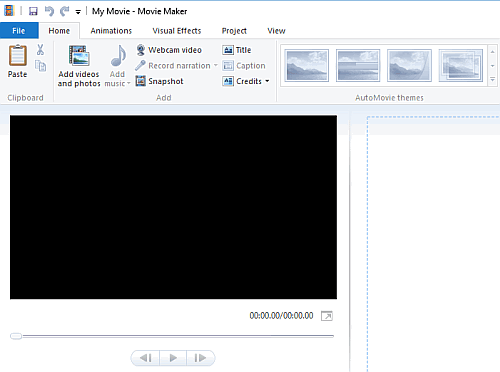
None of the ways above worked for me, as I have WMP 11, but I found another way besides downloading that program from videolan.org, using Windows Movie Maker. WMM comes standard with all Windows computers, so this should work for anyone that has one. Just import the video into WMM, play it, stretch the frame with the video in it to its biggest site, and click the “Take picture” button (looks like a camera). A window will open and you can name the image and specify where to save it. This option works well if you don’t need an image bigger than 640 x 480.
this is a great money and time saver. my sister spent $40 on some software that does that exact same thing. she felt like jumping in front of a bus when i showed her this. it was touch and go for awhile but we think she is going to make it.
thanks,
L7
I could do the screen capture until I got the newest version of wmp and now it wont work. I’ve tried doing what you’ve all said but it’s not working.
please help.
thanks
=D
what if when you printscreen, copy and paste it,it then comes up with thepicture but when you play the dvd the copied picture plays with it? because thats whats happening to me.
This is a wonderful tip! I use Full shot. After the Media Player adjustment, the capture was perfect! Thank you very much for sharing, and to google too for great indexing!
Excellent tip!
This solved an issue I had playing back MPEGs created by the Hauppauge WinTV-HVR 1600 inside Windows Media Player. I was getting multi-coloured horizontal bars in WMP only on the MPEGs I created in WinTV.
By turning off the overlay, everything started working.
It is worth noting however that turning off “Use video mixing renderer” completely results in WMP v11.0.5721.5145 hanging
thank you so much
i had been trying to shut off hardware acceleration and then using prt scr with WMP 11 before i found this article
I stumbled upon this solution myself a few years ago when I had to create screenshots with SnagIt on a regular basis. I’ve since forgot all about this until I again had problems creating screenshots of video. Thanks for the reminder and glad to see someone had the bright idea of posting this solution online.
Thank you, thank you, thank you! I have been looking for a solution like this for ages, and yours is simple an effective.
Thanks a lot, very helpful. The Ctrl-I version suggested by a commenter works well without extra settings, but the screen shots it gives are rather small.
cool! thanks!! i’ve been trying to figure this one out myself for a while :)
re: #302. Mira – The Tools / Options / etc. are in Windows Media Player (WMP). I’m using version 9 on Windows 2K and the instructions at the very top of this page worked for me other than it was not the Use Overlays option that fixed it but rather Use YUV Flipping which is just below the Use Overlaps option. If you are using a version of WMP other than 9 then the details of how you get to the options screen may be different but the same or similar options should be available. These options control how WMP interacts with the video driver and thus the exact option(s) that work for you is dependent on the version of WMP, Windows, video driver, and video hardware that you have.
If you turn all of the video acceleration options (uncheck everything) then screen shots should work but playing videos will not be as efficient. Thus you want to play with turning the accelerator options on until you find which ones break screen shots for you.
Umm, I’m trying to capture a screenshot, but there is no tools. There are options, but there’s nothing that even relates to ‘Use Overlays’.
Could somebody help me?
I use Windows 2k, if that helps.
After reading this tip and fooling around for 10 minutes with various combinations of performance settings in the windows media player options menu. I was unable to get it to work. I then went to Microshaft’s site and did a few minutes worth of reading. Lo and behold I had made a major blunder. It is not CTRL + the number one as I had previously read. It is CTRL + the letter i, as in I’m an idiot. Thanks for the tip, too bad I haven’t learned to read yet.
LARRY B – Read my note on #295. I was having the same exact problems you were. Refer to #213, it works!!! I literally tried every single tip up to #213 and nothing fixed it. Do what it says in Tyler’s message. It is so easy, you will be amazed. I am capturing screen shots left and right now.
For #297. Larry B – Did you try print-screen by itself, shift-print-screen, etc. to see if any of them capture a still? If you are getting a moving image then something on your system is causing print-screen to capture a link and not the image.
With my system (windows-2000)
print-screen – captures entire desktop
ALT-print-screen – captures foreground window
Other combinations such as with CTRL, or Shift do not seem to add extra features. Any combination that includes the ALT key gets the foreground window and any combination without it (CTRL-Shift-print-screen for example) gets the whole desktop). I don’t have a way to capture a link to a live image using print-screen but then again I’m on win-2k.
Great tips here, but so far no luck for me. :( I’ve tried all variety of methods of the screenshots here in WMP– but the problem is, as soon as I save the screenshot image I’ve captured via Printscreen (which I then open up in Photoshop or in Microsoft Paint), as a JPG or BMP or whatever, it always just appears black whenever I try to open it up. Whether I keep WMP open or close it down after getting the screenshot– it’s always just a black screen file.
I’ve done everything above, too– turned off video acceleration to none, turned off the overlay, nothing works.
What’s even more odd– if I have the JPG or BMP image open in Adobe/Paint, and I have WMP open at the same time and I play it, then the JPG/BMP image in Adobe/Paint– which I’d saved earlier– actually changes as I advance the DVD!!! Unbelievable! All I want is just the still, but it’s like a dynamic JPG, always changing and then, when I close out WMP, just a black screen.
I’ve tried everything else, even using PowerDVD– which is reputed to take good screenshots– but this time, all I get is a lame green screen every time I capture the screenshots.
EXTREMELY FRUSTRATING!! This isn’t even a movie DVD, it’s my own personal DVD made from a picnic I and a bunch of friends had. I can’t believe this is so damn difficult to do.
Dear all
I was also trying to get a shot from a video taken with my Canon A620. ( AVI format) Finally it worked by using the HP image zone. This came with the software of my HP2350 printer.
Go to the image zone and play the movi. Pause and print screen, paste into power point and crop if needed
Tyler, you are awesome. Tip #213 works!!!!!!!!! I tried everything that was posted prior to that post and nothing worked. Nothing nothing nothing. Tyler’s tip worked, and I was amazed at how simple it was. I have been frustrated with this problem for three hours until I tried Tyler’s tip about http://www.videolan.org Thank you! A thousand thanks!!!!!!!!!
Great tip. FYI I found the overlay toggle checkbox in 2 places in the advanced performance dialog box for video acceleration and DVD playback (I have media player 11). Maybe those still having problems could try to check off both. Also for other dummys like me who have trouble working with these playlists etc you can right click the top bar and select classic menu to get the old file – open back.
Thank You very much! I have been looking for a program that could get screen shots of certain videos that I have under “.FLV” format, I didn’t know that just removing the overlay can solve this problem.