
How to Capture Screenshots from Windows Media Player (Fix Black Screen)
Want to capture screenshots from Windows Media Player but got a black or blank image? That’s a common problem: the video is drawn using hardware acceleration (video overlays), so the Print Screen key often can’t see it. I ran into this back in 2005 with Windows Media Player 10, and the same fix still works in the classic player today. Here’s how to capture screenshots from Windows Media Player and the new Windows 11 Media Player, plus easier free alternatives.

Quick answer: Pause the video and press Windows + Shift + S to snip it with the Snipping Tool. If you get a black image in classic Windows Media Player, go to Tools → Options → Performance → Advanced and uncheck Use overlays. Or open the video in VLC and use Video → Take Snapshot.
Table of Contents
1. Capture screenshots in Windows 11 Media Player
Windows 11 includes the new Media Player app, which replaced Groove Music and plays most video formats.
- Play the video and pause it on the frame you want.
- Press Windows + Shift + S, or press the Print Screen key (on Windows 11 it opens the Snipping Tool by default).
- Drag to select the video area. The screenshot is copied to the clipboard and saved in Pictures → Screenshots.
The Snipping Tool can also record short video clips of your screen. More options are in our guide to capture desktop screenshots in one click.
2. Capture screenshots from Windows Media Player (classic) without a black screen
The legacy Windows Media Player (Windows Media Player Legacy) is still included in Windows 10 and 11. If screenshots come out black or blank:
- Open Windows Media Player and press Alt to show the menu bar.
- Go to Tools → Options and open the Performance tab.
- Click Advanced under Video acceleration.
- Uncheck “Use overlays” and click OK.
- If it still fails, move the Video acceleration slider to None on the Performance tab.
Now play the video at any size, pause it and use Print Screen or the Snipping Tool. Turn acceleration back on afterwards for smoother playback.
3. Take a snapshot in VLC (easiest free option)
VLC Media Player is free and has a built-in frame capture that saves the full-resolution image, not just what’s on screen.
- Pause the video on the frame you want.
- Click Video → Take Snapshot, or press Shift + S on Windows (Cmd + Alt + S on Mac).
- VLC saves a PNG to your Pictures folder. Change the folder and format in Tools → Preferences → Video.
4. Save frames with MPC-HC
MPC-HC (Media Player Classic Home Cinema) is a lightweight free player that’s still updated. Pause the video and use File → Save Image (Alt + I) to save the current frame as JPG or PNG. Use the arrow keys or Ctrl + → to step frame by frame and find the exact shot.
Why do video screenshots turn black?
- Hardware acceleration: the video is drawn directly by the graphics card, outside the normal screen image.
- DRM-protected video: movies from streaming apps and some purchased videos are deliberately blocked from screenshots. These tips won’t capture protected content, and you should respect copyright when sharing frames.
Frequently asked questions
Does Windows Media Player have a screenshot button?
No. Neither the classic nor the new Media Player has a built-in snapshot feature. Use the Snipping Tool, or VLC’s Take Snapshot.
How do I capture a video frame at full resolution?
Use VLC or MPC-HC, which save the actual video frame at its original resolution rather than a screen capture.
Where does the Snipping Tool save screenshots?
In Windows 11, screenshots are saved automatically to Pictures → Screenshots and also copied to the clipboard.

None of these suggestions works on wmp 10.
Thank you for your warn suggestion.
It’s very useful tips for me and someone, who need to capture screen shots
Tnx MATE!!!!!
Hi there, another discover: (From previous comment) it doesn’t work on “.avi” :( But you can perfectly take screenshots of “.avi” videos with this program: SMPlayer. It’s a freeware, and you can find it anywhere on Google ;) See ya! :D
Wow! I just found an awesome way to take a screenshot from Windows Media Player!
1. Just go to Windows Media Player Directory (C:Program FilesWindows Media Player) and double click on “mplayer2.exe”.
2. Now open your video (for me, it worked just fine on “.wmv”) and simply press at the same time the “Print Screen Key” with the “Alt” key (although the Alt key FIRST).
3. Open your Paint program, Microsoft Word or PowerPoint (for me, it worked on Paint) and simply paste it (press Ctrl + v).
4. Save it as “.png” (that’s the one that worked for me, I guess it would work with any format else too]).
5. Done!
Please tell me if it worked for you, thank you! :D
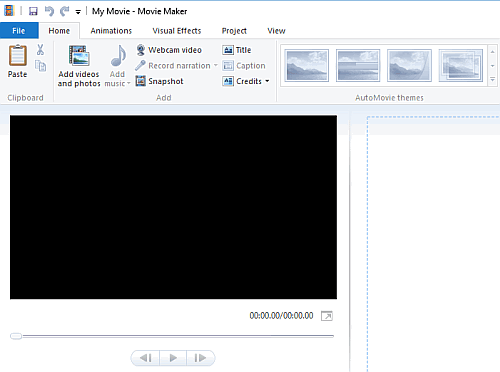
Any easier way to do this is to import the video, if you can, into Windows movie maker, there is a screen capture button.
This tip was posted on March 9th, 2005 and replies are still continuing? Now that’s a really great post worthy of recognition ^_~
You have saved my hair from being pulled out!
Thank you very much for sharing this handy tip!
Thank you so much! I have had this same freakin’ problem forever! And you helped me fix it! Thank you so much!
i dit this but now the problem is that i cant position the video where i want to do the screenshot, must watch at normal speed and wait…
thx alot but i still have a little problem, i use “Window Media Classic” which I’m pretty much sure it’s the same thing but when I go to
“option” -> … I don’t see the “Advanced Button”!! is there anyway you could be more specific for somone slow like me or display a screen shot of it?? PLEASE if you have time!! T^T
and thz very much!! ^_____^
Been stressing out over this for ages – and all I needed to do was a quick search on google. I love you!
WOW, dude dude…. i cant believe it, i been having this problem for months, so much time wasted alternate methods and desparetely giving up, all in all, i was one click away.
decided to google the problem, you are on 1st page, and phew :-)
problem solved…
YOU ARE WONDERFUL
YOU ROCK :-)
Ash
The ‘Snipping Tool’ in Vista does the job admirably I found.
Hello!
Been grappling with this problem for ages. But as I try skipping the “Use Overlays” box, another problem arises: I get greenscreen in the video window when I play the vids. Has this happened to anyone? Would much appreciate your thoughts.
I never thought this was possible – like screen prints from windows media player are forbidden due to copyright protection – but it works !! Thanks =)
Oh my God, thank you SO MUCH!!!!! It must have taken me 2 hours in failed attempts to get a decent screenshot! Also, it wasn’t just that WMP captured a blank screen, but my screen glitched when I cropped the image.
Thanks again, that was a real help.
Yeah…. for some reason when I try to take screenshots using my windows media player, than putting it into photoshop7.0 it still plays the movie or when I try to move the image it moves everything else around it but the image itself.
thanks brother…. this was a great tip indeed…. but ctrl + I only gives a single image every time…
is there any way to get 4*4 thumbnail screen shot of the entire file??
media player classic(older version ) had it… the new version doesnt seem to have capture thumbnail option
it didn’t work with my player Windows Media 11.
YOU ARE A LEGENDARY HERO!!!
Oh, and to the person who posted above me… it works PERFECTLY in Media Player 11.
This will NOT work in Media Player 11
I’ve been trying to do what you so easily fixed, get still photos from WMP videos. Thanks so much.
Anyway to take multiple scenes in one screenshot.
Nothing worked for me. I might as well stick with crunchyroll.com, and VEOHTV.
Hmmm. Makes me wonder if I should Upload My DVDS onto VEOHTV and screen shot from there.
You can also try
Print Screen Deluxe 6.2
This might work.
>_<;
I did uncheck overlays
I did the full to none
nothing worked. Am I missing something?
I just read the first article after having cursed and cursed WMP about this “feature” for some time.
The advice given was a life saver. Thank you. I wish you all luck in life for that.
No No NO! It does not work!! I have wmp 11 and I have altered everything that you have suggested, and I still get a capture of a blank screen. And only “one” capture even though I have pressed the print screen botton many times before going to clipboard to check. This is so frustrating considering that I am reading all these other users comments about how it “is” working for them.
big thanks for you, I’ve been googling for 3 hours and I found what I’m searching!! you’re pretty awesome!! God bless you, genius!
When I click on the icon of any movie, on the left hand side it shows the details of the movie. Is there any way to play the movie on the same left hand side details coloumn. I used to watch the movies on the same window long time back and don’t remember the settings involved. Please suggest a solution…..
Umm I need help. I have a WMP11 and WXP when I click on the performance tab my comp doesn’t have the overlays checked to begin with so that was ineffectual, also the print screen button doesn’t work nor does the ctrl+I button either. When I use this and paste in paint I get the screen minus the picture in the middle. Sometimes the picture appears int he middle but when I close WMP it disappears and if I leave it open it just moves the winodws part and the pictures is fixed to the screen and wont move. I have also downloaded other players and capture screenshot freeware all to the same effect. Can someone please help, it must be something that windows is blocking.
dude, thanks a lot man you save me so much time.
First site that came to google and bang its there. cheers
by the way… CTRL+I doesn’t work for me.
But… if you get Media Player Classic… it does work, and this Media Player Classic is freeware too and supports many many more video formats :)
Hope that helps peoples, cheerioooo
Thank you :)
Disabling “overlays” helped me.
What are the consequences of this?
You can also try CapTrue 1.0 (http://www.captrue.com). It is a replacement for Print Screen key combination, but also can capture Windows Media Player window (as well as the other video players)
you’re my guardian angel thank you …. I’m really speechless right now.. after all I’ve done with no result you came and lightened my way… thaaaank youuuuuuu.. you are THE best
Hi man,
I was always thinking that i would have to download a freeware or purchase a software but u made it so easy, i wonder why this feature is not known to most of us & we struggle for this. keep the good work mate.
so after i capture the image where can i expect to find it?
No fuss, no hassle. nothing to adjust. and sends your snaps to file so you just keep on clicking Ctrl + Alt + s
http://www.videolan.org
Thank you. I really appreciate this article. It helped me alot. I really thought I was at a dead end with this problem until I found this.
I tried EVERYTHING and still NOTHING works, this is getting VERY aggravating.
I am using Windows Media Player.
I have videos from a concert that I just went to and hardly and pictures, I am BEGGING you, if you know of any other fullproof way, or SOMETHING, let me know.
Thankyou!
This is the picture. I can’t really explain what’s going on with it, but you see the problem. It won’t let me crop it.
What you need to do is save the picture and then open it and zoom in and out, and you’ll see the problem.
This is what makes the Internet so amazing. In moments my problem is solved.
U rock. Thanks_so_much.
Why no Digg button?! This is easily one of the most useful tips I’ve ever found on the net.
after all these years, i can now printscreen with WMP. THANK YOU SO MUCH!!! :))
Claire, crop the image you want (in any program such as Paint or Photoshop) by selecting the exact area with your mouse, then click Edit, Cut. Then click File, New, Edit, Paste. You should have your image and be able to save in into any format you’d like.
I need someone’s help BADLY?
I’m really not the brightest when it comes to these kind of things but I have still tried everything to get a screenshot off of my home DVD.
I don’t get a blank screen when I use the “print screen key” it comes out fine, but how do I save the images as jpeg files? When I paste the print screen I get the whole screen, the pause, play button etc when I just want the image?
Please can someone help?
Thank you! Thank you! THANK YOU!!! You have no idea how much this helps me!
Using WMP v10, I had to check the box for ‘Use video mixing renderer’ (both sub-options were left unchecked). I also had to check ‘Use video mixing renderer’ (again, sub-options left unchecked). I got a screen capture to work that way, albeit at low res and poor quality, but it still worked.
I’m excited to see all the help from more-technically-able people. I’m not a “techie,” but being under the age of 25, this shouldn’t be so tough for me! HELP!
I’m running Windows XP, Media Player 10, and am trying to get screenshots from a DVD with Media Player… I really don’t want to download third-party software.
Disabling overlays doesn’t work, and when I disable hardware acceleration in Control Panel, the DVD doesn’t show up on my screen at all!
Any help would be really appreciated!
Jon