
How to Download and Install Windows Themes and Wallpapers (11, 10, 7 and Vista)
Want fresh Windows themes and wallpapers? In 2010 I installed Microsoft’s new Windows 7 themes on my Windows Vista PC by renaming the .themepack file to .zip and extracting the wallpapers. Windows has moved on to Windows 11 and 10, and themes now come from the Microsoft Store, but that same .themepack trick still lets you grab the wallpapers on any computer. Here is how to download and install Windows themes and wallpapers in 2026, and how to use them on older Windows versions.
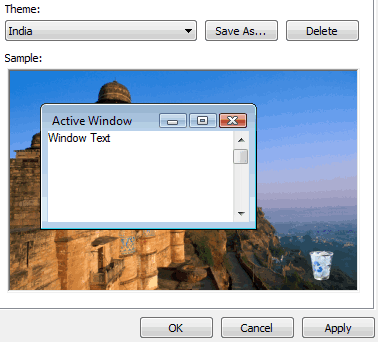
Quick answer: On Windows 11 or 10, open Settings > Personalization > Themes and click Browse themes to get free themes from the Microsoft Store. To use the wallpapers from a .themepack file on any PC, including older Windows versions, rename it to .zip (or open it with 7-Zip), extract the DesktopBackground folder and set the images as your background.
Table of Contents
How to install Windows themes on Windows 11 and 10
- Open Settings > Personalization > Themes.
- Click Browse themes to open the Microsoft Store’s free themes collection.
- Click Get on a theme you like, then Open.
- Back in Settings, select the new theme to apply its wallpapers, colours and sounds.
Themes usually include a slideshow of several wallpapers. Change the timing in Personalization, Background, choosing Slideshow and a change interval.
How to extract wallpapers from a .themepack file
A .themepack (or .deskthemepack) file is just a compressed archive. This is the trick we used to get Windows 7 wallpapers on Windows Vista, and it still works for any theme file:
- Make a copy of the .themepack file.
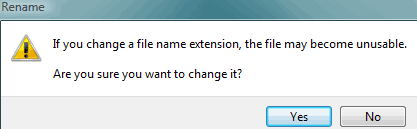
- Rename the copy from beaches.themepack to beaches.zip, or right-click it and open it with the free 7-Zip.
- Extract the files. You will find a .theme file and a DesktopBackground folder full of wallpapers.
- Right-click any image and choose Set as desktop background.
Set wallpapers on older Windows versions
On Windows 7 or Vista, double-click the .theme file to apply it if your system supports it, or set individual wallpapers with right-click, Set as desktop background, and choose Fill or Fit in the background settings. Remember that Windows 7 and older no longer get security updates, so use them offline or upgrade if you can.

More ways to get great wallpapers
- Windows Spotlight: in Personalization, Background, choose Windows spotlight for a new photo every day.
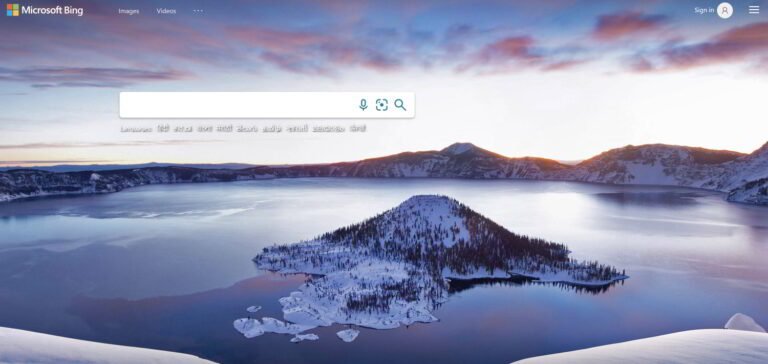
- Bing Wallpaper: Microsoft’s free Bing Wallpaper app changes your desktop daily. See how to download Bing homepage wallpapers.
- Free photo sites: Unsplash and Pexels offer high-resolution images free to use; read our guide to change your desktop background daily with full HD wallpapers.
Tips for sharp wallpapers
- Choose images at least as large as your screen resolution (check in Settings, System, Display).
- Use Fill for photos and Fit for images you do not want cropped.
- On multiple monitors, right-click a wallpaper in Personalization to pick which screen it goes on.
Create your own Windows theme
You can also build a personal theme from your own photos. Put your favourite pictures in one folder, then in Personalization, Background choose Slideshow and pick that folder. Set an accent colour under Colors, choose light or dark mode, and pick a mouse cursor and sound scheme if you like. Finally go to Themes and click Save to keep the combination. Right-click the saved theme to Save for sharing, which creates your own .deskthemepack file you can copy to another PC or send to family.
FAQ
Are Microsoft Store themes free?
Most themes in the Microsoft Store’s themes collection are free.
Can I use Windows 11 wallpapers on Windows 10?
Yes. Wallpapers are normal image files; set them as your background on any version.
Where does Windows store theme wallpapers?
Installed theme images are kept in your user profile under AppData\Local\Microsoft\Windows\Themes.
Get our free weekly email: new tech guides and tools, no spam.
New and updated tech guides, a free tool worth bookmarking and one useful pick, once a week. No spam, unsubscribe anytime.
One email a week. Unsubscribe anytime. See our privacy policy.


Thanks for the write-up,Can I have this on my Blackberry?
BTW what would be configuration that you guys recommend to run all the themes smoothly…I use Windows Vista 32 Bit with 3gb RAM.
Thanks
Michelle
Thanks but i feel… windows vista themes are also good, why should i replace them??
This is just in case you want to try the new Windows 7 themes on Vista.
Hi, I have a question. I own Windows 7 and I was wondering if the backgrounds constantly changing takes a toll on my computers memory? It seems like a useless feature to me.
Of course it would take memory, but it would last a very small time while changing it.