
How to Format a USB Flash Drive on Windows 11 and Mac (2026)
Need to format a USB flash drive or pen drive? Formatting wipes the drive and sets up a fresh file system, which fixes many corrupted, slow or unreadable drives and lets you choose the right format for Windows, Mac, TVs or cars. Simply deleting files doesn’t do the same job. I’ve used this to rescue USB drives after virus infections for years. Here’s how to format a USB flash drive on Windows 11 and Mac in 2026, which file system to pick, and what to do when formatting fails.

Quick answer: On Windows, open File Explorer, right-click the USB drive, choose Format, select exFAT, tick Quick Format and click Start. On a Mac, open Disk Utility, select the drive, click Erase and choose ExFAT. Back up your files first, because formatting erases everything.
Table of Contents
Which format should you choose for a USB flash drive?
- exFAT (best for most people): works on Windows, Mac, Linux and most TVs and cameras, and supports files larger than 4 GB.
- FAT32: the most compatible with older devices like car stereos, game consoles and some TVs, but individual files can’t be larger than 4 GB.
- NTFS: best if the drive is only used with Windows PCs. Macs can read NTFS but can’t write to it without extra software.
- APFS or Mac OS Extended: only for drives used with Macs, such as Time Machine backups.
How to format a USB flash drive on Windows 11 and 10
- Back up any files you need from the drive. Formatting deletes all data.
- Plug in the USB drive and open File Explorer (Windows + E). Click This PC.
- Right-click the USB drive and select Format.
- Choose a File system (exFAT, FAT32 or NTFS) and leave Allocation unit size as Default.
- Type a Volume label (drive name) if you like.
- Tick Quick Format and click Start, then OK on the warning.

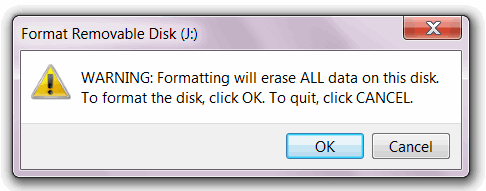
Quick Format takes seconds. Untick it for a full format, which checks the drive for bad sectors and takes much longer. It’s worth doing if a drive has been giving errors. Microsoft’s guide to Disk Management in Windows has more details.

How to format a USB flash drive on Mac
- Open Disk Utility (Applications → Utilities, or search with Spotlight).
- Click View → Show All Devices, then select the USB drive (the top-level device, not just the volume).
- Click Erase, choose a name, set Format to ExFAT (or MS-DOS (FAT) for FAT32), and Scheme to GUID Partition Map or Master Boot Record for older devices.
- Click Erase and wait for it to finish.
Apple explains the options in its Disk Utility guide.
USB drive won’t format? Try these fixes
- FAT32 not offered: Windows’ Format window only offers FAT32 for drives up to 32 GB. Use exFAT, or a free tool like Rufus to format larger drives as FAT32.
- “Windows was unable to complete the format”: open Disk Management (right-click Start), delete the volume on the USB drive, then right-click the unallocated space and choose New Simple Volume.
- Write-protected drive: check for a lock switch on the drive or SD card adapter. You can also run
diskpart, thenlist disk,select disk X(your USB drive, carefully) andattributes disk clear readonly. Our step-by-step guide shows how to remove write protection from a USB drive on Windows 11 and Mac. - Drive shows the wrong size: use
diskpartand thecleancommand on the USB disk (double-check the disk number, as this wipes it), then create a new volume. - SD cards: use the official SD Memory Card Formatter for best results.
If a drive still fails after a full format, it’s probably worn out or fake. Cheap “high capacity” flash drives often report more space than they really have, so replace it rather than trusting it with important files.
Frequently asked questions
Does formatting a USB drive remove viruses?
Yes. Formatting erases everything on the drive, including malware. Scan your computer too, so it doesn’t reinfect the drive.
Can I recover files after formatting a USB drive?
After a quick format, recovery software can sometimes get files back if you haven’t saved anything new to the drive. A full format makes recovery much harder, so always back up first.
What is the best format for a USB drive for TVs and cars?
FAT32 works with the most TVs, car stereos and music players. For example, to add songs to a Saregama Carvaan, a FAT32 USB drive works best. Many newer TVs also support exFAT, which allows files over 4 GB. If a drive shows less space than its label, our list of byte sizes in order explains why.
Stuck on a gift? Try our free Gift Idea GeneratorIdeas for anyone by age, job, interests and budget, with Amazon.com and Amazon.in linksFind gifts →Get our free weekly email: new tech guides and tools, no spam.
New and updated tech guides, a free tool worth bookmarking and one useful pick, once a week. No spam, unsubscribe anytime.
One email a week. Unsubscribe anytime. See our privacy policy.


1)Just go to my computer
2)Find your USB drive in my computer
3)Right click on USB drive
4)Choose option format
That’s it your USB will get formatted immidiately
formatting of USB pen drives
Pen drives the best source of date transfer. There is a great demand of this secondary storage medium in the market but this source of data transfer gets corrupted when it is attached to a computer system which is infected by virus. Through the medium of this post you will get an opportunity to get rid of this formatting of USB pen drives
whoa, i have find about this many time but can’t get proper tutorial now it,s pretty helpful for me.
To format USB drive just right click on drive and go to option Formate and lick on it.
That’s awesome info! I don’t have any knowledge regarding this process. Now I will must use this process. If you have more ideas like this, then please continue to guide us.
This is one of those things that I have been looking at doing for a while, but this is definitely a good reason to get on and do it!
I have a USB drive which is having problems while doing safe removal..I tried formatting it..But still the problem persists…
how to do on Windows 8?