How to Turn Off AI Overviews in Google: 4 Ways That Work
Want to know how to turn off AI Overviews in Google Search? The honest answer first: Google has no setting that switches AI Overviews off for good. Its own help page calls them a core Search feature that can’t be turned off. But you can still get plain search results without the AI summary, every time, with the Web filter or a one-time browser tweak. Here are the 4 ways that work, and the popular tips that don’t.
Quick answer: After you search, click the Web tab (it may be under More) to see only links with no AI Overview. To make that permanent on a computer, add a custom search engine in Chrome or Firefox that uses
https://www.google.com/search?udm=14&q=%sand set it as your default. On a phone, add -ai to the end of your search.
Table of Contents
Can you turn off AI Overviews completely?
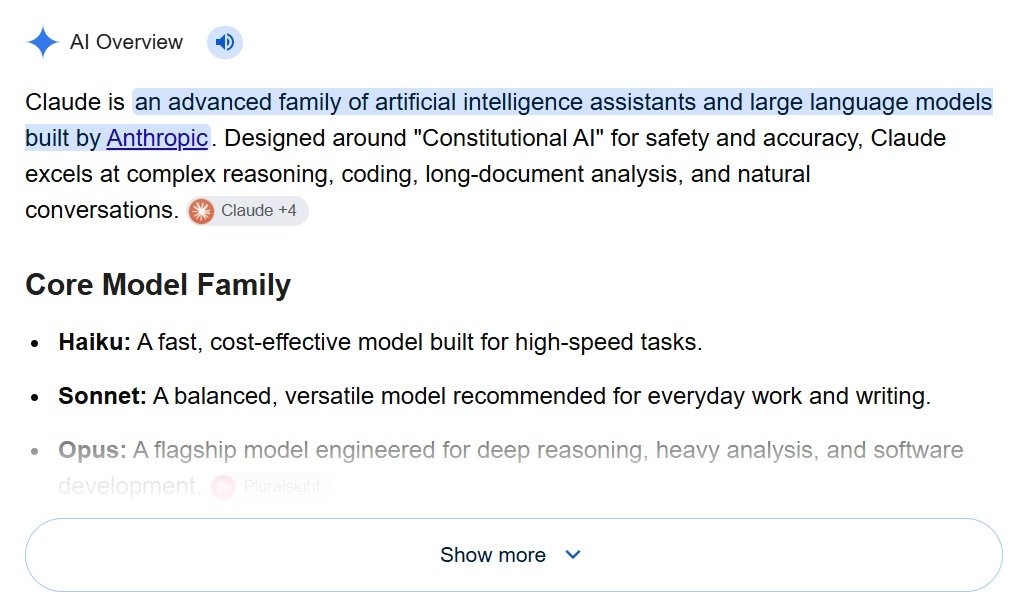
No. Google’s help page for AI Overviews in Google Search says they are a core part of Search and that “features cannot be turned off.” There is no switch in your Google Account, in Search settings or in the Google app.
What Google does offer is the Web filter. Its help page says the Web filter shows only text-based links, without features like AI Overviews. Every method below is either that filter, a shortcut to it, or a search trick.
Method 1: Use the Web filter after you search
This is the official way and it works in any browser.
- Search Google as usual.
- In the row of tabs under the search box (All, Images, Videos, News…), click Web.
- If you don’t see it, click More and choose Web.
The page reloads with a simple list of links and no AI Overview. The catch: you have to click it for every search, and it also hides other extras such as knowledge panels and top stories.
Method 2: Make the Web filter your default in Chrome
This is the best fix on a Windows PC, Mac or Chromebook. You tell Chrome to always open Google with the Web filter (the udm=14 part of the address) whenever you search from the address bar.
- Open Chrome and go to
chrome://settings/searchEngines(or Settings > Search engine > Manage search engines and site search). - Next to Site search, click Add.
- Name: Google Web. Shortcut: @web (any short word works).
- URL:
{google:baseURL}search?udm=14&q=%s - Click Add.
- Find your new entry in the list, click its three-dot menu and choose Make default.
Now every search you type into Chrome’s address bar opens plain web results. Searches you start on the google.com home page itself still show AI Overviews, so search from the address bar.
Microsoft Edge has a similar option in its address bar and search settings, where you can add a search engine with the same address.
Method 3: Do the same in Firefox
Firefox lets you add your own search engine too. Open Settings > Search, add a new search engine, give it a name like Google Web and use this address:
https://www.google.com/search?udm=14&q=%s
Then pick it as your default search engine on the same Settings page. Menu names can differ a little between Firefox versions.
Method 4: Add -ai to your search
Type -ai at the end of a search, for example best hiking boots -ai. The minus sign tells Google to leave out results with that word, and in practice the AI Overview usually doesn’t appear.
This is handy on an iPhone or Android phone, including in the Google app, where you can’t change the search address. Two catches:
- Google has never documented it as a way to hide AI Overviews, so it may stop working.
- It also removes pages that mention “AI,” which spoils searches about AI topics.
What doesn’t work
- Search Labs. Turning off “AI in Search” in Labs only opts you out of Google’s experiments. It doesn’t remove AI Overviews from normal results.
- AI Mode. The separate AI Mode tab has no off switch either. You can just ignore it, and the Web filter page doesn’t use it.
Which method should you use?
| Device | Best method | Permanent? |
|---|---|---|
| Windows, Mac or Chromebook with Chrome | Custom search engine with udm=14 | Yes, for address bar searches |
| Firefox (desktop) | Custom search engine with udm=14 | Yes |
| Safari (Mac or iPhone) | Web tab or -ai | No |
| Google app (iPhone or Android) | Add -ai | No |
| Any browser | Web tab after searching | No |
If you want to get more out of plain results, see our Google search tips and check whether you can still show 100 Google results on one page. Site owners wondering why their clicks are falling can read how SERP features are crashing search traffic.
FAQ
Is there a setting to turn off AI Overviews in my Google account?
No. Google says AI Overviews are a core Search feature and can’t be turned off. The Web filter is the official way to get results without them.
Why does the AI Overview still show after I changed Chrome?
The custom search engine only works for searches you type into Chrome’s address bar. If you type into the search box on google.com, you get the normal page with AI Overviews.
Does the -ai trick work every time?
Usually, but not always. It’s an unofficial trick, not a Google feature, and it also hides pages that mention AI.
Can I turn off AI Overviews on my phone?
Not with a setting. Add -ai to your searches, tap the Web tab after searching, or use a browser that lets you set a custom search engine.
Looking for the fun side of Google instead? Try our list of Google easter eggs that still work.
Get our free weekly email: new tech guides and tools, no spam.
New and updated tech guides, a free tool worth bookmarking and one useful pick, once a week. No spam, unsubscribe anytime.
One email a week. Unsubscribe anytime. See our privacy policy.