How to Game Share on PS5: Console Sharing, Share Play and How to Stay Safe
To game share on PS5, sign in to your PlayStation account on the console you want to share with, then go to Settings > Users and Accounts > Other > Console Sharing and Offline Play and select Enable. Everyone who uses that PS5 can then play the digital games you bought, on their own profile, even when the console is offline. With a huge new release like GTA 6 arriving as a digital download for many families, it’s the easiest way to buy a game once and let the whole household play it.

Quick answer:
- Same house: turn on Console Sharing and Offline Play on the family PS5 with the account that bought the games.
- A friend’s PS5: sign in to your account on their console and turn Console Sharing on there. It can be on for only one PS5 at a time, so it switches off on yours.
- Just to try a game together online: use Share Play, which needs PlayStation Plus and lasts one hour per session.
- Only share with people you trust: game sharing with another console means handing over your account sign-in.
Table of Contents
What game sharing on PS5 actually means
PlayStation doesn’t call it “game sharing”. The official feature is Console Sharing and Offline Play, the PS5 version of the old “Primary PS4” setting. When it’s on, anyone who uses that PS5 can:
- Play the games and media you bought and downloaded, from their own profile.
- Play them even when the console is offline.
- Use some of your PlayStation Plus benefits.
The catch is that you can turn it on for one PS5 at a time. That single rule decides how game sharing works in practice:
| Where you share | What you do | Who can play your games |
|---|---|---|
| Your own PS5 (family, roommates) | Keep Console Sharing on for your console | Every profile on that PS5 |
| A friend’s or relative’s PS5 | Turn Console Sharing on for their console with your account | Everyone on their PS5; you still play on yours while signed in and online |
| Online with a friend, no sign-in sharing | Share Play from a party | One visitor, for up to an hour at a time |
How to turn on Console Sharing and Offline Play
Console Sharing is switched on automatically on the first PS5 you ever sign in on. If you set up a new console, or want to check, do this signed in with the account that owns the games:
- From the PS5 home screen, open Settings (the gear icon at the top right).
- Go to Users and Accounts.
- Select Other, then Console Sharing and Offline Play.
- Select Enable.
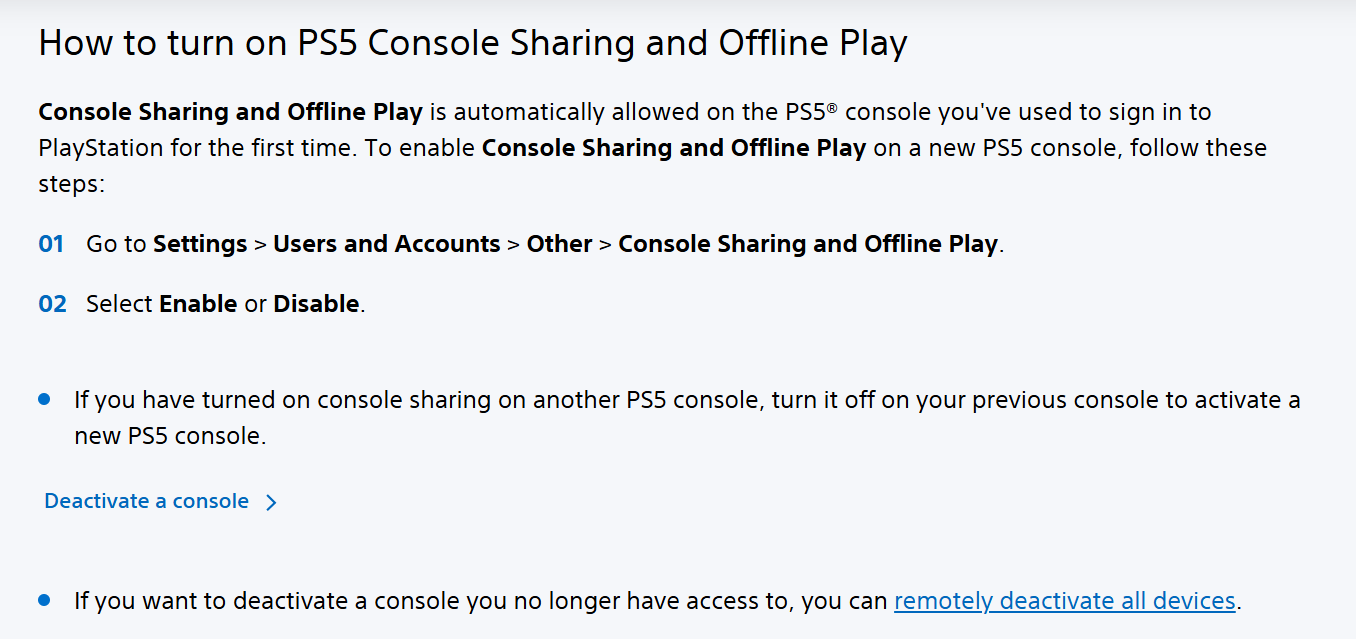
If the button only offers Disable, it’s already on for this console. If it’s on for another PS5, turn it off there first (same menu, select Disable), then enable it here. The steps are on PlayStation’s Console Sharing support page (external site, opens in new tab).
How to game share with a friend’s PS5
This is what most people mean by “game share”: two consoles in two homes, one library. It works, but read the safety section before you try it.
- On your own PS5, go to Settings > Users and Accounts > Other > Console Sharing and Offline Play and select Disable, so it’s free to move.
- On your friend’s PS5, add a user and sign in with your PlayStation account.
- Still signed in as you, open Console Sharing and Offline Play on their console and select Enable.
- Your friend switches back to their own profile and downloads your games from the game library. They play with their own trophies and saves.
- On your own PS5, sign in as yourself and play as usual. Without Console Sharing your console needs to be online to check your licences.
To share both ways, your friend repeats the same steps on your console with their account. Each of you then plays the other’s games on your own profile.
Things that stop game sharing from working
- A padlock on the game: the person who bought it hasn’t enabled Console Sharing on this PS5, or there’s a licence or network problem. Make sure the buyer’s account is the one that turned it on.
- Subscription games: PlayStation Plus catalogue games only work while the owner’s subscription is active.
- PSN outage: check the PlayStation status page and try again later.
- Old system software: update the console first.
Share Play: let a friend play your game online for an hour
If you only want a friend to try a game, or to help them past a hard mission, Share Play is safer because nobody signs in on anyone else’s console. Your game screen streams to your friend through a party, and you choose whether they just watch, play as you, or play with you.
- Start or join a party voice chat with your friend.
- Press the PS button to open the control center and select the party voice chat card.
- Select Start Share Play, invite your friend and pick a play mode.
Limits worth knowing:
- You need PlayStation Plus. For the “play with the visitor” mode, both of you need it.
- One visitor at a time, and a session ends one hour after they join. You can start a new one.
- If the visitor is younger than the game’s age rating, Share Play won’t work for them. That matters for mature games like GTA 6.
- For a smooth stream you each need a steady connection of at least 2 Mbps. If it stutters, our Wi-Fi slowdown fixes help.
Is game sharing on PS5 safe?
Sharing on your own family console is safe. Sharing with someone else’s console is where people lose accounts, because they have your sign-in and can buy things, change settings or lock you out. Before you share:
- Only share with people you’d trust with your wallet. Never “game share” with strangers from Discord, Reddit or social media. Swap offers are a common way to steal accounts.
- Turn on 2-step verification for your PlayStation account, ideally with an authenticator app. See our best authenticator apps.
- Remove saved cards or require a password for purchases, so nobody can spend on your wallet.
- Kids’ accounts: set up family and parental controls first. Our parental controls guide covers phones and computers, and the same thinking applies to consoles.
How to stop game sharing (even without the console)
If you still have access to the other PS5, go to Settings > Users and Accounts > Other > Console Sharing and Offline Play and select Disable, then delete your user from it.
If you can’t get to the console any more:
- Sign in to Account Management on the PlayStation website.
- Select Device Management > PlayStation Consoles > Deactivate All Devices.
- Change your password, which signs your account out of other consoles.
You can’t deactivate one console remotely, only all of them, and you can do it once every six months. So choose carefully who you share with.
Game sharing on PS4 and Xbox
PS4: the same idea is called your Primary PS4. Go to Settings > Account Management > Activate as Your Primary PS4. You can have one PS5 and one PS4 activated for sharing at the same time.
Xbox Series X|S: set the console as your “home Xbox”. Press the Xbox button, go to Profile & system > Settings > General > Personalization > My home Xbox, and select Make this my home Xbox. Anyone who signs in to that console can play your digital games. Like PS5, you get one home Xbox at a time. Not sure which console suits your family? Read PS5 vs Xbox Series X|S.
FAQ
Can you game share GTA 6 on PS5?
Yes, a digital copy works like any other PS5 game. Turn on Console Sharing and Offline Play on the console where others will play it. A disc copy is simpler still: whoever has the disc in the console can play.
How many people can you game share with on PS5?
Console Sharing is on for one PS5 at a time, but every profile on that console can play your games. Share Play is one visitor at a time.
Can both people play the same game at once when game sharing?
Generally yes. The person on the shared console plays on their own profile, and you play on your own console while signed in and online.
Will I lose my saves or trophies?
No. Saves and trophies stay with each player’s own profile.
Does game sharing work offline?
On the console with Console Sharing turned on, yes, that’s the “Offline Play” part. On any other console you need to be signed in and online.
Subscribe to our weekly tech newsletter
Free: 100 Tech Terms ebook (worth $2.99)
Unsubscribe anytime. Privacy