How to Update GTA 6 on PS5 and Xbox (and Fix Update Errors)
To update GTA 6 on PS5, highlight Grand Theft Auto VI on the home screen, press the Options button and select Check for Update. On Xbox Series X|S, press the Xbox button and go to My games & apps > See all > Manage > Updates. Both consoles also download GTA 6 updates on their own if automatic updates are turned on, and Rockstar’s first big post-launch patch is a good reason to check yours now.

That patch fixed crashes, autosaves that did not work and story phone calls that never came, so an out-of-date copy can leave you stuck. This guide covers how to install every new GTA 6 update on PS5 and Xbox, how to make updates install by themselves, where Rockstar posts its patch notes, and what to do when an update is stuck, fails or won’t install.
Quick answer:
- PS5: highlight GTA VI, press Options, select Check for Update.
- Xbox Series X|S: Xbox button > My games & apps > See all > Manage > Updates.
- Update stuck or failed? Check the PlayStation or Xbox status page, restart the console, install any system update, make sure you have free space, then pause and resume (PS5) or retry the download.
- Patch notes: Rockstar lists every GTA VI console update on its support site.
Table of Contents
How to update GTA 6 on PS5
A PS5 game updates itself to the newest version when you start it, as long as the console is online. To check for a GTA 6 update without starting the game:
- On the PS5 home screen or in your Game Library, highlight Grand Theft Auto VI.
- Press the Options button on your controller (the small button to the right of the touchpad).
- Select Check for Update.
- If an update is available, follow the on-screen steps to install it. You can watch its progress in Downloads/Uploads in the control center.
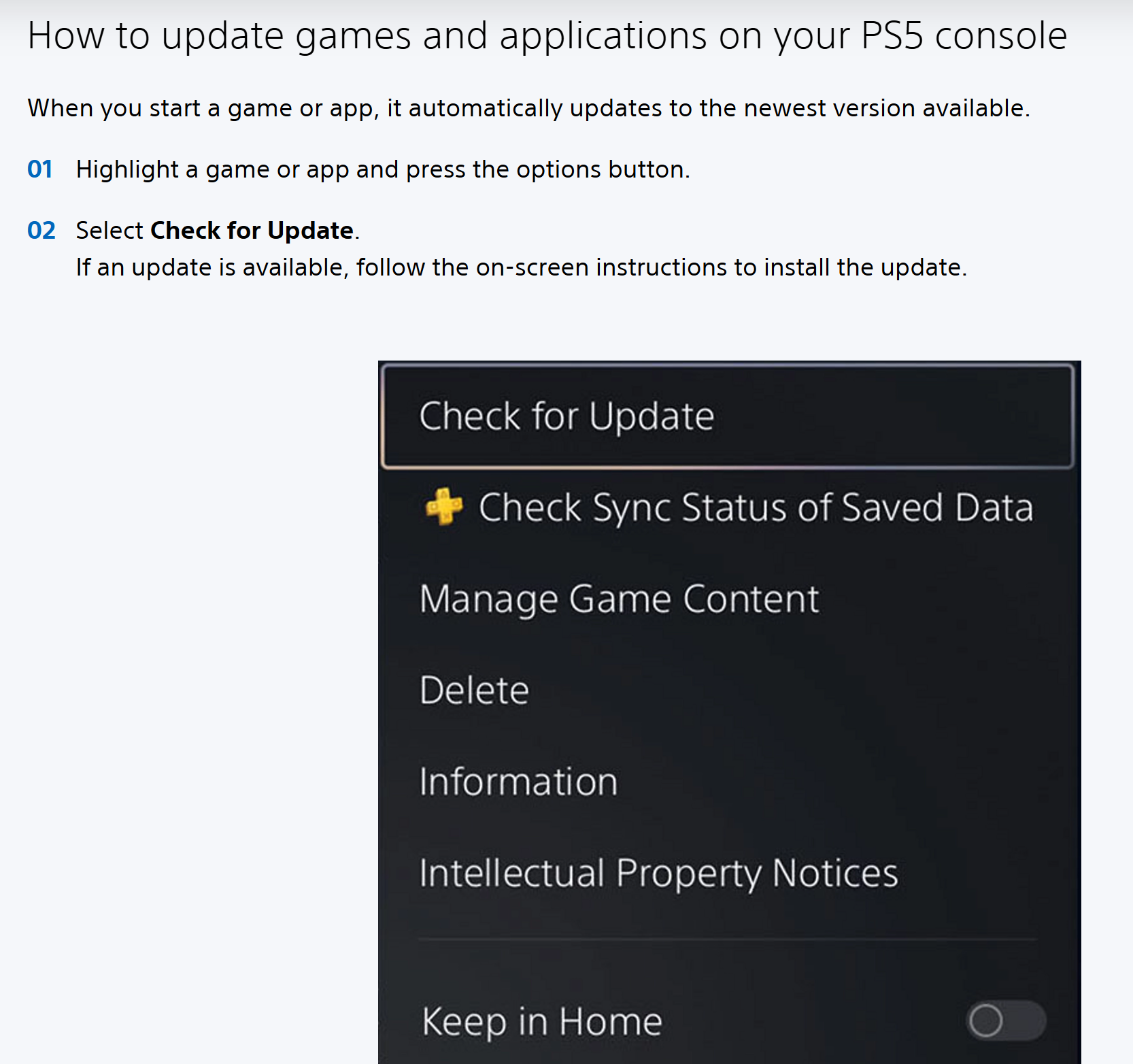
The same menu works for every PS5 game, and our full guide on updating your PS5 system software, games and controller covers the console side in more detail.
Turn on automatic GTA 6 updates on PS5
So the next patch is waiting for you instead of the other way round:
- Go to Settings > System > Power Saving > Features Available in Rest Mode and turn on Stay Connected to the Internet.
- Go to Settings > Saved Data and Game/App Settings > Automatic Updates.
- Turn on Auto-Download (downloads updates in rest mode) and, if you like, Auto-Install in Rest Mode (downloads and installs them).
Leave the PS5 in rest mode overnight and new GTA 6 updates will be ready when you pick up the controller.
How to update GTA 6 on Xbox Series X|S
To see whether a GTA 6 update is waiting and start it yourself:
- Press the Xbox button to open the guide.
- Select My games & apps > See all.
- Select Manage > Updates.
- If Grand Theft Auto VI is listed, select it to install the update.
Turn on automatic GTA 6 updates on Xbox
- Press the Xbox button and go to Profile & system > Settings > System > Updates.
- Tick Keep my games & apps up to date.
- Tick Keep my console up to date as well, so system updates that a game needs also arrive on their own.
Update your console’s system software too
A game update can need the latest console software, so install that first if a GTA 6 update won’t start:
- PS5: go to Settings > System > System Software > System Software Update and Settings. To see your current version, go to Settings > System > System Software > Console Information.
- Xbox: press the Xbox button and select Profile & system > Settings > System > Updates. If there is an update it appears there; otherwise you’ll see “No console update available”.
Where to find GTA 6 patch notes
Rockstar posts the changes in each GTA VI console update on one page of its support site, Grand Theft Auto VI Launch Updates (PS5 / Xbox Series X|S) (external site, opens in new tab), with the newest update at the top. Bookmark it: when a patch lands, it is the quickest way to see what changed.
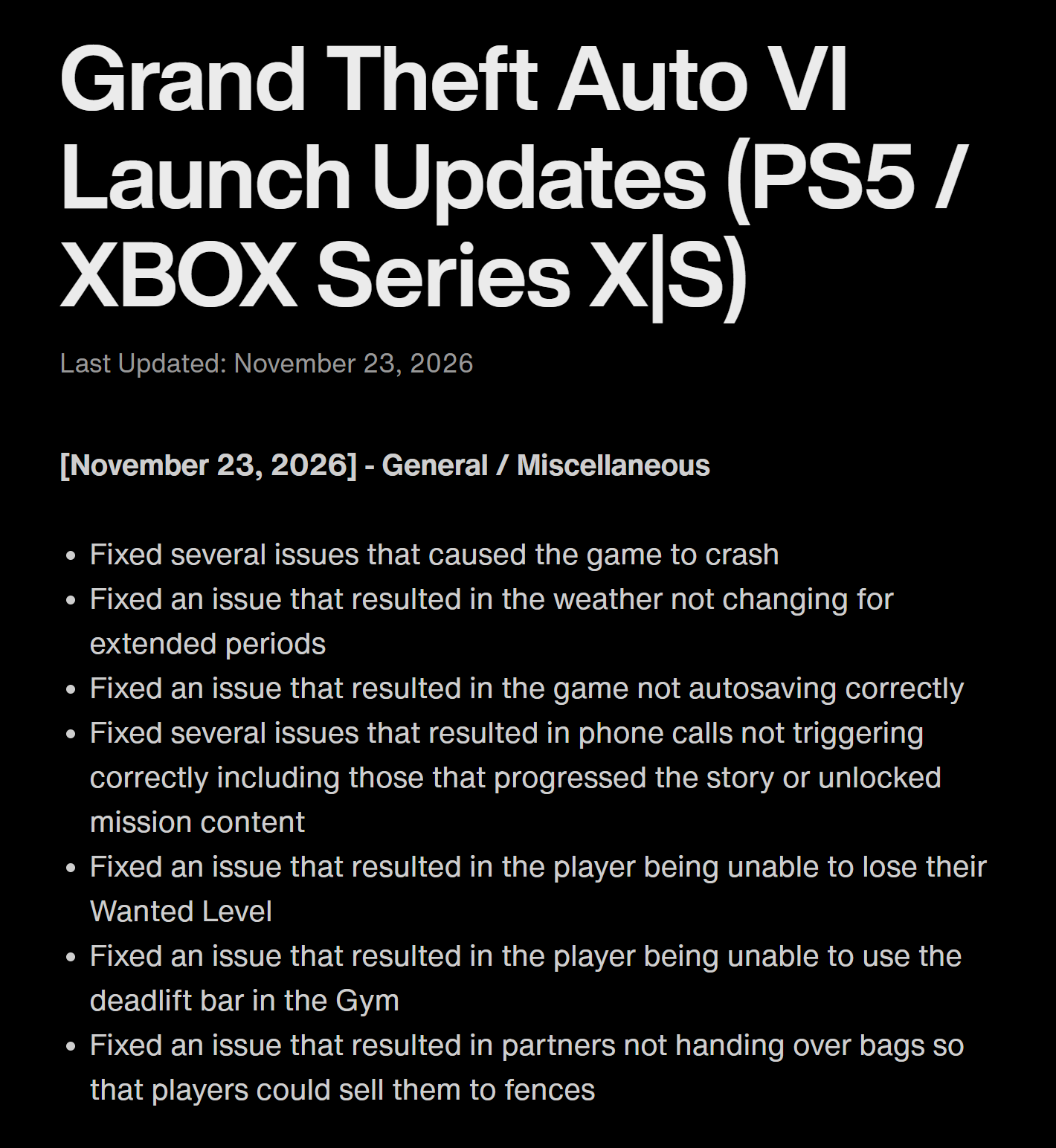
What Rockstar’s first post-launch update fixed
The first update after launch, posted on November 23, 2026, fixed:
- several issues that made the game crash
- the weather not changing for long periods
- the game not autosaving correctly
- phone calls not triggering, including calls that move the story on or unlock missions
- being unable to lose your Wanted Level
- being unable to use the deadlift bar in the gym
- partners not handing over bags to sell to fences
If you were stuck waiting for a story call, or lost progress to autosave, install this update first and then reload your last save.
GTA 6 update stuck, failed or won’t install? Fixes
Rockstar points console players to PlayStation and Xbox support for download and install problems. These are the fixes those official pages list, in the order to try them.
1. Check the PlayStation, Xbox and Rockstar status pages
Big launches and patches can overload online services. Look at the PlayStation status page, the Xbox status page or Rockstar’s Service Status page before changing anything. If a service shows an alert, wait for it to recover and then try again.
2. Make sure you have enough free space
Rockstar says Grand Theft Auto VI needs up to 212 GB of free space, depending on your console, and every update needs room to download and install on top of that.
- PS5: check free space in Settings > Storage. To see what the game needs, select it in your Game Library, then … (more) > View Product.
- Xbox: press the Xbox button and open Notifications. If there is a low-storage alert, delete something you no longer play or add an external drive.
3. Pause and resume the download (PS5)
- Open Downloads/Uploads in the control center.
- Select the GTA VI download, choose Pause, then Resume.
- If it still fails, select Cancel and Delete to remove it from the download list, then find the game in your Game Library and start the download again.
4. Restart the console and test your connection
Restart the PS5 or Xbox and try the update again. On PS5 you can test the connection in Settings > Network > Test Internet Connection.
5. Install the latest system update
On Xbox, a “Download stopped” error can mean the console needs a system update before the game download can finish. On PS5, make sure the system software is up to date as well (see the section above).
6. Sign in with the right account
On Xbox, be signed in with the profile that bought the game. On PS5, if another account on the console owns GTA 6, that account needs to turn on console sharing: Settings > Users and Accounts > Other > Console Sharing and Offline Play, then Enable.
7. Restore licenses (PS5)
If the game asks you to buy it again or won’t open after an update, go to Settings > Users and Accounts > Other > Restore Licenses. You can also highlight the game, press Options and select Restore License.
8. Rebuild the database in Safe Mode (PS5)
If problems carry on, start the PS5 in Safe Mode and select Clear Cache and Rebuild Database. This rebuilds the console’s content list. Pick only that option, not the ones that reset the console.
9. Delete and reinstall the game
As a last step, delete GTA 6 and reinstall it from your Game Library or the game disc.
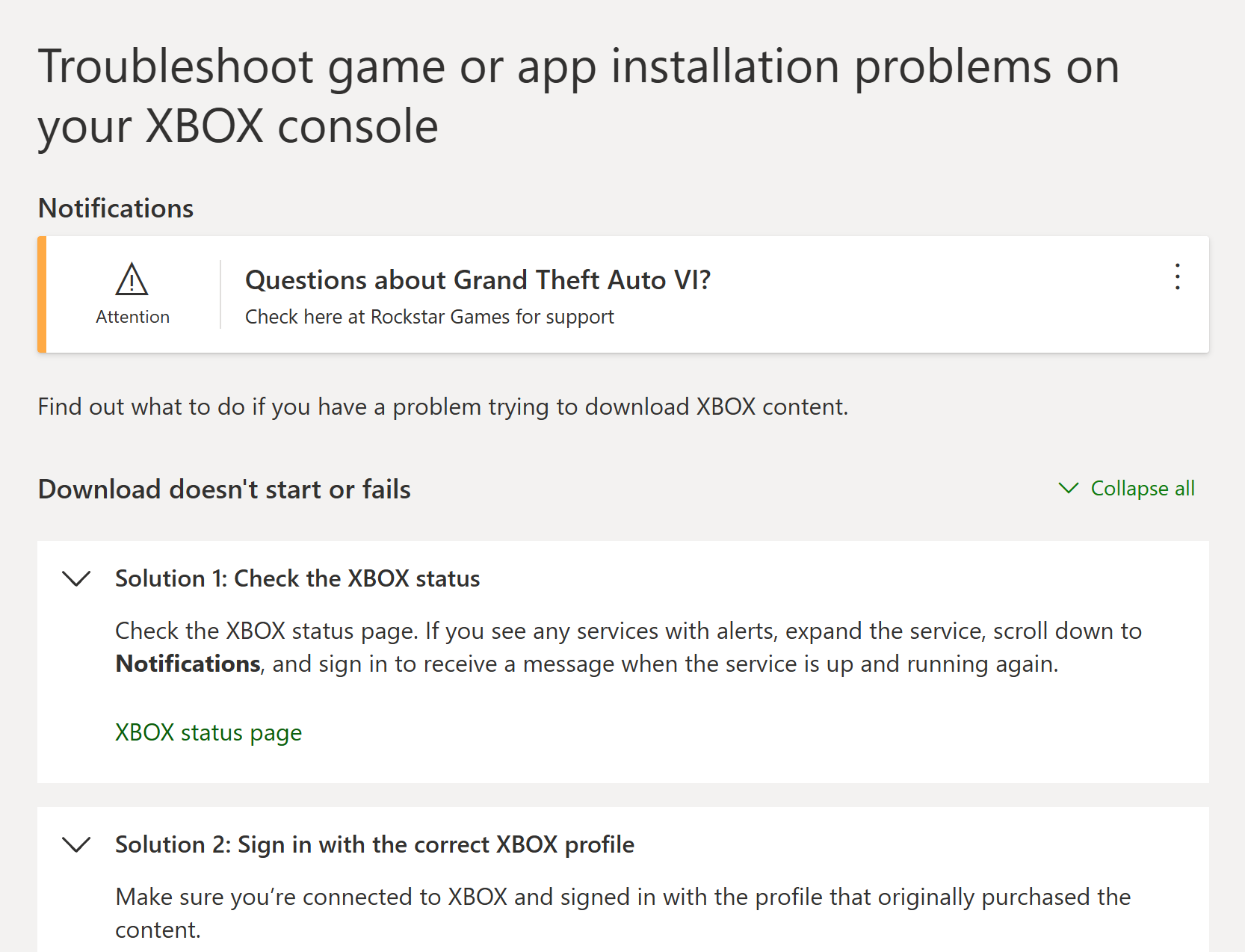
Xbox players can find the full list of download fixes on Xbox Support’s installation troubleshooting page (external site, opens in new tab), and PS5 players on PlayStation’s Grand Theft Auto VI support page (external site, opens in new tab). If nothing works, contact PlayStation or Xbox support, or submit a request to Rockstar Support.
PS5 or Xbox: does it matter for updates?
No. Rockstar lists the GTA VI updates for PS5 and Xbox Series X|S together on one page, and both consoles download them the same way. If you are still choosing a console, our PS5 vs Xbox Series X|S comparison covers the rest, and GTA 6 tops our list of the best open world and action games.
Don’t have the game yet? Grand Theft Auto VI is on Amazon for PS5 (external site, opens in new tab) and Xbox Series X|S (external site, opens in new tab). Still need a console? See the PS5 (disc model) (external site, opens in new tab), PS5 Pro (external site, opens in new tab), Xbox Series X (external site, opens in new tab) and Xbox Series S (external site, opens in new tab) on Amazon. For more to play once the story is done, see our best video games of 2026.
FAQ
How do I check for a GTA 6 update?
On PS5, highlight Grand Theft Auto VI, press Options and select Check for Update. On Xbox, press the Xbox button and go to My games & apps > See all > Manage > Updates.
Do I need to update GTA 6 to keep playing?
A PS5 game updates to the newest version when you start it online, and both consoles can install updates automatically. Keeping the game up to date is the way to get Rockstar’s fixes, such as the autosave and story phone-call fixes in the first post-launch update.
Where are the GTA 6 patch notes?
On Rockstar Support, on the page called Grand Theft Auto VI Launch Updates (PS5 / Xbox Series X|S). The newest update is listed at the top.
Why is my GTA 6 update stuck?
The usual causes are busy online services, not enough free space, an older console system version or a stalled download. Check the status pages, free up space, install any system update, then pause and resume or restart the download.
Is there a GTA 6 update for PC?
Grand Theft Auto VI is on PS5 and Xbox Series X|S. Treat any “GTA 6 PC update” or download offer you see online as a likely scam.
Disclosure: As an Amazon Associate, QuickOnlineTips earns from qualifying purchases.
Subscribe to our weekly tech newsletter
🎁 Free 100 Tech Terms ebook when you subscribe. Unsubscribe anytime. Privacy