
How to Change Cron Time on a VPS with cPanel and WHM (2026)
Need to change the cron time on your cPanel VPS so heavy jobs run when your site is quiet? I once changed our server clock to local time and found the nightly cPanel jobs still running at 1 AM as before. Back then a WHM plugin called cronconfig was the fix. In 2026 WHM has built-in settings. Here is how to change cron time on a cPanel VPS, for both system jobs and your own cron jobs.

Quick answer: As root, open WHM’s Configure cPanel Cron Jobs interface (search “cron” in WHM) to change when cPanel updates (upcp) and backups run. For your own scripts, open cPanel > Advanced > Cron Jobs, pick a schedule or enter minute, hour, day, month and weekday values, and add the command. Check the server time zone in WHM first.
Table of Contents
Step 1: Check your server time
Cron uses the server’s time zone, not yours. In WHM, search for Server Time to see and change the time zone. If your audience is mainly in India, for example, you might set Asia/Kolkata so schedules are easier to plan.
Step 2: Change cPanel system cron times (WHM)
WHM’s Configure cPanel Cron Jobs interface controls three built-in scripts:
- upcp: updates cPanel and WHM. By default it runs at a random time between 9 PM and 6 AM server time.
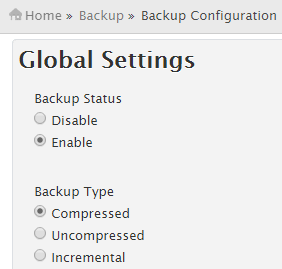
- backup: runs the backups set in Backup Configuration, by default at 2 AM.
- cpbackup: legacy backups, by default at 1 AM.
Set each to your quietest hours, and avoid running updates and backups at the same time. Details are in cPanel’s documentation for Configure cPanel Cron Jobs.
Step 3: Add or change your own cron jobs (cPanel)
- Log in to cPanel and open Cron Jobs under Advanced.
- Choose a Common Setting such as “Once Per Day”, or fill in the five time fields.
- Enter the command, such as
/usr/local/bin/php /home/user/public_html/wp-cron.php. - Click Add New Cron Job. Edit or delete existing jobs from the list below.
Understanding cron time fields
- Minute: 0 to 59
- Hour: 0 to 23
- Day of month: 1 to 31
- Month: 1 (January) to 12 (December)
- Weekday: 0 (Sunday) to 6 (Saturday)
- * means “every”.
Example: 47 1 * * * runs every day at 01:47. */15 * * * * runs every 15 minutes.
Common cron jobs for WordPress sites
- Run WP-Cron from the server instead of on page visits (set
DISABLE_WP_CRONin wp-config.php). This keeps scheduled tasks like emptying the trash on time. - Nightly database and file backups. See how to back up websites on your hosting server.
- Malware scans with tools from our list of server security software.
FAQ
Why does my cron job run at the wrong time?
The server time zone differs from yours. Check Server Time in WHM, or adjust the hour in your cron entry.
Can I change cron time without root access?
You can change your own cPanel cron jobs, but system jobs like upcp need WHM root or reseller permission.
How do I stop cron emails?
Clear the Cron Email field in cPanel, or add >/dev/null 2>&1 to the end of the command.
When do your server jobs run? Share your schedule tips in the comments.
Stuck on a gift? Try our free Gift Idea GeneratorIdeas for anyone by age, job, interests and budget, with Amazon.com and Amazon.in linksFind gifts →Get our free weekly email: new tech guides and tools, no spam.
New and updated tech guides, a free tool worth bookmarking and one useful pick, once a week. No spam, unsubscribe anytime.
One email a week. Unsubscribe anytime. See our privacy policy.




I don’t mess around with cron jobs too much, but this will come in handy this year with a few projects I have planned. Thanks!