
WordPress Editor Keyboard Shortcuts and Hidden Formatting Options (2026)
In 2007, after upgrading to WordPress 2.1, I found a hidden row of formatting buttons in the post editor by pressing a secret key combination. The editor has changed completely since then, but it still hides plenty of useful tools. These WordPress editor keyboard shortcuts and hidden formatting options for the block editor and the Classic Editor will help you write and format posts faster in 2026.
Quick answer: In the WordPress block editor, press Shift+Alt+H (Ctrl+Option+H on Mac) to see every keyboard shortcut. Type / to insert any block, use Ctrl+K to add a link, and Ctrl+Shift+Alt+M to switch to the code editor. Extra text formats such as inline code, highlight, subscript and superscript sit in the “More” (down-arrow) menu of the block toolbar. In the Classic Editor, the Toolbar Toggle button (Alt+Shift+Z) shows the hidden second row of buttons.
Table of Contents
The hidden buttons of 2007
WordPress 2.1 let you switch between visual and code editing on one screen, which Blogger had offered for a long time. The toolbar looked the same as before, until I pressed Alt+Shift+V in Firefox (Alt+V in Internet Explorer) on the Write Post screen and a whole new row of buttons appeared.
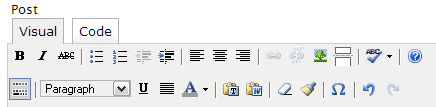
It added much-needed options like underline, text alignment, special characters, text color, undo and redo, Paste as Plain Text, Paste from Word and a clean-up-messy-code button. That second row became the Classic Editor’s “Toolbar Toggle” (also known as the kitchen sink), and it still exists today.
WordPress editor keyboard shortcuts (block editor)
These shortcuts come from the official WordPress keyboard shortcuts guide. On a Mac, use Cmd instead of Ctrl and Option instead of Alt unless noted.
Global shortcuts
- Show all shortcuts: Shift+Alt+H (Mac: Ctrl+Option+H)
- Save draft or update: Ctrl+S
- Undo / redo: Ctrl+Z / Ctrl+Shift+Z
- Switch between visual and code editor: Ctrl+Shift+Alt+M
- Show or hide the settings sidebar: Ctrl+Shift+, (comma)
- Open list view (document outline): Shift+Alt+O (Mac: Ctrl+Option+O)
Block shortcuts
- Insert a block: type / at the start of an empty paragraph and choose a block
- Duplicate block: Ctrl+Shift+D
- Remove block: Shift+Alt+Z (Mac: Ctrl+Option+Z)
- Insert a new block before / after: Ctrl+Alt+T / Ctrl+Alt+Y
- Change a paragraph to a heading: Shift+Alt+1 to 6 (Mac: Cmd+Option+1 to 6)
Text formatting shortcuts
- Bold, italic, underline: Ctrl+B, Ctrl+I, Ctrl+U
- Add a link: Ctrl+K, or type [[ to link to one of your existing posts or pages
- Inline code: Ctrl+Alt+X
Hidden formatting options in the block editor
- More rich text controls: click the down arrow in a block’s toolbar for highlight (text color), inline code, inline image, keyboard input, strikethrough, subscript and superscript.
- Typography and color settings: open the block settings sidebar to change font size, colors and spacing. Some options are hidden behind the three-dot menu in each panel, where you can switch on extra controls.
- Edit as HTML: each block’s three-dot menu lets you edit its raw HTML, handy for fixing unclosed HTML tags in WordPress.
- Paste as plain text: press Ctrl+Shift+V to paste without the formatting from Word or a web page.
- Distraction-free mode: hides toolbars and sidebars so you can just write. Read more about distraction-free writing in WordPress.
Hidden options in the Classic Editor
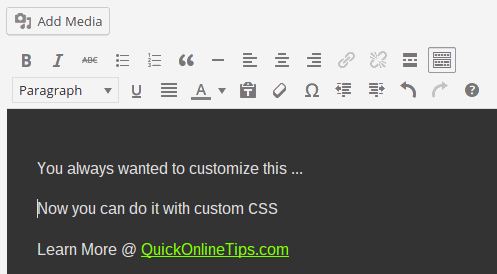
If you still use the Classic Editor plugin, click the Toolbar Toggle button (or press Alt+Shift+Z) to show the second row with underline, alignment, text color, special characters, Paste as Text, clear formatting, indent and undo/redo. The Text tab gives you a plain HTML view. In 2007 turning the extra row on by default meant editing WordPress core files; now WordPress remembers your choice.
Looking for more speed tricks? Learn to moderate WordPress comments with keyboard shortcuts.
FAQ
How do I see all keyboard shortcuts in WordPress?
In the block editor, press Shift+Alt+H on Windows or Ctrl+Option+H on Mac, or open the Options menu and choose Keyboard shortcuts.
How do I underline text in the WordPress block editor?
Select the text and press Ctrl+U (Cmd+U on Mac). There’s no underline button by default.
Where is the kitchen sink in WordPress?
It’s the Toolbar Toggle in the Classic Editor. The block editor puts extra formats in the block toolbar’s down-arrow menu instead.
How do I switch to the HTML editor in WordPress?
Press Ctrl+Shift+Alt+M (Cmd+Shift+Option+M on Mac), or choose Code editor from the Options menu.
Get our free weekly email: new tech guides and tools, no spam.
New and updated tech guides, a free tool worth bookmarking and one useful pick, once a week. No spam, unsubscribe anytime.
One email a week. Unsubscribe anytime. See our privacy policy.


Um… Cough you can do that with out a secret keyboard command.
Look at the image above you the button on the lower left (the one with all the little colored cubes) click on it and you will get the lower row.
Did not work used shift-v and shift-alt-v in firefox still didn’t wanna work.
Wow good tips…thanks.I never knew there are hidden buttonbs in wordpress!
Didn’t work for me! any idea?