
How to Embed Free Getty Images in Your Blog Posts (Rules and Downsides)
Getty Images is one of the world’s best-known photo libraries, and its pictures appear in top news sites every day. Normally a single licence costs hundreds of dollars. But in 2014 Getty opened a huge part of its collection, tens of millions of images, for free embedding on blogs and websites for non-commercial use. Here’s how to embed free Getty Images in your articles, what the rules are, and the downsides you should know before relying on them in 2026.
Quick answer: Search Getty Images, open an image, and click the embed icon (</>) if it’s shown. Copy the embed code and paste it into your post in HTML/Text mode. The embedded image is free for editorial, non-commercial use, shows Getty’s credit and links back to Getty. You can’t download it, use it as a featured image, or use it in ads.
Table of Contents
Why we tried Getty embeds
We used to buy stock images from Fotolia (now Adobe Stock) to illustrate our posts, at over $1 per image. Free embeds from Getty looked like a great way to add professional photos at no cost, so we tested them.
How to embed free Getty Images
- Go to Getty Images and search for a photo.
- Open the image’s detail page and look for the embed icon (
</>). Not every image can be embedded; if there’s no icon, that image isn’t available.
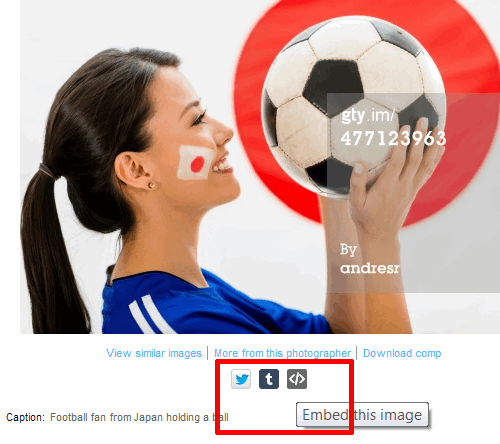
- Click the icon and copy the embed code. You can choose the size.
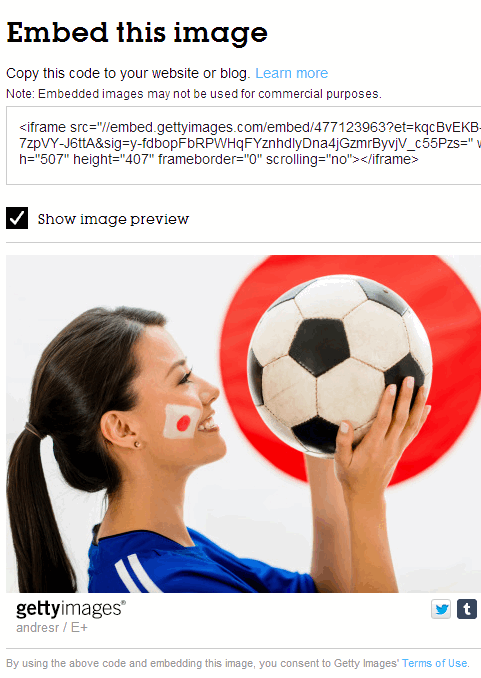
- In WordPress, paste the code into your post. In the Classic Editor, switch to the Text tab first; in the block editor, use a Custom HTML block.
The embedded image appears in an iframe, much like an embedded YouTube video. It isn’t watermarked, but it shows the photographer’s credit and links back to Getty, where visitors can see more of their work and buy a licence.
The rules: what you can and can’t do
- Editorial, non-commercial use only. Blogs, news articles and social media posts are fine. Ads, product pages and promotional material are not.
- Use the official embed code. Don’t screenshot, download or crop the image.
- Getty may show ads or collect data in the embed, and can remove or change the image at any time.
Read Getty’s terms of use before you embed.
The downsides of embedded Getty Images
- No SEO value: the image lives on Getty’s servers in an iframe, so it doesn’t rank in Google Images for your site, and you can’t add your own alt text.
- No featured image: you can’t use it as your post thumbnail or Open Graph image, so social shares won’t show it.
- Slower pages: each embed loads extra scripts from Getty.
- Images can disappear: if Getty removes an image or changes its embed program, your post is left with an empty box. Our original example embed from 2014 is one reason we’ve replaced it with screenshots here.
Better free image options in 2026
For most blogs, images you can upload and own are better:
- Free stock photo sites like Unsplash, Pexels and Pixabay let you download and use images freely, including as featured images. See our list of the best free stock photo sites for blogs.
- AI-generated images: create custom illustrations with free AI art generators.
- Your own photos and screenshots are unique and often the most useful for tutorials.
Use Getty embeds when you need a specific news or celebrity photo that you can’t get any other way.
Frequently asked questions
Are Getty Images free to use?
Only through the official embed tool, for non-commercial editorial use, and only for images that show the embed icon. Downloading or copying Getty images without a licence can lead to copyright claims.
Can I use an embedded Getty Image on a monetised blog?
Getty’s terms allow embeds on blogs, but not in ads or for promoting products. Read the current terms, and if in doubt, buy a licence or use a free stock photo.
Why can’t I find the embed button?
Not all images are available for embedding. Try another image, or check whether the embed program is available in your region.
Get our free weekly email: new tech guides and tools, no spam.
New and updated tech guides, a free tool worth bookmarking and one useful pick, once a week. No spam, unsubscribe anytime.
One email a week. Unsubscribe anytime. See our privacy policy.



Wonderful work from Getty.
But unfortunately, this sort of feature will be useful for bloggers who are preparing a list of, say ‘wonderful vacation spots’ or ‘honeymoon destinations’, but it can’t be replaced for normal image upload/share feature.
Nevertheless thank you Getty for bringing such feature! (y)
The Downside is kinda heavy for me, but i could give it a try.
Thanks for sharing
As an idea for owners of Flickr , Getty images, Photobucket, etc there should be a fallback image for when it gets deleted. OR, a website plugin could be created or a decent alternative image to show up if it gets deleted. It would, however, take more time to publish each post as you would have to take the time to find a backup.
Now bloggers can hide Getty Images giveaway in their blog posts. Opening a outrageous print collection of over 35 million images for non blurb use, a renouned Getty Images is enlivening a vast blogger village to dump paid batch images and use a embedded Getty Images choice instead.
Every Blogger is writing about this Getty Images topics but one is talking about downside.
Finally you’ve pointed out the real down side i.e. no SEO benefit. and I totally agree with this.
Also have you ever embedded Flickr images or youtube videos that are removed. They leave a bad empty box.