How to Stop WhatsApp Group Members from Turning On Disappearing Messages
Quick answer: To stop WhatsApp disappearing messages being turned on or off by group members, a group admin needs to open the group, go to Group permissions and turn off “Edit group settings” (older versions call it Group settings, Edit group info, Only admins). After that, only admins can change the disappearing messages timer. Updated October 2026.
This is a problem for almost all WhatsApp group admins: by default any member can turn on disappearing messages, which makes new chat messages vanish after a fixed interval of, say, 7 days.
Table of Contents
What are WhatsApp disappearing messages
Disappearing messages is a WhatsApp feature that makes chat messages disappear after 24 hours, 7 days or 90 days. By default, all messages stay in the chat and disappearing messages are off.
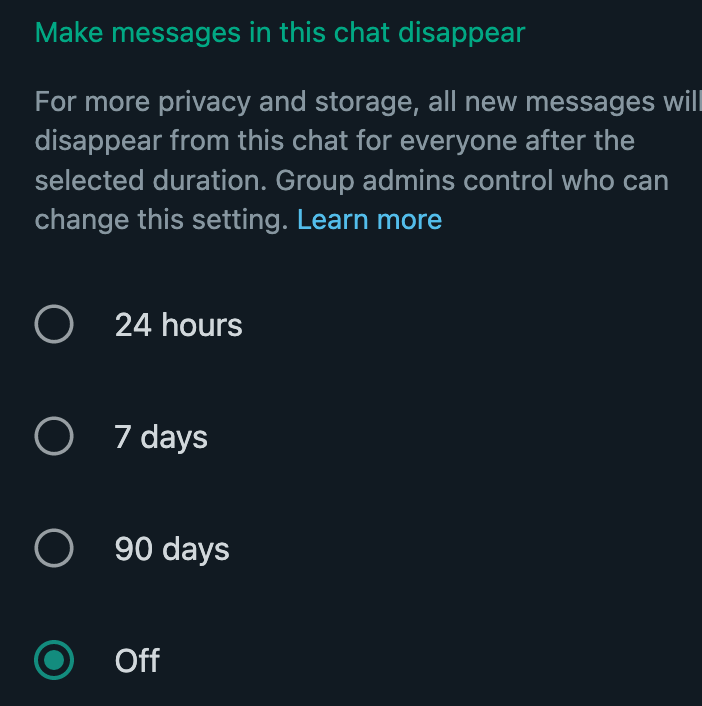
However, in a group any member can turn on disappearing messages for the whole group unless the admins restrict it. It is another important privacy feature, like the WhatsApp One View option.
The problem of WhatsApp disappearing messages
Disappearing messages are very good for privacy, as they remove messages after a fixed time from the WhatsApp app for all group members. But by default every member of a group is allowed to turn disappearing messages on or off whenever they like. It is hard to understand why such an important group setting is open to every member instead of being limited to admins.
I was particularly disturbed when members in my WhatsApp groups kept turning on disappearing messages for no obvious reason, because they did not understand the feature well. Then different group admins or other members would repeatedly turn them off again.
The activity of turning disappearing messages on and off shows up in the group chat, so you can easily see who turned them on and who turned them back off.
Disable disappearing messages for group members
There is a setting where group admins can stop members from turning disappearing messages on or off. It is bundled with a setting that also stops members from changing the group icon, group name and description, and pinned messages.
On a current version of WhatsApp:
- Open the group and tap the group name to open Group info.
- Open Group permissions.
- Turn off Edit group settings, so that only admins can change them.
On older versions of WhatsApp (as in the screenshots below): after logging in, click the 3 dots icon on the right and go to Group Info.

Go to Group Settings
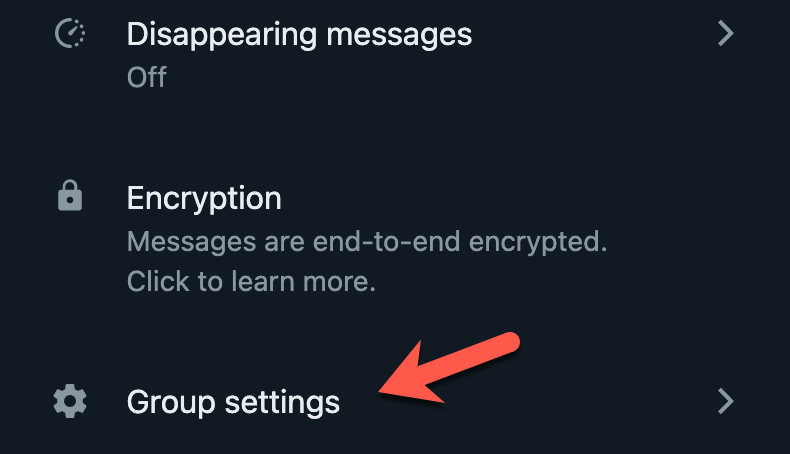
Edit Group Info, then choose the Only admins option.


That’s it. Now group members cannot change the WhatsApp disappearing messages setting, and as an added bonus they also cannot edit the group icon, title or description. Menu names change between WhatsApp versions, so if you do not see the exact label, look for the permission that controls who can edit group settings.
How to turn off disappearing messages in a group
Open the group, tap the group name, choose Disappearing messages and select Off. If members can still change it, restrict the setting to admins as shown above so that it stays off.
Frequently asked questions
Can I see WhatsApp disappearing messages after they vanish?
No. Once a disappearing message expires, it is removed from the chat and WhatsApp cannot bring it back. Anyone who forwarded, copied or took a screenshot of it before then still has that copy, and photos or videos may stay in the phone gallery if media auto-download was on.
Can any member turn on disappearing messages in a WhatsApp group?
Yes, by default any group member can turn disappearing messages on or off. Admins can restrict it to admins only.
What timers does WhatsApp offer for disappearing messages?
24 hours, 7 days or 90 days.
Does the admin-only setting stop anything else?
Yes. The same permission stops members from changing the group name, icon, description and pinned messages.
Get our free weekly email: new tech guides and tools, no spam.
New and updated tech guides, a free tool worth bookmarking and one useful pick, once a week. No spam, unsubscribe anytime.
One email a week. Unsubscribe anytime. See our privacy policy.