How to Clear Cache on Chromebook (Chrome, Apps and Powerwash)
Is a school site showing an old page, a login loop or a Chromebook that feels sluggish? Here is how to clear cache on Chromebook: open Chrome, select the More menu (three dots) > Delete browsing data, pick All time, tick Cached images and files and select Delete data. It takes about 30 seconds, and the steps below also cover a one-page refresh, keyboard shortcuts and what to do when nothing else works.
Quick answer: Chrome > More (⋮) > Delete browsing data > Time range: All time > tick Cached images and files (and Cookies and other site data if a site won’t sign in) > Delete data. Shortcut: Ctrl + Shift + Backspace opens the same window. To reload one page without its cache: Ctrl + Shift + R.
Table of Contents
What clearing the cache on a Chromebook does
Chrome saves copies of images, scripts and page files (the cache) so websites open faster next time. When those saved files go out of date, a site can look broken, refuse to load new content or get stuck signing in. Clearing them forces Chrome to download fresh copies.
- Cached images and files: safe to delete any time. Pages load slightly slower the first time afterwards.
- Cookies and other site data: deleting these signs you out of most websites. Google says you stay signed in to the Google Account you sync Chrome with.
- Browsing history: only deleted if you tick it.
- Your files in the Files app and Google Drive are never touched.
How to clear cache on Chromebook (step by step)
- Open Chrome.
- Select the More icon (three dots) at the top right.
- Choose Delete browsing data.
- Next to Time range, choose All time (or a shorter range if the problem only just started).
- Tick Cached images and files. Add Cookies and other site data only if a site still won’t load or sign you in.
- Select Delete data.
- Close Chrome and open it again, then reload the site.
You can also reach the same window from Settings > Privacy and security > Delete browsing data inside Chrome, or by typing chrome://settings/clearBrowserData in the address bar. Google’s help page on clearing cache and cookies in Chrome lists the same steps.
Keyboard shortcuts that save time
| Shortcut | What it does |
|---|---|
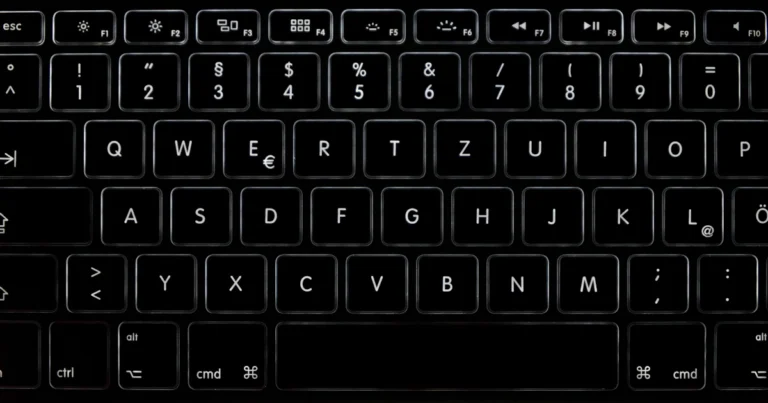
| Ctrl + Shift + Backspace | Opens the Delete browsing data window |
| Ctrl + Shift + R | Reloads the current page without using cached content |
| Ctrl + Shift + N | Opens an Incognito window, which starts with no cookies or cache from your normal browsing |
The hard reload (Ctrl + Shift + R) is listed in Google’s Chromebook keyboard shortcuts and is the quickest fix when only one page looks stale. A handy test: if a site works fine in an Incognito window but not in a normal one, the cache, cookies or an extension is the cause.
Still not working? Check extensions and apps
Turn off extensions one by one
A faulty or outdated extension can break pages in ways that look like a cache problem. Type chrome://extensions in the address bar, switch extensions off one at a time and reload the site after each. Remove any you don’t recognise; our guide to installing Chrome extensions safely explains what to look out for.
Android apps on a Chromebook
Apps installed from Google Play keep their own data, separate from Chrome. Clearing Chrome’s cache doesn’t affect them. If one Android app keeps misbehaving, the surest fix is to uninstall it (right-click its icon in the launcher > Uninstall) and install it again from the Play Store, then sign back in.
School and work Chromebooks
On a Chromebook managed by a school or employer, the administrator controls many settings. Some schools stop students from deleting browsing history or data, and you can’t Powerwash a managed Chromebook yourself. If the Delete browsing data options are greyed out or missing, ask your school’s IT team. The same goes for blocked websites; we explain how filters work in our guide to blocking websites on Chrome.
Last resort: Powerwash (factory reset)
If the Chromebook is still slow or glitchy after clearing the cache, a Powerwash resets it to factory settings. It erases all local data, including everything in the Downloads folder, so back up files to Google Drive or a USB drive first. Files already in Google Drive aren’t deleted.
- Sign out of your Chromebook.
- Press and hold Ctrl + Alt + Shift + R.
- Select Restart.
- In the box that appears, select Powerwash, then Continue.
- Follow the steps and sign in with your Google Account.
Google’s Powerwash help page has the full details. Passwords saved to your Google Account come back when you sign in again, but to be safe export your Chrome passwords first.
More Chromebook help
Need to show your IT team what’s wrong? Our guide to taking a screenshot on a Chromebook covers every method. And if your charger is the problem rather than the browser, see whether you can charge a Chromebook with a phone charger.
FAQ
How often should I clear the cache on my Chromebook?
Only when something goes wrong, such as a site showing old content, a page that won’t load or a sign-in loop. Chrome manages the cache on its own the rest of the time.
Will clearing cache delete my files or passwords?
No. Clearing cached images and files only removes Chrome’s temporary copies of web pages. Files in the Files app, Google Drive and your saved passwords stay where they are unless you choose to delete passwords separately.
Why does a website still look the same after clearing the cache?
Close and reopen Chrome, then press Ctrl + Shift + R on the page. If it still looks wrong, clear cookies too, try an Incognito window, or switch off extensions. The website itself may also be having problems.
Does restarting a Chromebook clear the cache?
No. A restart frees memory and can fix temporary glitches, but Chrome’s cache stays on the device until you delete it.
Photo by Kind and Curious on Unsplash
Get our free weekly email: new tech guides and tools, no spam.
New and updated tech guides, a free tool worth bookmarking and one useful pick, once a week. No spam, unsubscribe anytime.
One email a week. Unsubscribe anytime. See our privacy policy.