
8 Microsoft Word Tips and Hidden Features Worth Using (2026)
When Word 2007 arrived with its new Ribbon, guest author Quakeboy shared six tips to get more out of it: embedding fonts, finding the Developer tools, cover pages, watermarks, file formats and the new equation editor. Every one of those features is still in Word today, just in slightly different places. Here are those Microsoft Word tips updated for Word in Microsoft 365 and recent versions, plus two more worth knowing.
Quick answer: In current Word for Windows, embed fonts under File > Options > Save; show the Developer tab under File > Options > Customize Ribbon; add a cover page from Insert > Cover Page; add a watermark from Design > Watermark; set the default file format under File > Options > Save; and press Alt + = to insert an equation. Also try Draw > Ink to Math to handwrite equations, and save as PDF for sharing.
Table of Contents
8 Microsoft Word tips for 2026
1. Embed fonts so your document looks the same everywhere
If you use a custom font and open the file on a computer that doesn’t have it, Word substitutes another font and your layout can shift. Embedding the fonts in the document fixes this:
- Click File > Options.
- Select Save in the left column.
- Near the bottom, tick Embed fonts in the file.
- Choose “Embed only the characters used” for a smaller file, or leave it unticked if others need to edit the text. Click OK.
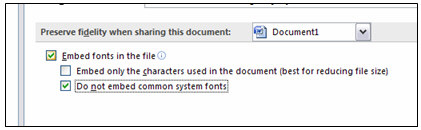
Embedding makes files bigger, and some fonts’ licences don’t allow it. Need the classic Office fonts on another PC? See how to get Calibri and the other Office fonts legally.
2. Show the Developer tab for macros and forms
Word hides its VBA editor, form controls and macro security settings by default. To show them, click File > Options > Customize Ribbon, and under Main Tabs tick Developer. The new tab gives you Visual Basic, Macros, Design Mode and content controls for building fillable forms.
3. Add a professional cover page
Project reports and proposals look more polished with a cover page, and Word has a gallery of ready-made designs. Go to Insert > Cover Page (in the Pages group), pick a design, then click the sample text to type your own title, subtitle and date. Inserting another cover page replaces the first one.

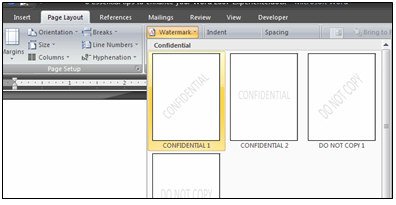
4. Add a watermark
Watermarks such as DRAFT or CONFIDENTIAL used to live on the Page Layout tab in Word 2007. In current Word, go to Design > Watermark and choose a preset, or select Custom Watermark to use your own text or a picture such as a company logo.
5. Choose your default file format
In 2008 many people still used Word 2003, so the original tip was to save in the old .doc format by default. Today .docx is the standard and opens in Google Docs, LibreOffice and Word on any device, so keep it. If you do need a different default, it’s in File > Options > Save under “Save files in this format”.

For sharing a final version that nobody should edit, use File > Save As and choose PDF. To keep a document private, you can also password protect a Word document.
6. Type equations quickly
Word 2007’s equation editor was a big step up, and it has only improved. Press Alt + = (or go to Insert > Equation) to open an equation box, then type. Microsoft’s guide to writing an equation or formula covers every option. Word converts many shortcuts as you go: for example, typing \sqrt or \pi gives the square root and pi symbols. The Equation tab on the Ribbon has fractions, scripts, integrals, matrices and more.
 Click inside the placeholder to start typing your equation, and use the Equation tab to pick structures you can’t easily type.

7. Handwrite equations with Ink to Math
If you have a touchscreen or pen, go to Draw > Ink to Math Convert, write the equation by hand and click Insert. Word turns it into a proper, editable equation.
8. Type special characters fast
Instead of hunting through Insert > Symbol, learn a few shortcuts: see how to type an em dash, the copyright symbol and the trademark symbol in Word.
What about blogging from Word?
Word 2007 could publish straight to Blogger, WordPress and other blogs through a built-in blog post template. That feature belongs to an era before modern web editors. Today it’s simpler to write in Word and paste into the WordPress block editor, which keeps headings, lists and links.
FAQ
Where is the Developer tab in Word?
It’s hidden by default. Turn it on in File > Options > Customize Ribbon by ticking Developer.
Where is the watermark option in Word?
On the Design tab in current versions of Word for Windows. Word 2007 had it on the Page Layout tab.
What is the shortcut for inserting an equation in Word?
Press Alt + = to insert a new equation.
Why do my fonts change when I open a Word file on another computer?
The other computer doesn’t have the font installed. Embed the fonts in the file (File > Options > Save) or save a PDF copy.
Originally written by guest author Quakeboy of TechTola. Updated for 2026 by QuickOnlineTips.
Get our free weekly email: new tech guides and tools, no spam.
New and updated tech guides, a free tool worth bookmarking and one useful pick, once a week. No spam, unsubscribe anytime.
One email a week. Unsubscribe anytime. See our privacy policy.




i m ajay i useI used to blog a lot from Word 2007 till I started using LiveWriter. I created a macro shortcut which allowed me to launch a new post easily:
Thanks very much for Tip No 1. Ealier I used to install fonts in each and every comp that i used to work. Now life has become much easier!!!
I used to blog a lot from Word 2007 till I started using LiveWriter. I created a macro shortcut which allowed me to launch a new post easily: