
How to Block Adult Content on YouTube in 2026 (Restricted Mode & Parental Controls)
Learn how to block adult content on YouTube in 2026 using Restricted Mode, parental controls, and account settings. If you hand over your phone or TV to a child and open YouTube, you already know the problem. One video leads to another, and suddenly the content is not appropriate anymore.
YouTube has improved its controls over the years, but they are not always obvious. The good part is that with a few settings, you can significantly reduce exposure to adult or sensitive content.
This article will explain how you can edit YouTube settings and stop adult content immediately. As more YouTube content is created and content creators try to add content to entice viewers to click inviting thumbnails, YouTube content filters become very important to safeguard your kids and children.
Why You Should Block Adult Content on YouTube
YouTube hosts content for every age group, and its recommendation system can sometimes surface videos that are not suitable.
Without proper restrictions:
- Children can access mature content
- Suggested videos may drift into unsafe categories
- Searches may return inappropriate results
This makes it important to configure controls correctly, especially on shared devices.
Enable YouTube Restricted Mode
This is the most important YouTube setting which is most commonly used to block or restrict adult content.
If you are logged into YouTube, you can click on your profile icon which you see in the top right corner and a drop-down menu will open.
Check the status of restricted content.
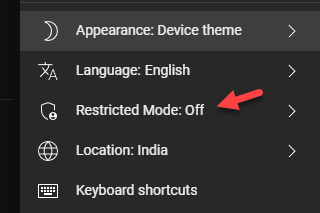
By default, restricted content will be off.

You can choose to activate restricted mode on YouTube by clicking on the slide toggle icon and this will ensure that mature videos are blocked and not shown in your YouTube stream.

The important thing to note is that the restricted mode on YouTube will only be device-specific, which means if you block YouTube mature content on your browser, then it will work on your computer only and not on your mobile phone. That means you have to activate restricted mode in YouTube on all your devices where you plan to stop adult content from displaying on YouTube.
Another important disclaimer that they make while activating the YouTube setting is that no filter is 100% accurate and some mature Youtube videos may still skip these filters so they are not 100% foolproof but will work to a large extent. Thus, this setting filters out most mature content, although it is not perfect. This is a similar disclaimer if you want to block Amazon Prime or block Netflix.
Lock Youtube Restricted Mode: Stop Youtube Adult Videos
Simply activating YouTube restricted mode is of no value to you unless you decide to lock restricted mode, as your kids can go and unblock YouTube from the YouTube settings as it is easy to access it.
I tried searching around for the link to lock restricted mode, but I could not find any. Actually, you have to click on the text that you see in the pop-up window which I have shown above – “Lock restricted mode on this browser”
Clicking on this will take you to your Google account login where you need to log in once again with your username and password and it will come back to the same window but this time it will show that restricted mode is locked.

It is notable that there is no toggle switch now with which you can change this restricted mode setting anymore and adult YouTube content is permanently locked until you decide to log into your settings again via your Google login and unlock restricted mode.
Use YouTube Kids for Better Control
If you are setting up YouTube for children, using YouTube Kids is a better option.
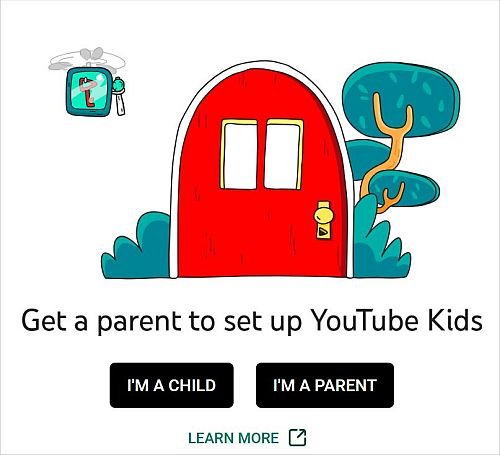
It provides a controlled environment with curated content and additional parental controls.
Set Up Supervised Accounts
Google now allows supervised accounts for younger users. You can manage them here: https://families.google.com/
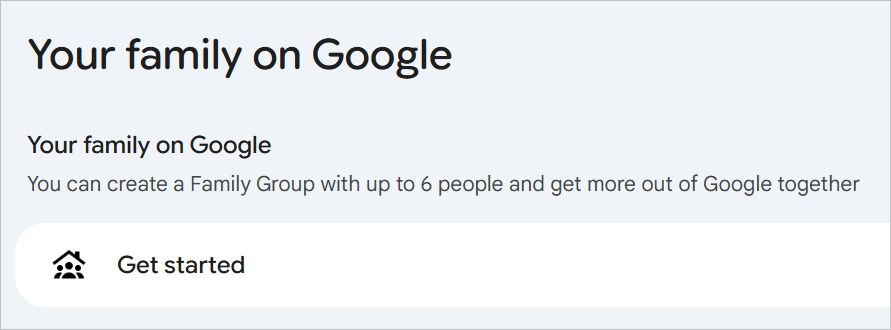
This lets you control search and watch settings, limit content categories and monitor activity.
Thus, Restricted Mode helps, but it works best when combined with other controls. Use Restricted Mode on all devices. Prefer YouTube Kids for younger users. Enable supervised accounts for better control. These together create a much safer viewing environment.
We like to turn on Google Safe Search to block adult content on Google as well as block adult content on Bing, the default browser in Microsoft Edge Browser.