
How to Check Short Links Before You Click (and the ShadyURL Joke)
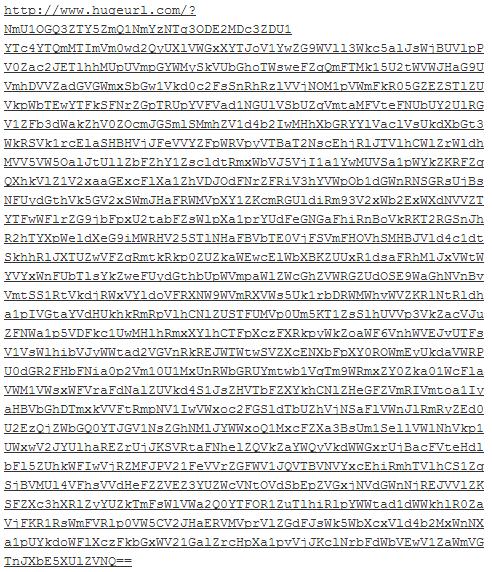
Short links like bit.ly or t.co hide where they really go, which is exactly why scammers love them. Before you click, it’s worth knowing how to check short links safely. Back in 2010 we had fun with ShadyURL, a joke service that turned any link into a scary-looking address full of “trojan” and “exe” words, so nobody would dare click it. Today the problem is the reverse: dangerous links look perfectly harmless. Here’s how to check them.
Quick answer: To check a short link before clicking, expand it with a preview trick (add a + after a bit.ly link, or use preview.tinyurl.com for TinyURL), paste it into a URL expander, or scan it with VirusTotal or Google’s Safe Browsing site status tool. On a computer, hover over the link to see the address; on a phone, long-press it. If the final site looks unexpected, don’t open it.
Table of Contents
How to check short links safely
1. Use built-in previews
- Bitly: add a plus sign to the end, like
bit.ly/abc123+, to see the destination and stats. - TinyURL: put
preview.before the address, likepreview.tinyurl.com/abc123.
2. Hover or long-press
On desktop, hover over a link and check the address in the browser’s status bar. On phones, long-press to see the URL before opening it.
3. Scan it
- VirusTotal checks a URL against dozens of security engines.
- Google Safe Browsing site status shows if Google has flagged a site.
- urlscan.io loads the page safely and shows a screenshot and redirect chain.
4. Check the final domain carefully
Look for misspellings (paypa1.com), extra words (amazon-security-check.com) and unusual endings. Real banks and stores use their own domains.
Warning signs of a dangerous short link
- It arrives in an unexpected SMS, WhatsApp message or email, especially about parcels, payments or prizes.
- It urges you to act immediately.
- It leads to a login page asking for passwords, OTPs or card details.
- It starts a download you didn’t ask for.
Turn on built-in protection
- Chrome: Settings > Privacy and security > Security > Enhanced protection warns about dangerous sites and downloads.
- Edge: keep Microsoft Defender SmartScreen switched on.
- Safari and Firefox: keep fraudulent website warnings enabled.
- Phones: keep your operating system and browser updated, and turn on spam filtering for SMS.
- Email: Gmail and Outlook flag many phishing links automatically; never ignore their warning banners.
Protect your accounts too: even if you click a bad link, 2-step verification stops most account takeovers.
The ShadyURL joke
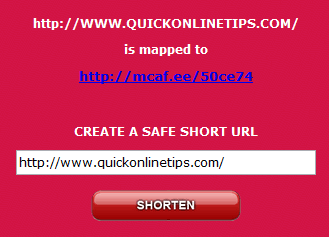
ShadyURL turned our own address into something like a malware download link, as these 2010 screenshots show. It was a great reminder that what a link looks like matters.

Running a site? Use trustworthy branded short URLs on your own domain instead of random shorteners, so readers can see where links go. For fun in the other direction, see how to make a short URL longer.
FAQ
Are short links dangerous?
Not by themselves. Most are harmless, but they hide the destination, so check unexpected ones before clicking.
How do I see where a short link goes?
Use the service’s preview (bit.ly +, preview.tinyurl.com), a URL expander or a scanner like VirusTotal.
What should I do if I clicked a suspicious link?
Close the page, don’t enter any details, run a security scan and change passwords if you typed them anywhere.
Stuck on a gift? Try our free Gift Idea GeneratorIdeas for anyone by age, job, interests and budget, with Amazon.com and Amazon.in linksFind gifts →Get our free weekly email: new tech guides and tools, no spam.
New and updated tech guides, a free tool worth bookmarking and one useful pick, once a week. No spam, unsubscribe anytime.
One email a week. Unsubscribe anytime. See our privacy policy.

This technique may be going too far but its worth trying
I laughed when I read this. Great tip!
man, this is qucikonlinetips’s best post ever…
That very funny and scary toooo
start this time i will consider to visit this blog again after read this post. LOL