
How to Lock SafeSearch to Protect Kids Online (2026 Methods)
Can you still lock SafeSearch in Google so your kids cannot switch it off? In 2012 Google had a simple “Lock SafeSearch” button protected by your account password, which we showed here step by step. Google has since removed that button. In 2026 you lock SafeSearch through Google Family Link, your home network or your device’s parental controls instead. Here is how each method works.
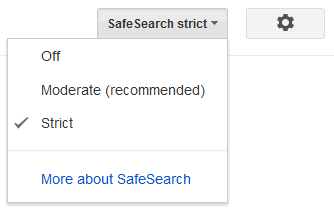
Quick answer: To lock SafeSearch for a child, set up their Google account with Google Family Link; SafeSearch filtering is then turned on and only a parent can change it. To lock it for every device on your Wi-Fi, use a family DNS service or your router to force Google SafeSearch. Google also turns SafeSearch filtering on by default for signed-in users it believes are under 18.
Table of Contents
What happened to the Google SafeSearch lock?
The old lock worked through a browser cookie. Clearing cookies, using another browser or a private window got around it, and it showed coloured balls on the results page so parents could check from across the room. Google retired it and moved protection to account and network controls, which are much harder for children to bypass.
Method 1: Lock SafeSearch with Google Family Link
- Install Google Family Link on your phone.
- Create a Google account for your child, or add supervision to their existing account.
- In Family Link, open your child’s profile, then Controls, then Content restrictions, then Google Search.
- SafeSearch filtering is on for supervised accounts and children cannot turn it off. You can also manage YouTube, Chrome and app settings here. To stop specific sites, see how to block websites on Chrome.
Method 2: Lock SafeSearch for your whole home network
Google lets networks force SafeSearch by pointing www.google.com to forcesafesearch.google.com in DNS. You do not need to edit DNS records yourself; easier options are:
- Family DNS services such as CleanBrowsing Family Filter, which enforces SafeSearch on Google, Bing and YouTube. Enter its DNS addresses in your router.
- Router parental controls. Many routers and mesh systems have a “SafeSearch” or “family filter” switch. See our home networking guide.
Network locks protect every device on your Wi-Fi, but not phones using mobile data. For an iPhone on mobile data, use Screen Time to limit adult websites on iPhone instead.
Method 3: Device parental controls
- Windows: Microsoft Family Safety filters search in Edge and can block other browsers.
- iPhone and iPad: Screen Time, then Content & Privacy Restrictions, then Web Content, then Limit Adult Websites.
- Android: Family Link covers both the device and Google Search.
Turn on SafeSearch on a shared computer
For a quick setting without a lock, open Google SafeSearch settings and choose Filter. Our guide shows how to change Google SafeSearch settings, and how to change Bing SafeSearch too. Since 2023, Google also blurs explicit images by default for everyone.
Protect kids on other platforms
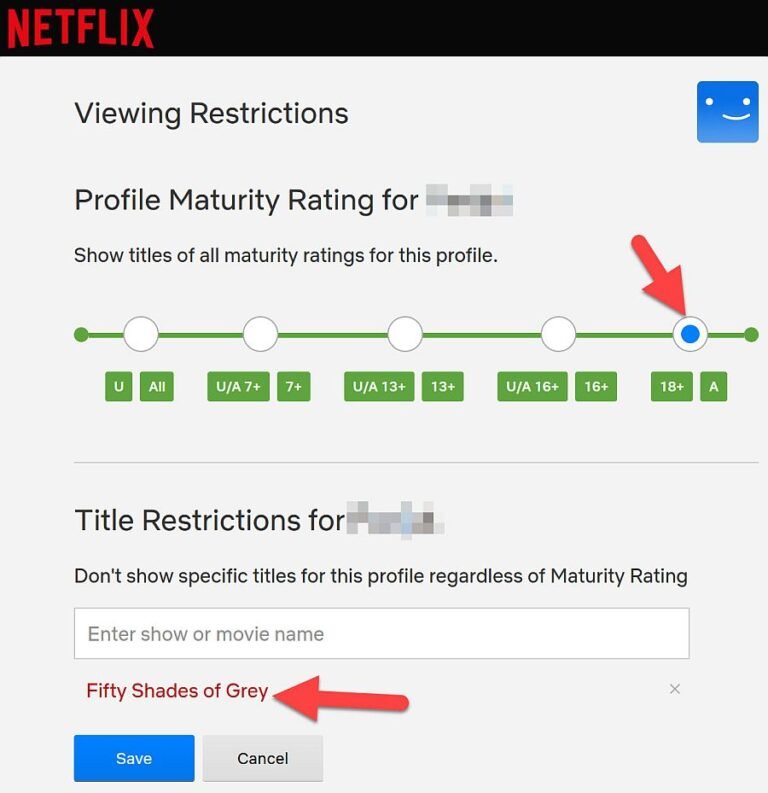
Search is only one way children find unsuitable content. Also block adult content on YouTube, on Netflix and on Prime Video, and watch for underage social media accounts. Filters miss things, so talk with your kids about what to do when they see something upsetting.
Which method should you choose?
For a young child with their own phone or tablet, Family Link is the strongest single step because the lock travels with the child’s account to any device they sign in to. For a family PC or a house full of devices, a family DNS filter on the router adds a second layer that also covers visitors and gaming consoles. Teenagers often find ways around a single control, so the best approach is two layers plus an honest conversation about why the filters are there. Review the settings every few months as your children grow.
FAQ
Can I still lock SafeSearch with a password?
Not with the old Google button. Use Family Link, network DNS or device parental controls instead.
Why is SafeSearch locked on my account?
It may be set by a parent through Family Link, by your school or workplace network, or by Google if your account appears to belong to someone under 18.
Does SafeSearch block everything?
No. It filters most explicit results but is not perfect. Combine it with parental controls and conversations.
Get our free weekly email: new tech guides and tools, no spam.
New and updated tech guides, a free tool worth bookmarking and one useful pick, once a week. No spam, unsubscribe anytime.
One email a week. Unsubscribe anytime. See our privacy policy.



Great article for keeping a safe and secure browsing experience for our kids. Thanks a Lot!
Great post regarding the negative side effects in the internet for children. Thanks for this.