
Tata Photon on Chromebooks: What Worked Then and How to Get Online Now
When I bought my new HP 14 Chromebook, my first problem was getting online with my Tata Photon USB dongle. Photon needed a small driver program, and Chromebooks can’t install Windows software. A one-line command in the Chrome OS shell fixed it. Tata Photon has since been discontinued, so here’s how we used Tata Photon on Chromebooks then, and the best ways to get mobile internet on a Chromebook in 2026.
Quick answer: Tata Photon no longer exists: Tata Teleservices’ mobile business was merged into Airtel in 2019 and its Photon dongles stopped working. To get mobile internet on a Chromebook today, use your Android phone’s Instant Tethering or Wi-Fi hotspot, a portable 4G/5G Wi-Fi router (such as JioFi or an Airtel hotspot), or a Chromebook with a built-in LTE/5G modem or eSIM.
Table of Contents
How we connected Tata Photon to a Chromebook (2014)
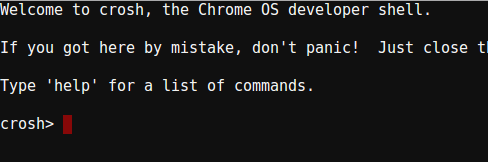
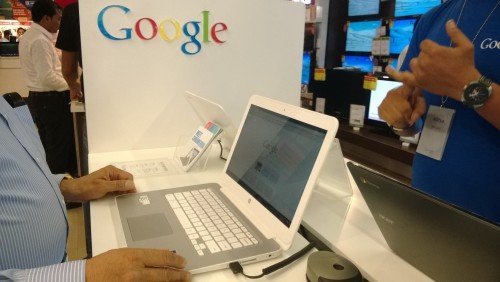
The trick, shared by the team at the Croma Google Chromebook store, used Chrome OS’s built-in developer shell, crosh.
- Press
Ctrl + Alt + Tto open crosh in a browser tab.
- At the
crosh>prompt, type:
set_cellular_ppp -u internet -p internet
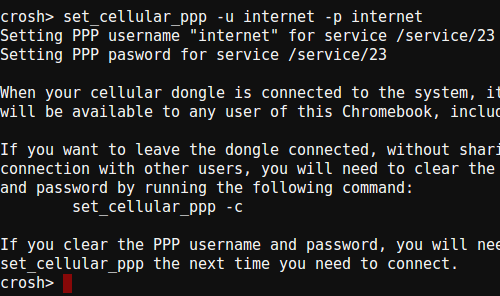
- Close the tab and restart the Chromebook. It then connected to the Tata Photon network automatically: no software, no passwords, just plug-and-play internet.
The command set the username and password the dongle needed for its mobile data connection. Some other 3G dongles of that era worked the same way with their own settings. Newer versions of ChromeOS have removed many of these old crosh commands, and most USB dongles aren’t supported any more.
Best ways to get mobile internet on a Chromebook in 2026
1. Instant Tethering with your Android phone
If your Chromebook and Android phone are linked (Settings > Connected devices > Android phone), the Chromebook can turn on your phone’s hotspot and connect automatically when there’s no Wi-Fi. It’s the easiest option and needs nothing extra. See Google’s guide to connecting your Chromebook to your phone’s mobile data.
2. Your phone’s Wi-Fi hotspot
Any phone, Android or iPhone, can share its mobile data as a Wi-Fi hotspot. Connect the Chromebook like any Wi-Fi network. Watch your data use: unlimited plans in India usually have a daily limit, and some include hotspot use within that limit.
3. A portable 4G/5G Wi-Fi hotspot
Pocket routers such as JioFi and Airtel’s 4G/5G hotspots create a Wi-Fi network for several devices and don’t drain your phone’s battery. They’re the modern replacement for USB dongles like Photon.
4. A Chromebook with built-in LTE or 5G
Some Chromebooks have a built-in mobile modem with a SIM slot or eSIM. Insert a data SIM and connect from Settings > Network > Mobile data. Check the specs before you buy, as these models are less common in India.
Do USB data dongles work on Chromebooks?
Sometimes, but rarely. ChromeOS supports only a small number of USB modems, and most Indian data cards from Photon, MTS and Reliance were 3G models that are now shut down anyway. Newer “Wi-Fi dongles” that create their own hotspot work with any device, including Chromebooks, because they connect over Wi-Fi rather than as a modem.
Frequently asked questions
Is Tata Photon still available?
No. Tata Teleservices’ consumer mobile business, including Tata Docomo and Photon, was taken over by Airtel in 2019, and Photon services ended.
What is crosh on a Chromebook?
Crosh is the ChromeOS shell, opened with Ctrl + Alt + T. It offers diagnostic commands such as network tests. Many old commands, including the one above, have been removed.
Which is better for a Chromebook: phone hotspot or a pocket router?
A phone hotspot is free and convenient for occasional use. A pocket router is better for daily use, as it saves your phone’s battery and can connect several devices.
Stuck on a gift? Try our free Gift Idea GeneratorIdeas for anyone by age, job, interests and budget, with Amazon.com and Amazon.in linksFind gifts →Get our free weekly email: new tech guides and tools, no spam.
New and updated tech guides, a free tool worth bookmarking and one useful pick, once a week. No spam, unsubscribe anytime.
One email a week. Unsubscribe anytime. See our privacy policy.
i like your website for providing a helpful post.
I spent more than 4 hours googling on this, but nothing worked. You are right this is a magic line of code. I entered it and voila, I was able to connect the Tata Photon after a reboot.
Thanks man. You were a life saver for me today.
This code is truly awesome.
Thanks for this article, I looking for it. I look forward to next post. Thanks a lot!
What a useful article. I have disabled comments on all my sites because of the span comments – hundreds per week – all containing links.
Now I know that I can fix the problem via WordPress’s own settings I can get some interactions going.
Thanks for the advice.