How to Type Keyboard Symbols: Alt Codes and Shortcuts for Windows, Mac, Phone and Chromebook
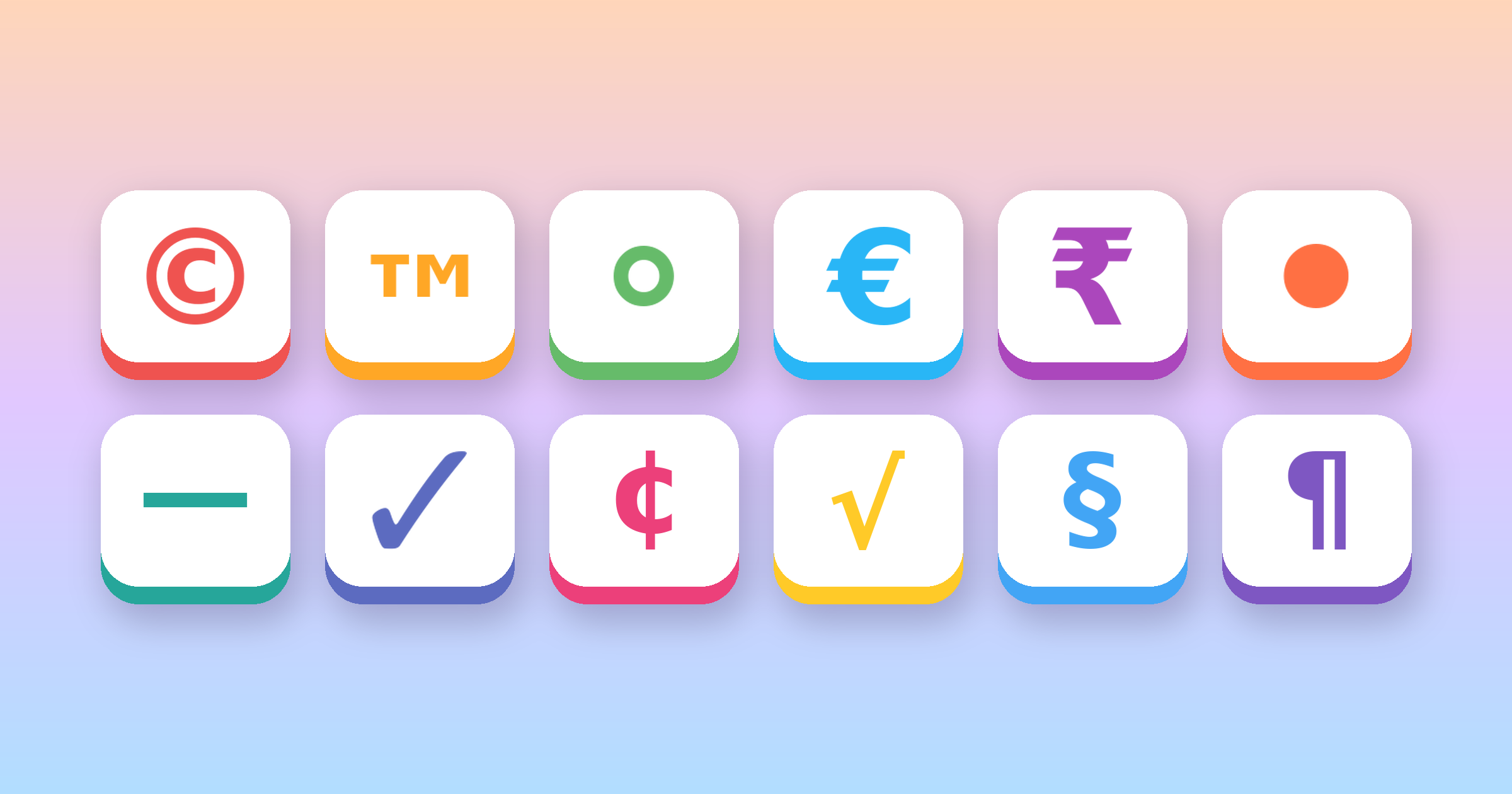
Need a ©, °, — or ₹ that isn’t printed on your keyboard? You can type almost all keyboard symbols without copying them from a website, and the method depends only on the device in front of you. This guide shows the quickest built-in way on Windows, Mac, iPhone, Android and Chromebook. It also lists the common Alt codes and links to a full step-by-step guide for each popular symbol.
Quick answer:
- Windows: press
Windows key + .(period) and pick the Symbols tab, or hold Alt and type the code on the numeric keypad (for exampleAlt + 0169for ©).- Mac: press
Fn/Globe + Eor choose Edit > Emoji & Symbols to open the Character Viewer.- iPhone and Android: open the symbol keys, or touch and hold a key to see extra characters.
- Chromebook: press
Search + Shift + Spacefor the emoji and symbol picker.
Table of Contents
Common keyboard symbols and their Alt codes
These are the symbols people ask about most. The Windows Alt codes come from Microsoft’s own list, and each linked guide covers Windows, Mac, phones and Word step by step.
| Symbol | Name | Windows Alt code | Full guide |
|---|---|---|---|
| © | Copyright | Alt + 0169 | How to type the copyright symbol |
| ™ | Trademark | Alt + 0153 | How to type the trademark symbol |
| ® | Registered | Alt + 0174 | See the trademark guide above |
| ° | Degree | Alt + 0176 | How to type the degree symbol |
| — | Em dash | Alt + 0151 | How to type an em dash |
| – | En dash | Alt + 0150 | Covered in the em dash guide |
| • | Bullet point | Alt + 0149 | How to type a bullet point |
| ✓ | Check mark | No standard Alt code | How to type a check mark |
| ₹ | Indian rupee | No Alt code | How to type the rupee symbol |
| # | Hash / hashtag | A key on most keyboards | How to type # on any keyboard |
| ¢ | Cent | Alt + 0162 | – |
| £ | Pound sterling | Alt + 0163 | – |
| ¥ | Yen | Alt + 0165 | – |
| § | Section | Alt + 0167 | – |
| ¶ | Pilcrow (paragraph mark) | Alt + 0182 | – |
| † | Dagger | Alt + 0134 | – |
| ¿ | Inverted question mark | Alt + 0191 | – |
| ¡ | Inverted exclamation mark | Alt + 0161 | – |
How to type symbols on Windows
Windows 11 and Windows 10 give you three built-in ways. Pick whichever suits your keyboard.
1. The emoji panel’s Symbols tab (works on every keyboard)
This is the easiest method and it doesn’t need a number pad, so it works on any laptop.
- Click where you want the symbol to go.
- Press
Windows key + .(period). The emoji panel opens. - Select the Symbols tab, then scroll through punctuation marks, accented letters and more.
- Click a symbol to insert it.
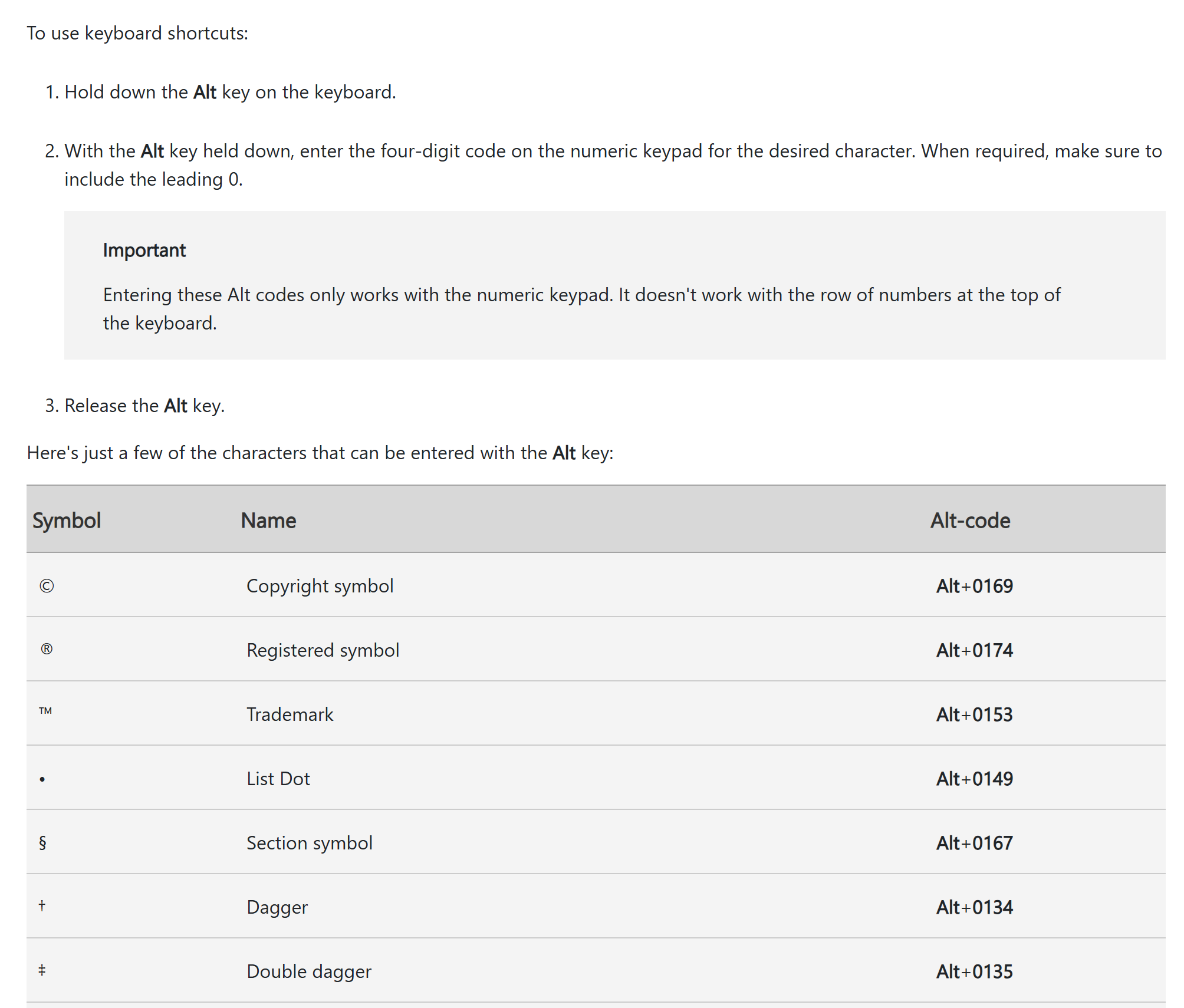
2. Alt codes (fastest if you have a numeric keypad)
Alt codes are number shortcuts for symbols. Once you know the code for a symbol you use often, this is the quickest way to type it.
- Hold down the Alt key.
- Type the code on the numeric keypad, including the leading 0 where the code has one (for example 0169 for ©).
- Release Alt and the symbol appears.
Alt codes only work with the numeric keypad on the right of a full-size keyboard, not the row of numbers above the letters. If your keyboard needs it, turn Num Lock on first. Microsoft’s keyboard tips page (external site, opens in new tab) lists the most common codes.
3. Microsoft Word: type the Unicode code, then press Alt + X
Word can turn any Unicode code into its character. Type the code and press Alt + X. For example, typing 0024 and pressing Alt + X gives you $. If Word converts the wrong characters, select just the code first, or type U+ in front of it. Microsoft notes that some Office apps, such as PowerPoint, can’t convert Unicode codes this way.
No numeric keypad? Use Character Map
On a laptop without a number pad, use the emoji panel above, or open Character Map (search for it from the Start menu). Find the symbol, copy it and paste it where you need it.
How to type symbols on a Mac
Every Mac has the Character Viewer, a built-in panel of emoji and symbols.
- Click where you want the symbol.
- Press
Fn/Globe + E, or choose Edit > Emoji & Symbols from the menu bar. - If the viewer is collapsed, click the expand button in its upper-right corner to see all categories.
- Search for the symbol by name (for example “degree” or “arrow”) and click it to insert it.
To show more categories, click the Action menu in the Character Viewer, choose Customize List, tick the categories you want and click Done. Macs also have Option-key shortcuts for many symbols; the symbol guides above list them. Apple’s emoji and symbols guide (external site, opens in new tab) covers the Character Viewer in more detail.
How to type symbols on iPhone and Android
Phone keyboards hide most symbols one or two taps away.
iPhone
- Tap the Number key for numbers and punctuation, then the Symbol key for more symbols.
- Touch and hold a key, then slide to choose an alternate character. For example, touch and hold e, then slide to é.
Android (Gboard)
- Switch to the numbers and symbols keys for punctuation and common symbols.
- Touch and hold a key to find accents and more options.
If a symbol isn’t on your phone’s keyboard at all, copy it from the table above and paste it.
How to type symbols on a Chromebook
- Emoji and symbol picker: press
Search + Shift + Space(on some keyboards it’s Launcher + Shift + Space). Search for the symbol and click it. - Accented letters: turn on Show accent marks and special characters in your Chromebook’s keyboard settings, then hold down a letter key and pick the accent from the menu.
- International keyboard: add the US International keyboard in Settings > Device > Keyboard and inputs > Input settings to type accents with dead keys (for example ‘ then e for é).
To see every Chromebook shortcut, press Ctrl + Search + S. Google’s Chromebook keyboard shortcuts page (external site, opens in new tab) lists them too.
Which method should you use?
- You type one symbol often (©, °, —): learn its Alt code on Windows or its Option shortcut on Mac. It takes a second once you know it.
- You need a symbol once: use the Windows emoji panel, the Mac Character Viewer or the Chromebook picker and search for it by name.
- You’re on a laptop with no number pad: skip Alt codes and use the emoji panel or Character Map.
- You’re writing in Word: Alt + X turns any Unicode code into a symbol, even ones with no Alt code.
Fun text and symbols to copy and paste
Looking for decorative text rather than one symbol? Try our collections of kiss text symbols and love emoticons or learn how to add Unicode symbols to X posts. If you write in other languages, see how to type in Hindi on a computer and phone.
FAQ
Why don’t Alt codes work on my laptop?
Alt codes need the numeric keypad. The number row above the letters doesn’t work for them. On a laptop without a keypad, use the emoji panel (Windows key + .) or Character Map instead.
What is the Alt code for the degree symbol?
Hold Alt and type 0176 on the numeric keypad to get °. Our degree symbol guide covers Mac, phones and Chromebook too.
How do I find the symbols menu on Windows 11?
Press Windows key + . (period) while typing, then select the Symbols tab in the panel that opens.
Where are the special characters on a Mac?
Press Fn/Globe + E or choose Edit > Emoji & Symbols to open the Character Viewer, Apple’s built-in panel of emoji and symbols.
Do I need to include the 0 in Alt codes?
Type each code exactly as it is listed. Microsoft writes the codes in this guide as four digits with a leading 0, such as Alt + 0169 for ©.
Subscribe to our weekly tech newsletter
Free: 100 Tech Terms ebook (worth $2.99)
Unsubscribe anytime. Privacy