
How to Fix a Corrupted User Profile in Windows 11, 10 and 7
Signed in to Windows and found a blank desktop, missing files and a message saying “You’ve been signed in with a temporary profile”? Or seeing “The User Profile Service failed the sign-in”? You probably have a corrupted user profile: your user profile, the folder and settings that make Windows look and work the way you set it up, has been damaged. Here’s how to fix a corrupted user profile in Windows 11, 10 and 7, starting with the safest fixes.

Quick answer: First restart and run sfc /scannow and DISM repairs. If the profile is still broken, create a new local administrator account in Settings → Accounts → Other users, sign in to it, and copy your files from C:\Users\OldName into the new profile. Your files are almost always still there.
Table of Contents
Signs of a corrupted user profile in Windows
- “You’ve been signed in with a temporary profile” notification
- “The User Profile Service failed the sign-in. User profile cannot be loaded.”
- Desktop, wallpaper, Start menu pins and settings reset to default every time you sign in
- Files seem to have disappeared from Documents and Desktop
Fix 1: Restart and check your files are safe
Sometimes a temporary profile appears after an update or a crash, and a simple restart fixes it. Before trying anything else, open File Explorer, go to C:\Users and check that your usual profile folder still has your Documents, Desktop and Pictures. Back them up to an external drive or cloud storage.
Fix 2: Repair Windows system files
Open Terminal (Admin) or Command Prompt (Admin) and run these commands one at a time, then restart:
sfc /scannow
DISM /Online /Cleanup-Image /RestoreHealth
Microsoft explains these tools in its guide to the System File Checker.
Fix 3: Create a new user profile and copy your files
This is the most reliable fix. Windows creates a fresh, healthy profile for the new account.
- Sign in with an administrator account (the temporary profile works if it has admin rights).
- Go to Settings → Accounts → Other users (Windows 10: Family & other users) and click Add account.
- Choose I don’t have this person’s sign-in information → Add a user without a Microsoft account to create a local account, or add your Microsoft account.
- Click the new account and choose Change account type → Administrator.
- Sign out and sign in to the new account so Windows builds the profile.
- Open
C:\Users\OldNameand copy your files from Desktop, Documents, Downloads, Pictures, Music and Videos into the same folders in the new profile. Don’t copy hidden system files like NTUSER.DAT. - Sign in to apps like Outlook, browsers and OneDrive again. Once everything works, you can delete the old account.
Fix 4: Repair the profile in the registry (advanced)
If a temporary profile keeps loading, a registry entry may be pointing to the wrong place. Back up the registry first, as mistakes can stop Windows starting.
- Press Windows + R, type
regeditand go toHKEY_LOCAL_MACHINE\SOFTWARE\Microsoft\Windows NT\CurrentVersion\ProfileList. - Look for keys starting with
S-1-5-21. If you see the same key twice, one ending in.bak, the .bak one is usually your real profile. - Rename the key without .bak (add .old to it), then remove .bak from the other key.
- In the corrected key, make sure ProfileImagePath points to your profile folder, and set State and RefCount to 0.
- Restart and sign in.
Windows 7: steps from our original guide
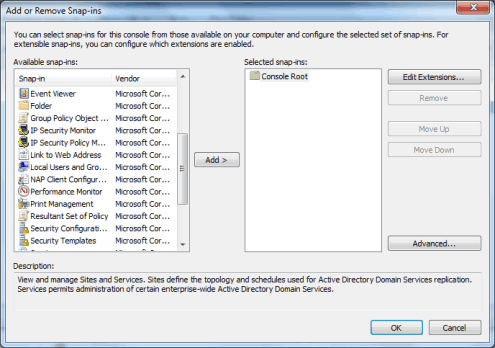
On Windows 7, create the new account from Control Panel → User Accounts and Family Safety → User Accounts → Manage another account → Create a new account. On domain computers, open the Microsoft Management Console (type mmc in Start), add the Local Users and Groups snap-in, and create a new user under Users. Then copy your files from the old profile as described above. Windows 7 no longer gets security updates, so consider upgrading if your PC supports it.

If your PC is old and keeps having problems, read our guide on how to upgrade an old desktop PC.
Frequently asked questions
Will I lose my files with a corrupted profile?
Usually not. Your files normally stay in C:\Users\YourName even when the profile won’t load. Copy them to a safe place before making changes.
What causes a corrupted user profile?
Common causes are failed Windows updates, sudden power loss, disk errors, antivirus interference and malware.
Can I fix a profile without creating a new account?
Sometimes. A restart, SFC/DISM repair or the registry fix may restore it, but creating a new profile is the most reliable solution.
Get our free weekly email: new tech guides and tools, no spam.
New and updated tech guides, a free tool worth bookmarking and one useful pick, once a week. No spam, unsubscribe anytime.
One email a week. Unsubscribe anytime. See our privacy policy.





Amazing!!! I have been struggling for over a week trying to fix a Netflix Instant Watch feature and a problem with my Windows troubleshooting programs not working. Netflix support blamed Microsoft Silverlight program, Microsoft support blamed Netflix, you get the picture, when it was actually a profile problem! This solution fixed BOTH issues. Thank you so much for your post.
Like the others I have not had this problem. (touch wood)
But I have copied the notes.
But why use esoteric terms like Domain or Workgroup.
Are they the same as stand alone system or network ?
Did not work for me. These instructions are the same as Microsoft Website.
I am told I need permission from the user of the account I am copying from. there is no too lto give it.
Odd I wil try and make all accounts admin level.
Hahaha, stupid joke!
Where is the profile of legacy software list????
does this include the appdata folder as well??
I’ve had permission issues when I tried this with the new profile.
some of the instructions here aren’t clear.
I just want to thank Daniel for this post. I first called Dell support for this issue, and they told me they could fix my corrupted profile, but it wasn’t covered in my warranty, so I’d have to pay over $100. I first thought this was my only option, and was crushed, thinking my computer was useless unless I paid that. Then I happened to do a quick Google search, found this page, and fixed the corrupted profile on my own. Thank you so much for saving me $100 and being user-friendly. I probably sound like one of those fake online reviews, but I am being sincere! :)
Just had this problem and found this article. It actually worked for me. Thanks!
The procedure just does NOT work, or works in VERY limited cases.
Lots of files in the profile are not regular files and can’t be copied using Copy/Paste.
I have this problem in my computer. When I click on Dell administrator following message appears. “The user profile Service service failed the logon. User profile cannot be located” The service person came and made a new user account and through that I can work with the computer. The problem is when I want to intall new programmes the computer does not allow it. I think I need to fix corrupted user profile. Your instructions may be very useful but I am afraid to do it as I am not much familiar with the technology. If I reformat the computer will it solve the problem? Thank you.
I was not aware of a problem. It is good to know how to fix it should this happen to my computer. I have had a problem with a server before but, I fixed that problem by changing servers.
This is very useful to know about. This is my first computer with windows 7 on it but, I have not had this problem, yet. I hope that I never will but, you never know. I like that I will be able to fix it though.
i thought it will be very helpfull if you make the screens back online, i see only X as the images.
mike