How to Update Chrome on Windows, Mac, Android and iPhone
Here is how to update Chrome in under a minute: on a computer, open Chrome, click the three-dot More menu at the top right, go to Help > About Google Chrome and click Relaunch if an update is waiting. On Android, update Chrome from the Play Store; on iPhone and iPad, from the App Store. Below are the exact steps for each device, how to check which version you have, and what to do when Chrome won’t update.

Quick answer: Windows and Mac: More (three dots) > Help > About Google Chrome > Relaunch. Android: Play Store > profile icon > Manage apps & device > Chrome > Update. iPhone/iPad: App Store > profile icon > Chrome > Update. Chromebook: update ChromeOS in Settings > About ChromeOS.
Table of Contents
Why you should keep Chrome updated
Chrome normally updates itself in the background, but an update only takes effect when the browser restarts. If you leave Chrome open for days, or always put your computer to sleep instead of shutting it down, you can end up running an older version for a long time. Updates bring security fixes as well as new features, so it is worth checking now and then, especially after you hear about a Chrome security problem in the news.
The good news: restarting Chrome to finish an update does not lose your work. Google says your open tabs and windows are saved and reopen automatically. The only exception is Incognito windows, which do not reopen after a restart.
How to update Chrome on Windows
- Open Chrome.
- At the top right, click the More icon (three vertical dots).
- Click Help > About Google Chrome. Chrome checks for updates as soon as this page opens and downloads any update it finds.
- Click Relaunch to finish the update.
If you don’t see a Relaunch button, you are already on the latest version. If you click Not now, the update is applied the next time you restart Chrome. On Windows you can also simply close every Chrome window and tab, then open Chrome again.
How to update Chrome on Mac
- Open Chrome.
- Click the More icon (three dots) at the top right.
- Click Help > About Google Chrome.
- Click Relaunch if an update is ready.
Tip for Macs: if Chrome is installed in your Applications folder, the About Google Chrome page can show an option called Automatically update Chrome for all users. Select it so every account on the Mac stays up to date without anyone having to remember.
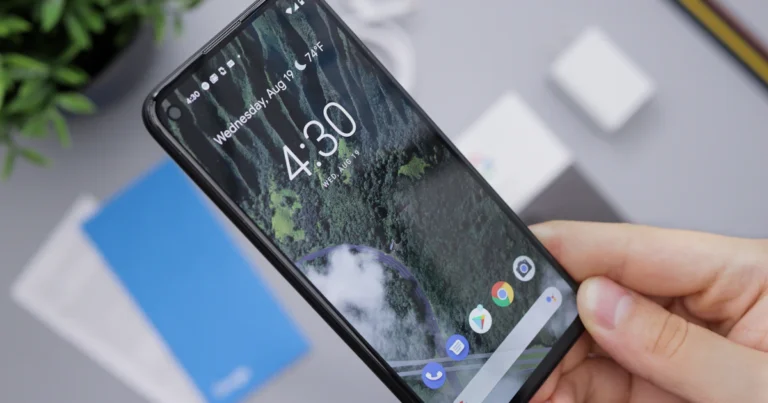
How to update Chrome on Android
- Open the Play Store app.
- Tap your profile icon at the top right.
- Tap Manage apps & device.
- Under Updates available, find Chrome.
- Tap Update next to Chrome.
If Chrome isn’t listed under Updates available, it is already up to date. Chrome on Android normally updates by itself according to your Play Store settings, so the steps above are mainly for when you want the update right now. Google lists Android 10 or later as the requirement for current Chrome versions.
While you are tidying up Chrome on your phone, our guide on how to clear cache on Android can also help if pages load slowly or look broken after an update.
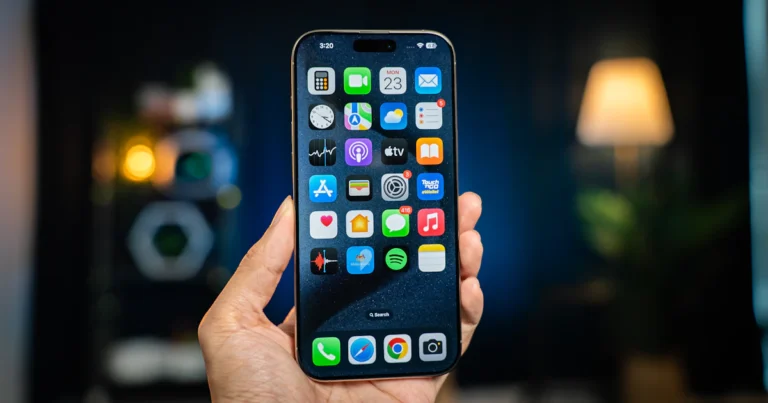
How to update Chrome on iPhone and iPad
- Open the App Store.
- Tap your profile icon at the top right.
- Scroll to Available Updates and look for Chrome.
- If Chrome is listed, tap Update. Enter your Apple Account password if asked.
Chrome then downloads and installs the update. If Chrome isn’t in the list, there is no update waiting. Like other iPhone apps, Chrome usually updates on its own based on your App Store settings. Google says current Chrome versions need iOS 17 or later.
For more iPhone housekeeping, see how to clear cache on iPhone, which covers Safari, Chrome and other apps.
How to update Chrome on a Chromebook
On a Chromebook, Chrome is part of the operating system, so you update Chrome by updating ChromeOS:
- Connect to Wi-Fi.
- At the bottom right, select the time, then Settings.
- At the bottom left, select About ChromeOS.
- Select Check for updates. If an update is found, it downloads automatically.
- Select Restart in the update notification to finish.
To see how long your Chromebook will keep getting updates, go to About ChromeOS > Additional details and look under Update schedule. See Google’s Chromebook update guide for details.
How to check which version of Chrome you have
- Windows and Mac: open More > Help > About Google Chrome. The version number is the series of numbers under the Google Chrome heading. Opening this page also starts an update check.
- Android: open Chrome and tap More > Settings > About Chrome.
- iPhone and iPad: open Chrome and tap More > Settings > Google Chrome for details about the app.
- Chromebook: the ChromeOS version is shown under Google ChromeOS on the About ChromeOS page.
What to do when Chrome won’t update
If you see a message such as “Update failed” or “An error occurred while checking for updates”, work through these fixes from Google’s Chrome update troubleshooting page:
- Restart your computer, then try the update again from About Google Chrome.
- Check your antivirus, firewall and parental controls. Make sure they are not blocking software updates, and that the Google update servers tools.google.com and dl.google.com are allowed.
- Check the system requirements. Chrome no longer updates on Windows 7, 8 and 8.1 (or XP and Vista). Google currently lists Windows 10 or later, and macOS 13 Ventura or later, as the minimum. On an older system Chrome keeps working but stops getting updates.
- Turn off compatibility mode on Windows. Right-click the Chrome icon, click Properties > Compatibility and uncheck Run this program in compatibility mode for.
- Reinstall Chrome. Uninstall Chrome, check the system requirements, then download and install Chrome again. Before you uninstall, export your passwords from Chrome as a backup, in case anything is saved only on this computer.
- On a Mac, check for unwanted apps. In Finder, open Applications and look for programs you don’t recognise. Remove them with their uninstaller or drag them to the Trash, then empty the Trash.
“Updates are disabled by administrator”
This message means your computer is managed, for example a work or school device, and the organisation controls Chrome updates. You can’t change this yourself: ask your IT administrator to update Chrome for you. On a managed Chromebook you may see “Updates are managed by your administrator” instead.
Make the most of an up-to-date Chrome
Now that you know how to update Chrome on every device you own, it is a good moment to tune it to the way you work. You can block websites on Chrome to cut distractions or keep children safer, and review which extensions you really need with our guide to installing Chrome extensions safely.
FAQ
Does Chrome update automatically?
Yes. On computers, Chrome updates in the background and applies the update when you close and reopen the browser. On Android and iPhone, Chrome updates through the Play Store or App Store according to your automatic update settings. Checking manually just makes it happen sooner.
Will I lose my tabs if I update Chrome?
No. When Chrome relaunches to finish an update, your open tabs and windows reopen automatically. Incognito windows are the exception and do not come back.
Why can’t I update Chrome?
The most common reasons are an old operating system that Chrome no longer supports (such as Windows 7 or macOS 12), security software blocking the update, or a work or school device where updates are controlled by an administrator. The troubleshooting steps above cover each case.
How do I update Chrome on a laptop?
The steps are the same as on any Windows or Mac computer: More > Help > About Google Chrome, then Relaunch. On a Chromebook laptop, update ChromeOS from Settings > About ChromeOS instead.
Where is the official Chrome update guide?
Google’s own instructions are on the Update Google Chrome help page, which has tabs for computer, Android and iPhone.
Stuck on a gift? Try our free Gift Idea GeneratorIdeas for anyone by age, job, interests and budget, with Amazon.com and Amazon.in linksFind gifts →Get our free weekly email: new tech guides and tools, no spam.
New and updated tech guides, a free tool worth bookmarking and one useful pick, once a week. No spam, unsubscribe anytime.
One email a week. Unsubscribe anytime. See our privacy policy.