
How to Get Bing Wallpapers on Your Desktop Automatically (2026)
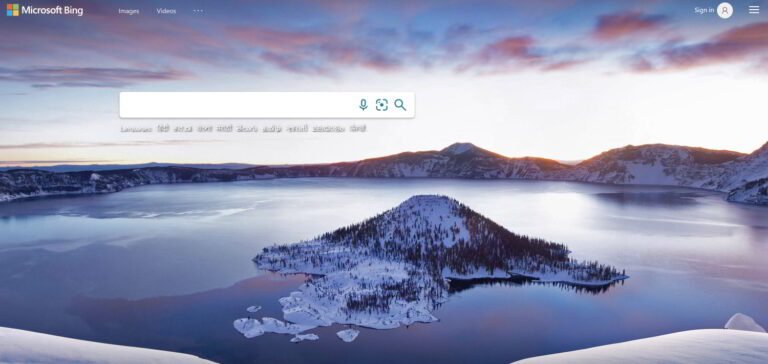
Love the stunning photo on the Bing homepage? You can download Bing wallpapers automatically and have a new one on your Windows desktop every day, without saving each image by hand. Back in 2012 we used Microsoft’s Bing Desktop app for Windows 7, which has long been retired. Here is what works in 2026.

Quick answer: Install Microsoft’s free Bing Wallpaper app to set the Bing image of the day as your desktop background automatically. On Windows 11 you can also turn on Windows Spotlight for the desktop in Settings > Personalization > Background, which rotates Microsoft’s own photo collection with no extra app.
Table of Contents
Method 1: Microsoft’s Bing Wallpaper app
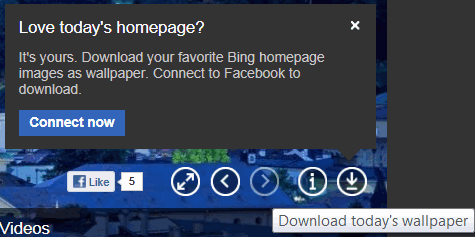
The official Bing Wallpaper app sets a new desktop background every day using the images featured on the Bing homepage, and lets you browse recent images and read where each photo was taken.
- Download the installer from Microsoft’s Bing Wallpaper page and run it.
- During setup, look at the extra options: the installer may offer to make Bing your default search engine or MSN your homepage. Untick them if you don’t want those changes.
- When it finishes, today’s Bing image becomes your wallpaper, and it changes automatically each day while the app is running.
- Use the app’s icon in the taskbar’s system tray to switch between recent images or learn more about the current one.
Prefer not to keep an app running? The other methods below need nothing extra.
Method 2: Windows Spotlight on the desktop (Windows 11)
Recent versions of Windows 11 can rotate beautiful photos on your desktop by themselves:
- Open Settings > Personalization > Background.
- Set Personalize your background to Windows spotlight.
Windows then changes the wallpaper regularly from Microsoft’s own collection of landscape and travel photos, which are in the same style as Bing’s. You can also use Spotlight for the lock screen under Settings > Personalization > Lock screen.
Method 3: Make a slideshow of your favourite Bing images
If you only like some of the daily images, save your favourites into one folder and use Windows’ built-in slideshow:
- Create a folder, for example Pictures\Bing wallpapers, and save the images you like.
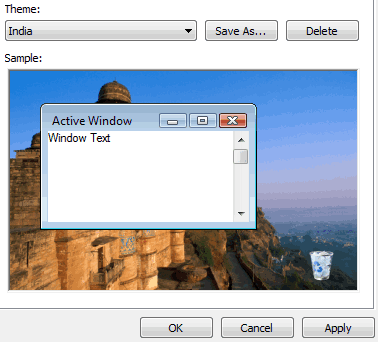
- Go to Settings > Personalization > Background and choose Slideshow.
- Browse to your folder and choose how often the picture changes.
Looking for ideas? Browse our collection of the most popular Bing wallpapers.
Things to know about Bing wallpapers
- Personal use only: Bing’s images belong to their photographers and agencies. Using them as your own desktop background is what they are offered for; don’t republish them or use them commercially.
- Different images by country: Bing sometimes shows different daily images in different regions.
- Multiple monitors: the app and Spotlight use one image across your screens; for a different photo on each, pick your own images in a slideshow.
FAQ
Is the Bing Wallpaper app free?
Yes. It is a free app from Microsoft.
Can I get Bing wallpapers without installing an app?
Yes. On Windows 11, turn on Windows Spotlight for your desktop background, or save the images you like and use a slideshow.
What happened to Bing Desktop?
Bing Desktop was a Windows 7-era app that added a Bing search box and daily wallpaper to the desktop. It is no longer offered; the Bing Wallpaper app and Windows Spotlight replace its wallpaper feature.
How often does the Bing wallpaper change?
Bing features a new homepage image every day, and the Bing Wallpaper app updates your desktop to match.
Stuck on a gift? Try our free Gift Idea GeneratorIdeas for anyone by age, job, interests and budget, with Amazon.com and Amazon.in linksFind gifts →Get our free weekly email: new tech guides and tools, no spam.
New and updated tech guides, a free tool worth bookmarking and one useful pick, once a week. No spam, unsubscribe anytime.
One email a week. Unsubscribe anytime. See our privacy policy.

Beautiful pictures! A pleasant surprise each morning.
Hey There Quickonlinetips,
I just stumbled across this and I have just a short while ago downloaded the bing desktop add-on that provides me a various wallpaper each day and the bing search bar on my desktop. I was wondering if there was a way to delete the bing obtain with the search bar and get back to just my wallpaper and my desktop icons. please enable!
I look forward to your next post
I am using hp 630, laptop and already installed the bing desktop in my device but, I am not able to download the wallpapers from bing if you have any idea then please share with me. I will be very thankful to you.
please cancel bing wallpaper and bing from my laptop..
You will need to uninstall the Bing Desktop software from your computer.
I had done the same thing and waited to change my wallpaper. But no new wallpaper came. Any suggestion
Why this is only for window 7 . take me a look for window XP also